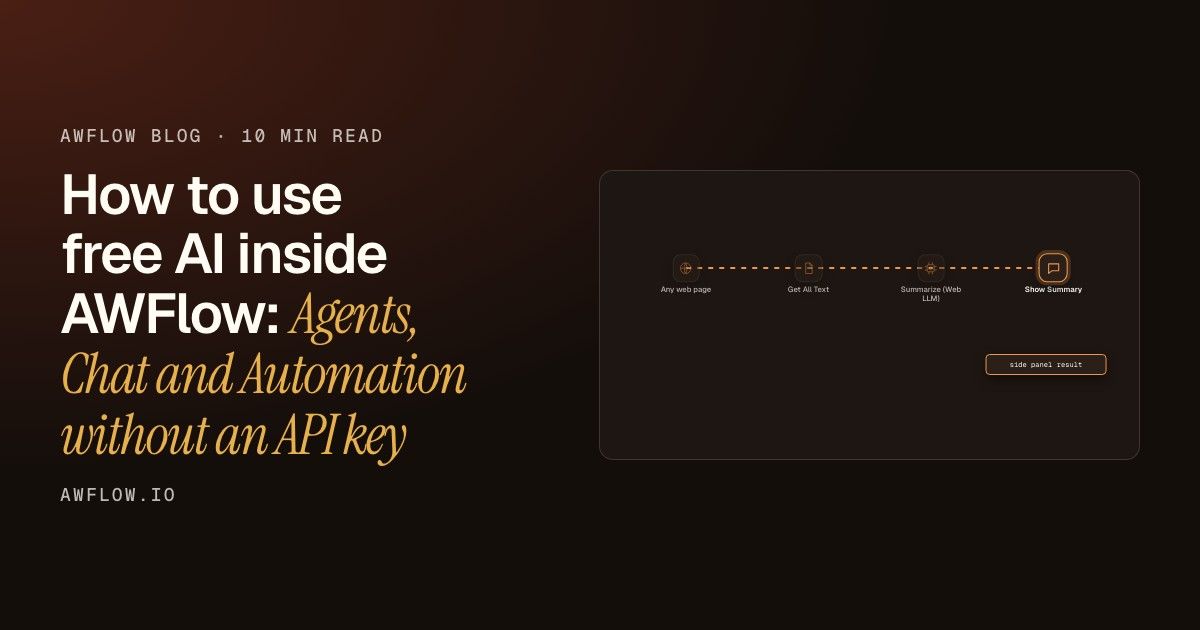
How to use free AI inside AWFlow: Agents, Chat and Automation without an API key
Install a local AI model once and it powers everything in AWFlow: the chat assistant, your agents and your automation workflows. A practical walkthrough, step by step.
Install a model once. Chat, agents and automations use it for free.
The hook. One install, three things.A 3-second opener before the first chapter.The hook. One install, three things.A 3-second opener before the first chapter.
Hook↻ ReplayText version
One install: Install a model once. Chat, agents and automations use it for free.
Most AI tools charge per message. Every automation run, every chat reply, every agent action ticks a meter. AWFlow includes a local AI layer that runs models inside your browser. Install a model once, and the three main features—Chat, Agents and Automation—all use it at zero per-use cost.
This is a walkthrough. By the end you will have a model installed, the chat assistant pointing at it, an agent using it, and a working automation that summarises the page you are on.
Step 1 — Install a model
Everything starts on the Local AI page. Open AWFlow, go to Settings, then Local AI. You will see models grouped by task: chat, embeddings, image classification, speech-to-text and more.
123
1Pick the task firstFor chat and agents: pick Chat.
2Read the cardSize and device fit before you download.
3Protect your storageTurn on Keep models installed.
Pick a model and install it.For most laptops: Llama 3.2 1B (q4f16_1), about 879 MB.Tasks first. Choose Chat for the assistant and agents.Models are grouped by task across WebLLM, TF.js and transformers.js.Each card shows size and whether it fits your device.Device fit is estimated from your browser's memory report; test after installing.Keep models installed tells the browser not to clear them.Browsers can evict stored data under storage pressure; this requests persistent storage.Pick a model and install it.For most laptops: Llama 3.2 1B (q4f16_1), about 879 MB.
Guided screenshot↻ ReplayText version
-
Pick the task first: For chat and agents: pick Chat.
-
Read the card: Size and device fit before you download.
-
Protect your storage: Turn on Keep models installed.
For most laptops, start with Llama 3.2 1B (q4f16_1) — about 879 MB. If answers feel weak after testing, go to the 3B variant. 12
1Choose a variantSmallest first: about 879 MB.
2InstallDownloads in the background while you work.
Once done, AWFlow sets it as the default for chat.No further configuration needed.Pick the smallest that fits your device.q4f16_1 is 4-bit weights, float-16 compute — the usual starting point.Install runs in the background. You can keep working.Progress shown in the model card; cancel any time.Once done, AWFlow sets it as the default for chat.No further configuration needed.
Guided screenshot↻ ReplayText version
-
Choose a variant: Smallest first: about 879 MB.
-
Install: Downloads in the background while you work.
Once the download finishes, AWFlow automatically sets the model as the default for chat.
Step 2 — Chat with free AI
Open the AWFlow side panel in any browser tab. The chat box is front and centre. The model picker at the bottom shows the model you just installed.
123
1Check the modelShows the installed model by default.
2Type a messageAsk anything, or ask about the page.
3Context meterShows how much of the window is used.
Nothing left the tab.Zero data sent to an external endpoint when using Web LLM.The model picker shows which model handles your message.Selects from installed Web LLM models on the Local AI page.Type anything. The reply comes from your device.The request never leaves the browser when using a local model.The context meter shows the model's memory filling up.Each message adds to the context window; older ones roll off when it fills.Nothing left the tab.Zero data sent to an external endpoint when using Web LLM.
Guided screenshot↻ ReplayText version
-
Check the model: Shows the installed model by default.
-
Type a message: Ask anything, or ask about the page.
-
Context meter: Shows how much of the window is used.
You can ask about the page you are reading. Type “Summarise this page” and AWFlow reads the visible text and passes it to the model.
Your browser
Local model
Chat panel
Web LLM modelrunning in your browser
page text + question
the summary
Network callnoneLeaves your deviceno
Same interface as a cloud model. Just a different destination.The chat box is identical; the difference is the model picker setting.Your text goes to the model. The model is also in your browser.The Web LLM engine runs on your GPU via WebGPU; no HTTP request to any server.The model is in the same browser. No round trip to a server.The inference is local; weights were downloaded once.The reply comes back. Nothing left the tab.Zero data sent to an external endpoint.Same interface as a cloud model. Just a different destination.The chat box is identical; the difference is the model picker setting.
Round trip↻ ReplayText version
Your browser: Chat panel · Local model: Web LLM model
Chat panel → Web LLM model: page text + question
Web LLM model → Chat panel: the summary
Network call: none · Leaves your device: no
Step 3 — Build an agent that uses no API
An agent is a chat-driven assistant that can act: read pages, fill forms, search notes. When the model behind the agent is local, every agent action is free.
123
1Start blankOr pick a template.
2Describe what you wantAria drafts the agent for you.
3Use a templatePre-built agents for common jobs.
Either way, the model is the one you installed.The agent uses the Local AI default unless you change the model picker.Start from scratch or pick a template.Templates are agent definitions pre-filled with a role, skills and a system prompt.Describe the agent in plain words.Aria reads the description and drafts the agent: role, skills, optional knowledge base.Templates give you a ready-made starting point.Each template sets the role, enables the relevant skills and includes a prompt.Either way, the model is the one you installed.The agent uses the Local AI default unless you change the model picker.
Guided screenshot↻ ReplayText version
-
Start blank: Or pick a template.
-
Describe what you want: Aria drafts the agent for you.
-
Use a template: Pre-built agents for common jobs.
In the agent builder, the Identity tab sets the role and name. The Skills tab controls what the agent is allowed to do. After saving, the agent uses the default local model. To override it for one agent, change the model picker inside that agent’s chat:
123
1Open an agentEach agent has its own thread.
2Model for this agentChange it here to override the default.
3ChatAll its actions use the chosen model.
Switch back to the default at any time.The picker resets to the Local AI default if you clear the override.Open an agent's chat. Each one has its own thread.Threads are per agent; memory and context are scoped to the agent.Change the model for this agent only.The model picker here overrides the default for this agent's session.Everything the agent does uses that model.Read page, search, recall from memory — all route through the same model.Switch back to the default at any time.The picker resets to the Local AI default if you clear the override. Guided screenshot↻ ReplayText version
-
Open an agent: Each agent has its own thread.
-
Model for this agent: Change it here to override the default.
-
Chat: All its actions use the chosen model.
Step 4 — Add free AI to an automation workflow
Automations run on a schedule or on a trigger, without you being there. A local model works in automations too: add a Web LLM node, and every run is free.
The fastest way to see this is the Summarize This Page example. It reads the page you are on and returns a summary in the side panel.
Open the summary step. Change length and style to taste.Summarize node: max 120 words, a few bullet points. The model is the Local AI default.A real workflow. Copy it to your AWFlow in one click.The docs example: Get All Text → Summarize (Local AI) → Show Summary.Open the summary step. Change length and style to taste.Summarize node: max 120 words, a few bullet points. The model is the Local AI default.
Workflow embed↻ ReplayText version
summarize-this-page.awf Max words: 120 · Style: a few bullet points
After copying, look at the Summarize step. Its model slot is pre-filled with the model you installed.
123
1The AI stepHolds the prompt.
2Model slotYour installed local model lives here.
3Test runRuns on the current page.
The model slot is the only thing that changes if you upgrade.The logic, the prompt and the rest of the workflow stay exactly the same.The AI step is a Basic LLM Chain.Applies a prompt template to the incoming text. Any model can sit in the slot below it.The model slot holds the local model.Web LLM node: uses the installed browser model. Change to a cloud model to upgrade.Test it on the current page.Test Workflow button runs the workflow once and shows outputs under each node.The model slot is the only thing that changes if you upgrade.The logic, the prompt and the rest of the workflow stay exactly the same.
Guided screenshot↻ ReplayText version
-
The AI step: Holds the prompt.
-
Model slot: Your installed local model lives here.
-
Test run: Runs on the current page.
The model slot is intentional. The workflow does not hardcode a model: it uses whichever model is in the slot. Swap to a cloud model for tougher jobs; the rest of the workflow stays the same.
Any web page
Get All Text
Summarize (Web LLM) Show Summary
visible textraw page text120-word summaryside panel result
The result appears in the side panel.Show Summary node writes to the display panel.The page text goes in.Get All Text reads the visible DOM text.Get All Text extracts what is readable.All visible text nodes, no HTML, no markup.The local model summarises it.Web LLM node: prompt + text → summary. No API call.The result appears in the side panel.Show Summary node writes to the display panel.
Pipeline↻ ReplayText version
Any web page: visible text
Get All Text: raw page text
Summarize (Web LLM): 120-word summary Show Summary: side panel result
What free AI covers, and what it does not
Local models handle a wide range of everyday AI jobs well. They miss on tasks that need large context windows, the most recent knowledge or very complex reasoning.
Good fits for local models
What a local model handles well in AWFlow
Summarising pages and articles (done)local AI
Extracting structured fields from text (done)local AI
Classifying and tagging items (done)local AI
Rewriting and reformatting text (done)local AI
Drafting short messages based on context (done)local AI
Answering questions about the current page (done)local AI
Q&A on the current page is the simplest workflow you can build.Pass the page text as context; ask the question.Summarising works well.Summarisation is a compression task; small models are competitive.Extracting fields from messy text is a strong use case.Structured extraction from page text: name, price, date, etc.Classifying items is fast and free at any scale.Labelling thousands of items costs the same as labelling one.Rewriting short text: subject lines, bullets, short replies.Small context window; keep the input short for best results.Drafting short messages from context saves minutes per day.Agent with page context + email draft prompt.Q&A on the current page is the simplest workflow you can build.Pass the page text as context; ask the question.
Checklist↻ ReplayText version
What a local model handles well in AWFlow
Summarising pages and articles
Extracting structured fields from text
Classifying and tagging items
Rewriting and reformatting text
Drafting short messages based on context
Answering questions about the current page
When a task regularly produces weak results, the upgrade path is one change: swap the model slot to a cloud provider. The rest of the workflow is unchanged, and only that step becomes a paid call.
Your turn
Try it: Summarize any page for free Copy the workflow, install a local model, run it on the page you are reading.
Try it now. The workflow is one click away.Try it now. The workflow is one click away.

Try it↻ ReplayText version

Try it: Summarize any page for free · Copy the workflow, install a local model, run it on the page you are reading. · https://docs.awflow.io/examples/summarize-this-page.awf
What we covered
01Install once on Local AI: chat, agents and workflows share the model
02The chat assistant uses the local model by default
03Workflows use a model slot: free now, cloud model later, no rewrite
Workflows stay the same when you upgrade the model.The model slot is a dependency node; changing it does not change the logic.One install. Everything uses it.One model on Local AI, shared by the assistant, each agent and every workflow node.Chat is immediate. Open the side panel and start.Default model is pre-selected; change it from the model picker.Workflows stay the same when you upgrade the model.The model slot is a dependency node; changing it does not change the logic.
Recap↻ ReplayText version
What we covered
Install once on Local AI: chat, agents and workflows share the model
The chat assistant uses the local model by default
Workflows use a model slot: free now, cloud model later, no rewrite