Everyone is using AI to do work for them. They’re calling it the “decade of agents”!
But if that’s all you’re using AI to do, then you’re cheating yourself. AI is an incredible tool for learning. I’m optimistic for a future where every student can learn with an infinitely patient and infinitely knowledgeable expert at their fingertips.
In the meantime, I live in a present where AI tools like Gemini Notebook are turbocharging learning.
I’m wrapping up a Master’s degree in Computer Science and Gemini Notebook has been an incredible helping hand. Learning and memorizing things with the help of AI is incredible.
Read on, and I’ll show you how to learn with Gemini Notebook.
What happened to NotebookLM? #
NotebookLM is Gemini Notebook’s predecessor. It was a very similar product, but the name was sunset as the app got more features and tighter integration with Gemini.
Gemini Notebook is the fully-mature version of NotebookLM. Google just renamed the product in Summer of 2026.
What is Gemini Notebook? #
Gemini Notebook is a tool for learning. This is in sharp contrast to most other AI tools, which are tools for doing.
With Gemini Notebook, you can select or upload your own sources, and the app will point AI at your own sources to generate helpful learning tools.
You can get briefing docs, study guides, quizzes, flashcards, and even AI-generated podcasts. These are cool enough on their own, but the best part is that all of the content is grounded in your sources.
That means less hallucination, but also more personalization.
Adding a source to your Gemini Notebook #
When you create a new notebook, you’ll be prompted to give it a source. You can have lots of sources, but you need to have at least once source.
You can search the web or use Gemini to synthesize a source (including with deep research), or use a source you know. You can upload files, attach links, select from a Google Drive, or even paste text.
The last one is the least structured, but pasting text is my most used way to get sources into Gemini Notebook. I’m a big user of Obsidian, so I just paste in the markdown notes I take as my primary source.
Depending on the size of your source, Gemini will take a bit to ingest the content. Then, you’ll see some more options.
If you don’t like the generated name for your source, you can edit it. This post is sponsored by ** Cosmos**, the agent orchestration platform for AI-native engineering teams.
Cosmos is a shared system where agents work across triage, spec, implementation, review, testing, deployment, and feedback with the context, memory, and controls teams need. Humans steer, agents do the implementation, and the system gets better as the team uses it.
Generate a quiz with Gemini Notebook #
My favorite feature in Gemini Notebook is the quizzes. I think quizzes are a great way to learn, mostly because of the principle of Active Recall.
You can generate a new quiz in the studio.
When you go to generate a quiz, you’ll get options for customization. Here, give your preference for length, difficulty of questions, and specific topics.
And in just a few seconds, you’ll get a quiz to take!
Make an infographic with Gemini Notebook #
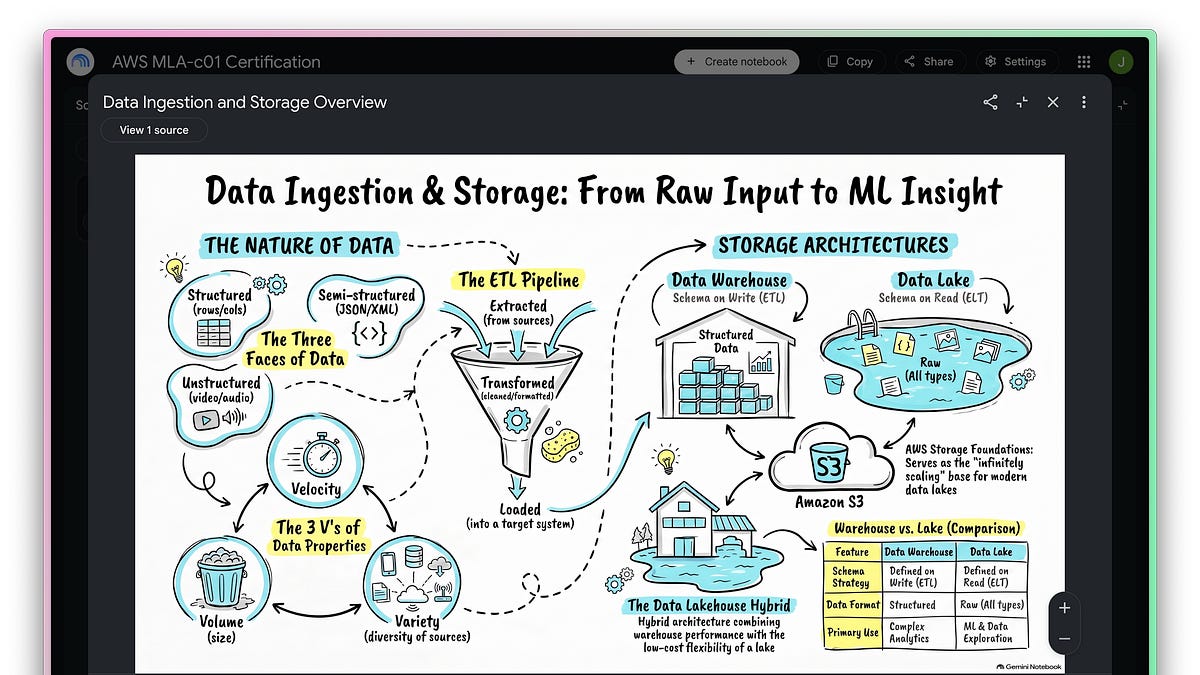
Another awesome feature is infographics. Gemini will pull from your sources to make custom drawings.
Making an infographic in Gemini Notebook starts by you selecting the infographic option in the studio. You’ll be presented with some options for style, orientation, detail, and custom instructions.
If you have a lot of sources, you can even select which of the sources to pull from. What do you think of this first pass?
Using Gemini Notebook for flashcards #
Flashcards are a great way to learn too. My learning process generally looks like:
Read content/watch lecture
Take notes
Turn those notes into flashcards
Turn those flashcards into quizzes
So obviously I’m pumped that Gemini Notebook lets you generate flashcards from your notes. Do you have any idea how much time I wasted doing that in undergrad?
As usual, you can start flashcard generation from the studio.
Once the flashcards are generated, you can go through them like you would any other flashcard app.
At the end, you’ll get a report on how you did.
Love this tutorial? You can get more just like it in your inbox :)
Gemini Notebook mind maps #
Mind maps are a cool way to see all the topics you’re studying at a glance.
But the cool part is what happens when you dig deep into the mind map. Clicks will generate queries to Gemini, which will be augmented by your sources.
So as you navigate your way through material, you’ll get your own personal tutor explaining concepts to you.
Audio overviews in Gemini Notebook #
This feature gets the most buzz on the internet.
Gemini can take your sources and generate an “audio overview”, which is kind of like a fake podcast.
Some people are very auditory learners, so having this as an option to go over written content is really nice. Plus, you can save the generated file and listen to it like you would a podcast, while you’re exercising or cleaning or even just going for a walk.
You get quite a lot of customization options for Gemini Notebook’s audio overviews.
The podcasts are usually quite corny, but you’d be surprised how much information you can retain just listening through the fake conversations in them.
Gemini Notebook video overviews #
Video overviews are a pretty new feature to Gemini Notebook.
Do you like watching infographic explainer videos on youtube about random stuff? If so, you’ll probably love this.
But if you’ve never done that, you probably won’t care too much about video overviews made by AI!
Video overviews give you quite a bit of customization options.
You’ll notice that video overviews take the longest to generate.
Here’s a few screenshots from the video:
Generating reports in Gemini Notebook #
Reports don’t make a ton of sense if you’re just trying to learn from course notes. But they are a great way to pull tons of information from multiple sources into a single, readable brief.
In fact, the “Briefing Doc” report format is the one that I use the most.
You’ll get a text output that can easily be exported to a Google Doc.
Do you get a lot of use out of Gemini Notebook? I’d love to hear from you in the comments!
- Jeff