In Part 1, I set up Switch on my Mac, connected it to Slack, and built two agents, a Claude Code incident lead and a Codex metrics agent. I then had them trace a planted checkout bug, reproduce it, chart the damage, and propose a fix, all inside one Slack channel. Here I take the same workspace further by adding four more rooms, ways to connect them, and the settings that decide what your agents can touch.
Four more rooms #
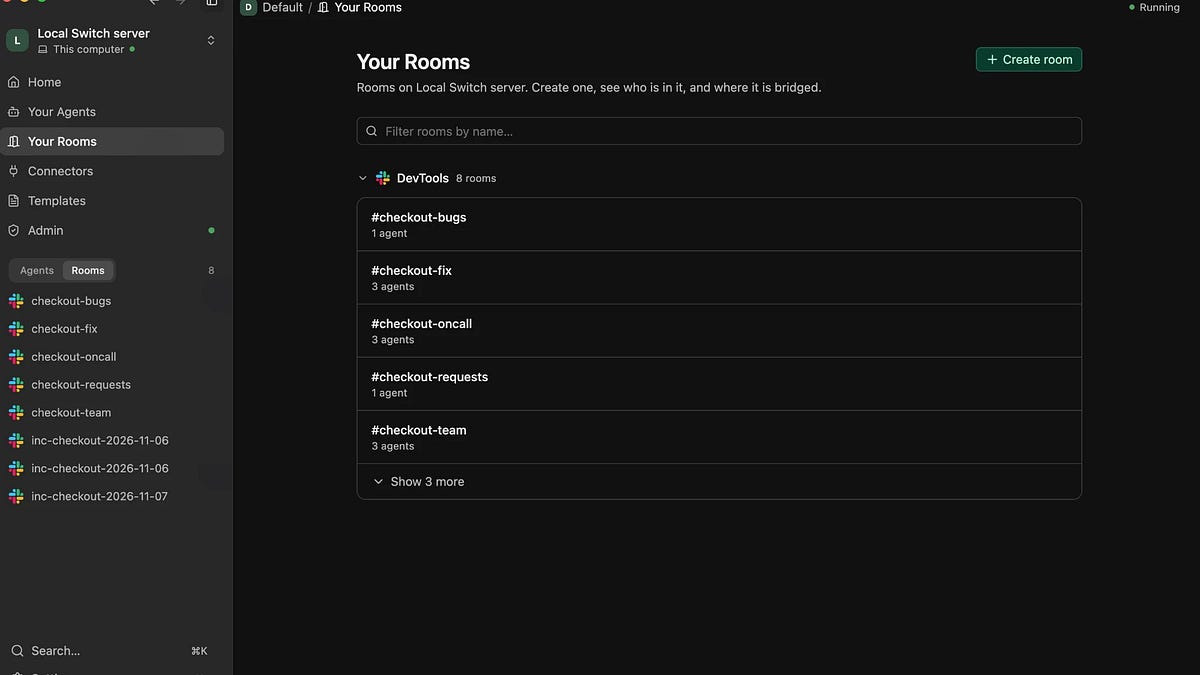
Next, I set up four more rooms to try the other patterns Switch is built for.
The Your Rooms page in the Switch Console, listing the checkout rooms for bugs, fixes, on-call alerts and feature requests.
Turning requests into specs
In #checkout-requests, intake-agent (Codex) turns feature requests into short specs. I asked “can we support percentage coupons that only apply to one SKU?”. It read the README and the source first, then asked three questions in the thread, and it would write the spec once I answered.
The intake-agent replies in the Slack thread, confirming that percentage coupons for a single SKU are feasible and asking three scope questions before it writes the spec.
Triaging bug reports
In #checkout-bugs, triage-agent (Claude Code) reproduces bug reports, counts matching failures in the logs, and posts a ticket-ready write-up or asks for what’s missing. I reported a deliberately misleading bug, “iOS users in Kenya get “checkout_failed” when using coupon WELCOME5”. The coupon and the country are red herrings.
The triage agent didn’t take the bait. It linked the report to the write-up it had already posted and said the bug is not specific it affects any iOS/Android checkout. It also checked the repo, saw the fix hadn’t reached main, and marked the bug “still High severity, still unfixed“. All three points were correct.
The triage-agent’s write-up in #checkout-bugs: it links the report to the existing ticket, says the bug is not specific to iOS, and keeps it at High severity and unfixed.
Fixing and reviewing on GitHub
In #checkout-fix, fixer (Claude Code) works in its own git worktree. It writes a failing test and the smallest fix on a fix/… branch, pushes it, and opens a pull request. The reviewer-agent (Codex) reviews it on GitHub, and a person merges.
Switch’s GitHub connector needs a server with an HTTPS address, which a laptop lacks, so the Connectors page suggests using the computer’s own GitHub sign-in instead.
So I pushed the demo repo to GitHub and told both agents to use the GitHub CLI (gh), already signed in on my Mac. Codex’s sandbox blocks network access, so I also turned on Bypass permissions for reviewer-agent. That lets every action run without asking, so use it only for an agent whose instructions you trust.
I asked the fixer agent to fix the lowercase country code bug. Within a minute, it had restored the toUpperCase(), added a fallback for unknown country codes, and added a test with lowercase gb and us, the case the original tests missed. All 6 tests passed. It opened a pull request describing what broke, why, the fix, and the test output, posted the link in the room, and asked @reviewer to review it.
In Slack, the fixer reports that its pull request is open, links it in the room and asks the reviewer to take a look.
The reviewer-agent read the diff, ran the tests itself, and approved with no findings. GitHub records it as a comment because both agents act as me, and GitHub doesn’t let you approve your own pull request. The merge button is still mine, as I wanted. A clean approval is fair for a one-line fix with a test, but I’d want to see it push back on something before trusting it with a bigger change.
The pull request the fixer opened on GitHub: what broke, why, the fix and the test output, with the reviewer-agent’s approval underneath.
Handling an alert
#checkout-oncall has the same two incident agents. This time I posted the problem the way a monitoring tool would.
@projectmanager-agent ALERT [checkout-service] 5xx error rate 38% (threshold 5%) for 15 min, since 08:21 EAT. Top error: checkout_failed reason=invalid_amount. Clients: ios, android. The alert posted in #checkout-oncall the way a monitoring tool would. The incident lead starts a session and says it will open an incident channel.
The projectmanager-agent ran the same playbook within about a minute. It opened #inc-checkout-2026-11-07, added me, and briefed metrics-agent, even saying what to expect. It posted the reproduced cause with the same commit and diff, proposed a fix and the missing test, and asked whether to roll back v1.4.0 or fix forward. Its evidence matched the logs, down to the first invalid_amount error at 08:20:20, 6 seconds after the deploy.
The #inc-checkout-2026-11-07 channel the incident lead opened on its own: the reproduced cause, the same commit and diff, a proposed fix, and the question of rolling back or fixing forward.
What it didn’t know matters more. It never mentioned that fixer had already fixed and reviewed the same bug in #checkout-fix, a room projectmanager-agent isn’t in. An agent only sees its own rooms, which is good for privacy, but agents won’t connect the dots between rooms unless you put them in the same room or someone links the work.
Connecting rooms #
Switch has features for joining up separate rooms. You mostly don’t set them up in the Console. Instead, you ask switch-buddy, which does it with its own Switch tools.
Links and roles
A link is a one-way, labelled pointer from one room to another. Agents see the linked rooms’ names, descriptions and the label, so they know where to go for what, but a link doesn’t grant access. I had switch-buddy link #checkout-oncall to #checkout-fix as “fixes”, and back as “incidents”, since links only go one way.
A role is a job in a room, with a name and instructions. You address the job (such as @reviewer) and whichever agent holds it answers, so you can swap agents without changing anything else in the room. A role is either exclusive, with one holder at a time, or shared. The switch-buddy assistant created an exclusive “fixer” role and a shared “reviewer” role in #checkout-fix, which is why fixer’s pull request asks @reviewer.
To do that it first joined the room, so your assistant ends up in the rooms it configures. Typing !roles lists each role and its holder.
Typing !roles in a room lists each role and its holder: the exclusive fixer role sits with the fixer, and the shared reviewer role with the reviewer-agent.
Documents, references and packages
A room can hold documents: content plus instructions telling agents what to do with it. The switch-buddy assistant wrote a “Checkout rollback runbook” for #checkout-oncall and #checkout-team, with a rule for when to roll back or fix forward and a line saying the on-call person decides, not an agent. The projectmanager-agent’s summary in #checkout-team quoted it. Since switch-buddy can only create room documents, not library documents that one person attaches to many rooms, I got two identical copies.
Links and documents only help an agent that reads them, and an agent with a clear job tends to go straight to work. If you rely on them, say so in the agent’s instructions, for example “Before investigating, read this room’s documents and linked rooms.”
A reference points to material outside Switch, such as a GitHub repo, a Google Drive folder, or a Confluence or Jira page, with instructions on when to use it. A package bundles references and documents so a new room gets them all at once. Packages are built in the Gateway, Switch’s web admin, rather than by agents.
Aliases
An alias is a short name for an agent in one room. Switch-buddy gave projectmanager-agent @lead and metrics-agent @metrics in the team and on-call rooms. Switch refuses an alias that clashes with another agent’s name or a role name rather than guessing. Both aliases worked straight away.
The @lead alias in action: Tony pastes an alert and the project manager agent picks it up, opening an incident and investigating.
The shorter @metrics alias works as well: the request for a failure chart reaches the metrics-agent, which starts a session to handle it.
You can also ask switch-buddy to list everything it has set up in one reply.
Ask switch-buddy to list everything it has set up and it replies with the checkout rooms and agent assignments in one message.
Room commands and groups
/agents-status lists the agents in a room and whether each one is live.
Running /agents-status in a Slack thread lists the agents in the room and whether each one is live.
Groups file rooms together, and an agent’s “who can talk to me” rules can be scoped to a group. Switch-buddy created a “Checkout” group but can only put a room in a group at creation, and the Console can’t move existing rooms either. That’s a job for the Gateway.
Asked about groups, switch-buddy creates a “Checkout” group, then explains that existing rooms can’t be moved into it from the Console.
Templates #
On a room’s configuration tab, Capture as template saves the room as a YAML file with its description, agents, members, and roles with their instructions. You can keep it in the workspace or share the file for a teammate to import.
The Capture as template screen turns a room’s description, agents, members and roles into a YAML file you can keep in the workspace or share with a teammate.
Saved templates appear on the templates page, next to Switch’s official switch-buddy template. Using one creates everything it describes, or nothing if any part fails.
The Templates page lists your saved templates next to Switch’s official switch-buddy template. Using one creates everything it describes, or nothing if any part fails.
A copy of the same room isn’t much use. Templates get useful when they take inputs, and Switch’s example (click Import template, then “start from the example room template”) shows three features. Parameters are inputs the Console asks for when you use the template. Besides text, numbers, yes/no values and lists of choices, a parameter can be an agent, a room, a person or a messaging app, with a picker that checks the name exists.
Placeholders such as {task_name} fill in a parameter anywhere in the template, and built-in ones such as {$creator}, {$date} and {$timestamp} fill in who used it and when. A kickoff is a message Switch posts once the room is set up. Agents only start work when someone addresses them, so a kickoff that mentions them turns a new room into running work.
My template, saved as fix-room, creates one room per fix. It asks for two inputs, a short task_name that becomes the channel name and a request saying what should change and why. It puts fixer and reviewer-agent in the room, gives reviewer-agent a reviewer role, and posts a kickoff that hands fixer the request. The template’s page in the Console shows all of this.
The saved fix-room template’s page, showing what it creates, the kickoff message and the two inputs it asks for.
Switch’s example puts {$creator} in users, but that only works once your Slack account is linked, so I named myself. I saved it as fix-room, and its page shows what it creates, the kickoff, and the inputs it asks for.
I used it on a second bug in the demo service. Unknown coupon codes are silently ignored, so a customer who mistypes one pays full price without being told. Use template asks for the inputs and previews the room it will create.
Using the fix-room template: the Console asks for the template’s inputs and previews the room it will create, with the fixer and reviewer-agent already inside.
Create room created #fix-unknown-coupons, added me, set the topic, and posted the kickoff in a thread.
The template’s kickoff message in a Slack thread, posted on behalf of the admin: it asks the fixer to make the change and open a pull request on GitHub.
The fixer confirmed the bug, wrote two failing tests, pushed a branch and opened a pull request. The reviewer-agent ran the tests, all 7 passing, posted its review on GitHub and approved in the room. It took about two minutes from Create room to a reviewed pull request, and I didn’t type anything in Slack.
The #fix-unknown-coupons room in Slack: the fixer confirms the bug and opens a pull request, then the reviewer-agent runs the tests and approves it.
Agent settings and permissions #
The gear icon on an agent’s page opens its settings.
The fixer agent’s settings page: its instructions, Auto mode, Bypass permissions, permission to manage other agents, and who is allowed to talk to it.
Auto mode is on by default, so safe actions run on their own and risky ones ask you first. Bypass permissions lets every action run without asking, overrides auto mode, and is marked unsafe. I turned it on only for reviewer-agent. Can manage agents lets an agent create other agents on your machines, which I left off. Run in its own process keeps an agent apart from the others on its machine, which by default share one process.
Claude Code agents get ten Advanced configuration settings: the model, allowed and denied tool lists (Switch’s own tools are always kept), permission mode, maximum turns, effort, isolation, persistent memory, a colour, and whether to always run in the background.
Advanced configuration for a Claude Code agent: model, tool allow and deny lists, permission mode, maximum turns, effort, isolation, persistent memory and colour.
The tool lists are worth a look. My instructions ask metrics-agent and reviewer-agent never to change files, and that’s only a request. Denying Write and Edit on a Claude Code agent would enforce it.
Who can talk to your agent defaults to “Me and my agents” (the owner and the owner’s other agents), so your agents can hand each other work. That depends on Switch knowing which chat account is yours. Because I skipped linking my Slack account, I set my test agents to “Anyone in this agent’s rooms”, which is fine in a test workspace, but in a real team I’d link accounts and keep the default or use custom rules per room.
An agent only sees the rooms it’s in, and it works in its own directory on your machine. I gave the coding agents a separate git worktree, so fixes happen on a branch and never in the folder the incident agents read. Agents reach outside services with whatever access their machine has, so on GitHub everything my agents do shows up as me.
Connectors #
Connectors give agents access to outside services as you. Today that’s Atlassian (Jira and Confluence), Datadog, GitHub and Google Workspace, with Asana, Bitbucket, Box, Canva, GitLab, Linear, Microsoft 365, New Relic, Notion, Salesforce and Vercel marked as coming soon.
The Connectors page lists the services Switch can connect today, including Atlassian, Datadog, GitHub and Google Workspace, with more marked as coming soon.
Setting one up takes three steps, and in a team different people do them. First, an admin allows the service on the Connectors page under Admin. Turning a service off there takes it away from every agent within a minute.
The Connectors page under Admin, where an admin allows or turns off each service for every agent.
GitHub and Google Workspace need an app registered with the vendor once per server, on the Connector apps page under Admin. On my server, GitHub said it “needs GATEWAY_PUBLIC_URL to be an https address”, which is why my agents use gh instead.
The Connector apps page under Admin, where GitHub and Google Workspace each need an app registered once per server.
Lastly, you connect your own account and turn the connector on for each agent. Atlassian signs you in at Atlassian and gives an agent 8 hours of access. Datadog takes an API key, which doesn’t expire.
The Atlassian connector page in the Switch Console, showing its details and that none of the agents use it yet.
An agent’s plug icon opens its Connectors tab, where nothing is on until you turn it on.
An agent’s Connectors tab. Nothing is on for the agent until you turn it on, so access stays per agent.
The Atlassian connector page: connect your own account, then turn the connector on for each agent that should use it.
I didn’t connect Atlassian or Datadog, so I can’t say how well agents use them. The design is right, though: access is per agent, runs as the person who connected it, and an admin can cut it off for everyone.
Admin and Settings #
The Status page under Admin shows the server’s version and uptime, with Restart and Stop buttons. It also has a Mattermost switch, which runs a self-hosted team chat for your rooms and needs Docker, and a Reset button that deletes everything on the server.
The Admin Status page shows the server’s version and uptime, with Restart and Stop buttons, the Mattermost switch and the Reset button.
Keep Switch Console open, because it runs your agents. If they stop answering, for example after your Mac has slept, Restart reconnects the server to Slack.
In Settings, Agent providers shows which agent CLIs are installed and signed in.
Settings > Agent providers lists the agent CLIs Switch found on this computer and whether each one is installed and signed in.
Remote hosts adds SSH machines for agents to run on, so they keep working when your laptop is closed. Managed agents moves your agents onto machines Switch manages, which needs a server with agent management, and my local one doesn’t have it. General covers updates, notifications, sounds, skipping the folder trust prompt for new sessions, and anonymous usage data, which is shared by default, including from any server the Console runs for you.
What I didn’t get to #
Some features need more than one person. My server ran on my Mac, so agents only answer while it’s on. For a team, Switch Console can run the server on any SSH host with Docker that you own, or you can deploy it with Docker Compose or the Kubernetes Helm chart, which adds the Gateway and single sign-on. Teammates then connect their own Consoles and agents.
A scheduled Slack Workflow Builder message that mentions an agent wakes it, which suits a daily summary or on-call check while the agent’s machine is awake. Switch Trust and Switch ROI are separate products from the same team, for guardrails and cost reporting.
Conclusion #
Switch isn’t finished, and team setups take more work. Still, a lot worked better than I expected. The incident, the evidence, the handoff and the fix proposal all lived in one Slack channel, with nothing copied out of a terminal. Claude Code and Codex agents shared rooms without fuss, and with a template, a one-line request became a room, a fix, a pull request and a review in about two minutes. You don’t need all six rooms to see it for yourself. Start with one room and two agents.
Try it yourself #
- Download Switch from the Get started page, install it, and let it set up a local server.
- Make sure claude or codex works in your terminal and is signed in.
- Create a Slack app from Switch’s manifest, install it, connect it in the Console, and link your Slack account.
- Create two agents with clear, different jobs and an explicit model, and point them at a repo.
- Create a room, add both agents, tag one of them with a real problem, and watch.