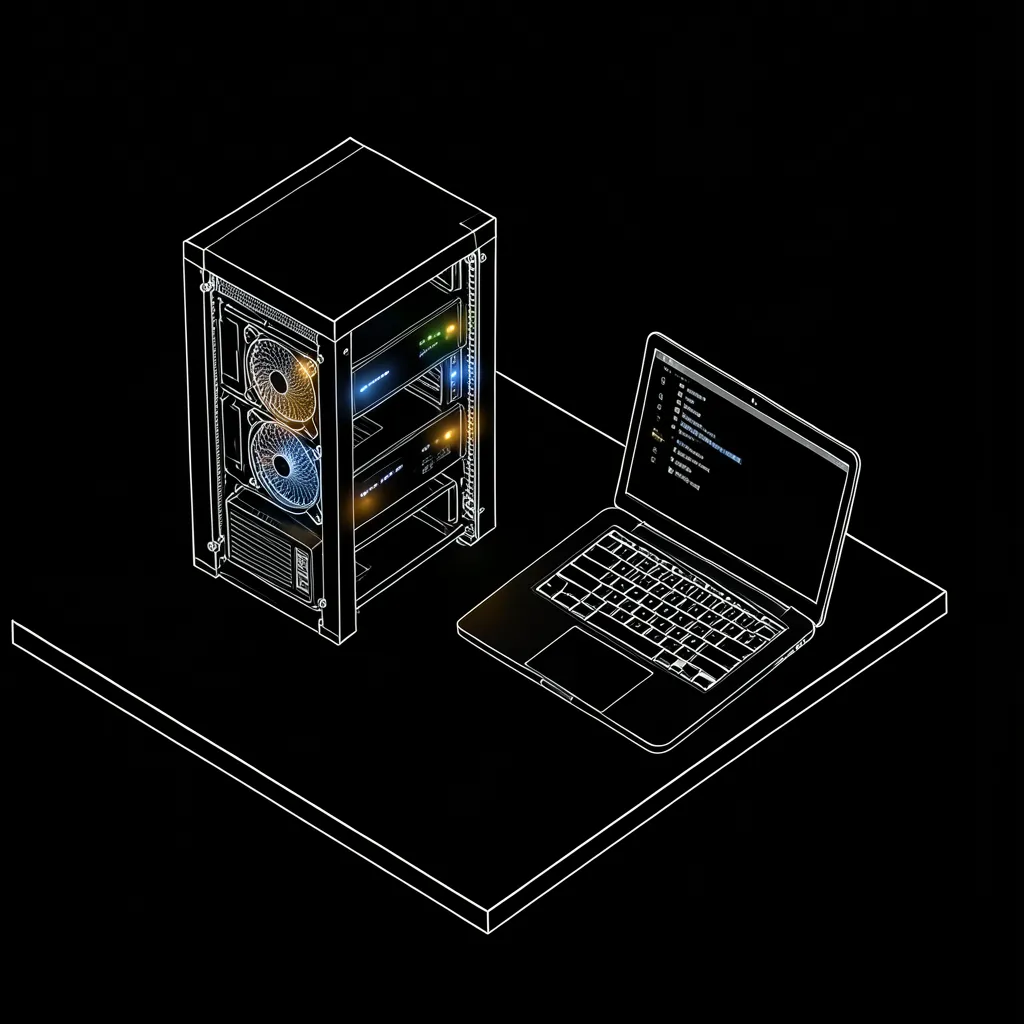
The fan noise is the first thing you notice. Not loud. A low, steady push of air from a case that never gets turned off. That’s the point of a homelab AI server. It’s always there.
Compute Market’s build guide frames it well. Run Ollama on your desktop and the model dies when you shut the lid. A dedicated box serves every device on your network, around the clock. Laptop, phone, tablet, agents.
That’s the build. Here’s how we’d think about it, and then how we’d put it together.
Pick the tier before the parts #
MyAIHardware’s 2026 guide splits builds into three tiers, from $1.5k to $18k. Their own caveat is worth repeating: it’s a planning guide, with no whole-system test behind it. Treat every price list that way, ours included.
The tier question is really a workload question. What do you run?
- Chat and light coding help? A single mid-range card.
- Coding agents plus RAG running in parallel? More VRAM.
- Serving a 70B-class model for real application work? A different sizing problem entirely.
Our target reader is the builder who already owns an ASUS ROG Astral RTX 5090 and runs Docker. That’s who we write for. Local execution of models that would cost too much through an API at scale is the whole argument for the hardware.
Buy bandwidth, not clocks #
LLM decoding is memory-bound. So we rank GPUs by memory capacity and bandwidth first, and by raw clock speed a distant second.
Compute Market’s top pick makes the case for used hardware. The RTX 3090 lists at $699-$999 with 24GB of GDDR6X and 936 GB/s of bandwidth. That’s an old card. It’s still a sane buy, because the spec that matters hasn’t aged as fast as the rest of it.
A single card goes a long way. The hardware can sit unchanged for months while the software around it turns over: more capable models, a leaner monitoring stack, self-hosted apps, coding agents driven from a phone.
The lesson: the box is stable, and the stack on top of it is what churns. Budget for that.
The parts list #
This is the build we’d start from. It’s our own baseline, not a tested reference system, so check prices and compatibility before you buy.
| Part | What we’d pick | Why |
|---|---|---|
| GPU | Used RTX 3090 24GB (or the RTX 5090 you already own) | Capacity and bandwidth. The 3090 is 24GB at 936 GB/s. |
| CPU | AMD Ryzen 7 7700 | The GPU does the work. You need enough cores for Docker, Postgres, and prompt handling. |
| Motherboard | AM5 ATX board with a full x16 PCIe slot and room for a second card | Leaves a path to two GPUs. |
| RAM | 64GB DDR5 (2×32GB) | Headroom for Postgres, containers, and CPU offload. |
| Storage | 2TB NVMe SSD | Model weights are large and you’ll keep several. Fast loads matter. |
| PSU | 1000W 80+ Gold | A 3090 spikes hard. Size for a second card, not just the first. |
| Case and cooling | Airflow-first ATX case with three or more intake and exhaust fans | This box runs 24/7. Thermals decide its lifespan. |
| OS | Ubuntu Server 24.04 LTS | Stable, well supported by NVIDIA and Docker. |
A note on VRAM: a single 24GB card comfortably runs models in the 7B-14B class, or quantized models up to roughly that range. A 70B model quantized to 4-bit needs on the order of 40GB, so plan for two 24GB cards (48GB total) if 70B is your goal. If you’re budgeting, buy the PSU, board, and case for two cards now and add the second GPU later.
Assemble and first boot #
The order matters less than checking each stage before the next.
- Prep the board outside the case. Install the CPU, RAM in the slots your manual specifies for dual-channel, and the NVMe drive. Mount the CPU cooler.
- Mount the board and PSU. Fit the I/O shield, standoffs, and board. Route the 24-pin and CPU power cables before the GPU goes in, because it blocks access.
- Seat the GPU. Use the top x16 slot. Connect each PCIe power cable from its own PSU cable run. Don’t daisy-chain a 3090’s connectors.
- Set up airflow. Front and bottom fans in, rear and top fans out. Aim for slight positive pressure.
- Enter BIOS. Update firmware, enable XMP/EXPO for the RAM, and turn on Above 4G Decoding and Resizable BAR. Set the machine to power on after AC loss, since this box should come back by itself.
- Install Ubuntu Server 24.04 LTS from a USB stick. Enable OpenSSH during setup and give the machine a static IP or a DHCP reservation on your router.
- Install the NVIDIA driver and verify.
sudo apt update && sudo apt install -y ubuntu-drivers-common
sudo ubuntu-drivers install
sudo reboot
nvidia-smi
If nvidia-smi lists your card with its full memory, the hardware side is done.
- Install Docker and the NVIDIA Container Toolkit. Follow the official Docker apt repository instructions for Docker Engine and Compose, then install
nvidia-container-toolkitand register it:
sudo nvidia-ctk runtime configure --runtime=docker
sudo systemctl restart docker
docker run --rm --gpus all nvidia/cuda:12.4.1-base-ubuntu22.04 nvidia-smi
If that last command prints the same table as the host, containers can see the GPU.
- Write one compose file. This starts vLLM and a Postgres instance with
pgvector:
services:
  vllm:
    image: vllm/vllm-openai:latest
    command: >
      --model Qwen/Qwen2.5-14B-Instruct-AWQ
      --max-model-len 8192
    ports:
      - "8000:8000"
    volumes:
      - ./hf-cache:/root/.cache/huggingface
    ipc: host
    restart: unless-stopped
    deploy:
      resources:
        reservations:
          devices:
            - driver: nvidia
              count: all
              capabilities: [gpu]

  postgres:
    image: pgvector/pgvector:pg16
    environment:
      POSTGRES_PASSWORD: change-me
    volumes:
      - ./pgdata:/var/lib/postgresql/data
    ports:
      - "5432:5432"
    restart: unless-stopped
- Bring it up and test from another machine.
docker compose up -d
curl http://<server-ip>:8000/v1/models
Replace <server-ip> with the address you reserved in step 6. For a two-GPU 70B setup, swap the model for a 4-bit quantized Llama 3.1 70B build and add --tensor-parallel-size 2 to the vLLM command.
Keep the ports on your LAN. Don’t forward them to the internet without authentication in front.
The software stack we’d standardize on #
Four decisions. All boring. That’s good. The compose file above already implements the first three.
Containerize everything. Docker and Docker Compose for the inference engines. CUDA drivers and model weights are where reproducibility goes to die, and containers keep the damage contained. When you rebuild the box in a year, you want one compose file, not a memory.
Serve with vLLM when you serve for real. The vLLM project is the open-source inference engine we point people to for production-style local serving. Its PagedAttention design manages the memory overhead that big models create. For casual chat, Ollama is fine. For a box that several agents hit at once, you want the engine built for it.
Keep retrieval in Postgres. PostgreSQL with pgvector gives you a private, searchable knowledge base the model can query live. Run CREATE EXTENSION vector; in your database and you’re set. One database, one backup story. No extra vector service to babysit.
Pick the model for the job. If the work needs real reasoning or code, don’t settle for the 8B class. A 70B model like Llama 3.1 70B is the target. And don’t wait for a lab to hand you a successor. More than a year after gpt-oss, OpenAI still has no successor to it. Build as if none is coming.
Decode speed is not delivered speed #
Here’s where homelab guides go quiet. They quote tokens per second off the model’s raw decode. That number is real. It’s also not what your application sees.
Between the GPU and your app sit the serving layer, queueing, prompt processing, and your own code. We log what the application actually receives in our cost logs, and the gap between raw decode and delivered throughput is visible per model.
Benchmark the way you’ll use it. Measure at the application boundary, not the engine’s console output. If you plan capacity off the raw figure, you’ll plan wrong.
Operate it like a service #
A homelab that you can’t see into is a space heater. Ours runs as a set of containers, and the operational picture is unglamorous.
One worker got auto-restarted after an alert said the API was down. Connection errors, twice in 119 minutes. A health check showed one container with a single restart, and our brain daemon with eight. Every container still reported healthy. A 401 from bad credentials sat in the logs. An attempt to have an LLM summarize the alert failed.
That’s a normal week. Containers restart. Credentials expire. The summarizer you built to read your alerts breaks, and then you read the alerts yourself.
So we lean on layers. Prometheus for metrics, Loki for logs, Langfuse for LLM traces. Grafana panels get embedded in the operator console rather than rebuilt from scratch. Direct Prometheus access is fine on a trusted network. Loki and Langfuse go behind proxy routes, because their keys shouldn’t sit in a browser.
Dropping most of your monitoring for something leaner is a fair counterpoint. Match the stack to your scale. One box doesn’t need a NOC. It needs enough telemetry to tell you why the thing is slow, and it needs to be cheap to maintain. At minimum, keep nvidia-smi temperature and memory readings somewhere you’ll see them.
Verify at runtime #
One habit paid off more than any hardware choice. We verify changes by running the thing. Type checks and passing tests aren’t enough on their own. We want output from the live application: stdout, a screenshot, a trace. Any ambiguity is a fail.
This matters most after you move containers to new hardware. Re-run the full pipeline end to end and look at what comes out. A dozen containers can all say “healthy” while the pipeline produces nothing.
We also triangulate. When we confirmed a fix for one error, we checked three sources: the audit log, the git log, and the Prefect worker logs. One source can lie. Three rarely agree by accident.
Where we land #
Buy memory bandwidth and capacity. Size the PSU, board, and case for the second card. Containerize the stack. Serve with vLLM once more than one client depends on the box. Keep retrieval in Postgres. Measure delivered throughput at the application, not decode speed on a console.
Then expect the software to change while the hardware sits still. Build the observability and verification habits first, and the rest becomes swappable. And if you’re building to ship something, don’t let the build become the project. Builders who stay in the basement don’t compound.
The fan keeps spinning. Make sure it’s doing work you can see.