#
Even if you've never used Microsoft Teams yourself, you've probably come across people complaining about it. There are plenty of complaints, but one seems to come up over and over again:
- You're working as usual. Your Teams status is Available. All good.
- You look away for ten seconds.
- The status is Away. Your manager is writing you to ask why you are not working.
Okay, I'm exaggerating. But the underlying problem is real. The fact you are not moving mouse or typing doesn't mean you are away. You could be:
- reading an article, documentation or something else work-related
- drawing, sketching or taking notes on paper
- waiting for an AI agent to finish
- dictating feedback or instructions to an AI agent
But Microsoft Teams does not know that. Neither do your colleagues. Some teams even interpret Away status as "this person is not working". Not only is that assumption wrong, but it also puts unnecessary pressure on people to appear Available all the time.
You'd be "away" in the office as well. You'd grab a coffee, walk over to a colleague to ask a question, or go to the bathroom. Nobody questions that in the office...
Luckily, we see things differently at BeZoned. We don't mind if you go Away during the day. We all work from home, and we trust each other. But trust doesn't make presence information useless. We still need to know when someone's around, especially when we're trying to have a quick conversation. When Teams switches to the Away status, but I'm still sitting at my desk, I'm sending the wrong signal. Others can still reach me.
And it works the other way around, too. When I have to step away for a moment - to answer the door for a mailman, grab a food delivery because I'm too lazy to cook, or rescue my dog's toy from wherever he's managed to get it stuck - I tend to forget to set my status accordingly.
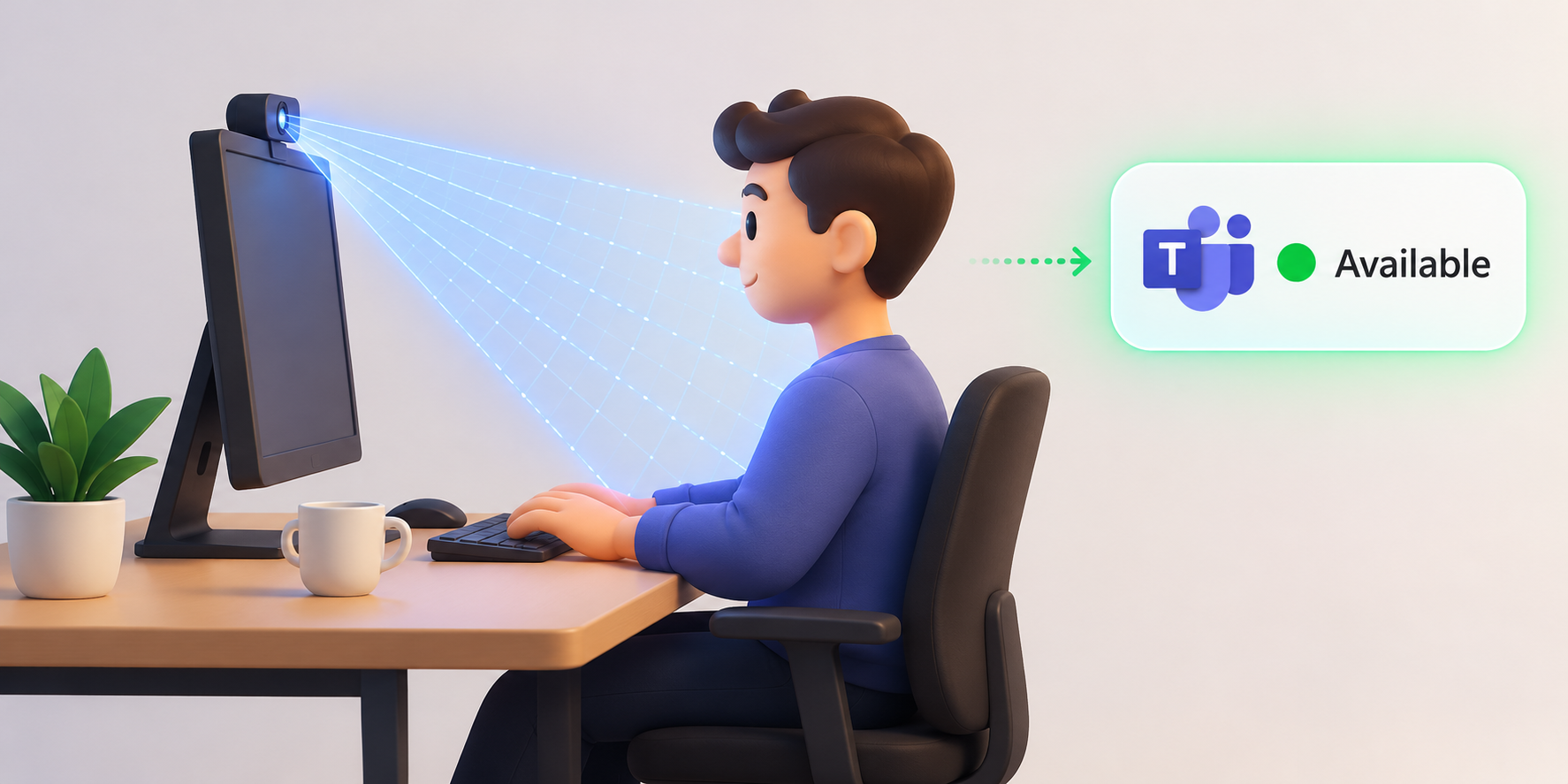
That's when I thought: what if Teams could detect whether I'm sitting at my computer and automatically update my status?
#
Sometimes you have the solution in front of you for years. In my case, it was an old Philips monitor with a built-in webcam. The webcam was terrible even when I bought the monitor, so I never used it for video calls. Maybe it was finally time to put it to use.
Could a little bit of AI (or rather ML) help me turn this unused webcam into a presence detector? When I'm sitting at the desk it would keep me Available on Teams. The second I move away, it would switch my status to Away.
#
I could probably jump directly to the code, but I decided to start small. Let's take a picture with the webcam to see if it even works.
First, I needed to list available video devices:
ffmpeg -f avfoundation -list_devices true -i ""
Which outputs:
[AVFoundation indev @ 0x7513014140] AVFoundation video devices:
[AVFoundation indev @ 0x7513014140] [0] USB2.0 FHD UVC WebCam
(The output is simplified, so it only contains the WebCam I'm interested in.)
Now let's take a picture:
ffmpeg -f avfoundation -i "0:none" -frames:v 1 webcam.jpg
And I'm greeted with an error:
[avfoundation @ 0x7676c20000] Selected framerate (29.970030) is not supported by the device.
[avfoundation @ 0x7676c20000] Supported modes:
[avfoundation @ 0x7676c20000]   176x144@[30.000030 30.000030]fps
    Last message repeated 1 times
[avfoundation @ 0x7676c20000]   320x240@[30.000030 30.000030]fps
    Last message repeated 1 times
[avfoundation @ 0x7676c20000]   352x288@[30.000030 30.000030]fps
    Last message repeated 1 times
[avfoundation @ 0x7676c20000]   640x360@[30.000030 30.000030]fps
    Last message repeated 1 times
[avfoundation @ 0x7676c20000]   640x480@[30.000030 30.000030]fps
    Last message repeated 1 times
[avfoundation @ 0x7676c20000]   848x480@[30.000030 30.000030]fps
[avfoundation @ 0x7676c20000]   1280x720@[30.000030 30.000030]fps
[avfoundation @ 0x7676c20000]   1920x1080@[30.000030 30.000030]fps
[in#0 @ 0x7676c1c000] Error opening input: Input/output error
Error opening input file 0:none.
Error opening input files: Input/output error
After some fiddling, I got it working by explicitly setting the frame rate, resolution, and pixel format:
ffmpeg -f avfoundation \
  -framerate 30 \
  -video_size 1280x720 \
  -pixel_format nv12 \
  -i "0:none" \
  -vf "select=eq(n\,60)" \
  -frames:v 1 \
  -y webcam.jpg
And voila! That's me.
As I've said - it's a terrible webcam. On the other hand, you can clearly tell there is someone in the picture 😀 It should be more than enough for this use case.
#
I started by passing the image to an LLM and asking it to detect whether there's a person in it.
I used Apple' Foundation Models, available on macOS 27:
  --image webcam.jpg \
  "Is there a real person sitting at the desk? Answer only YES or NO."

YES
To make sure the model wasn't just answering "YES" to everything, I tried another picture. This time of an empty chair.
And the response?
NO
Ta-da! I could have stopped here. The model runs locally, it does not have any dependencies and running a bash script to do this would be easy.
#
But Apple also provides Vision ML models, so naturally I had to test them as well. Vision models also support human pose detection, which could be used for gesture-based microphone controls, FaceTime-style reactions and other "very useful and impactful" features nobody asked for.
I started with a simple Swift script, so I don't have to install anything.
import Foundation
import Vision

guard CommandLine.arguments.count > 1 else {
    fputs("Usage: swift detect.swift image.jpg\n", stderr)
    exit(1)
}

let url = URL(fileURLWithPath: CommandLine.arguments[1])

// Simple person detection without posture
let request = VNDetectHumanRectanglesRequest()
// Checking just the upper body, because I'm sitting most of the time
request.upperBodyOnly = true

let handler = VNImageRequestHandler(url: url, options: [:])

do {
    try handler.perform([request])

    let people = request.results ?? []

    print("""
    {
      "personDetected": \(people.count > 0),
      "count": \(people.count)
    }
    """)
} catch {
    fputs("Vision error: \(error)\n", stderr)
    exit(1)
}
And when executed:
{
  "personDetected": true,
  "count": 1
}
The first run was extremely slow, probably because Swift had to compile it. But subsequent detections were... well, swift.
I also tried getting the detected person's bounding box and drawing a rectangle around them. The code got a bit longer, so I'll spare you the details. The result:
#
Before getting too excited about detecting people with my webcam, I first checked whether I could actually update Teams status programmatically. Turns out, there are several ways to do it.
If you've ever tried to address this issue yourself, you've probably come across mouse jigglers. They try to mimic user activity with more or less realistic mouse movement tricking MS Teams into thinking someone is actively using the computer.
I wasn't particularly interested in moving my mouse around or pressing random keys just to keep Teams happy.
Conveniently, we already have a desktop app that can update a user's Teams presence.
As of now, BeZoned Sidebar requires the user to click the Presence menu and set it manually.
I could extend the Sidebar app to have this "presence detection" functionality baked in, or publish an API to other desktop apps. So anyone could extend the Sidebar functionality.
If I were building this as a real product feature, integrating it would probably be the best option. But this was just a weekend experiment, and I was the only user. Modifying an app everyone else relies on is a no-go.
What's left? Talking to the API directly. I could use the very same Graph API that BeZoned uses and set presence there.
I'd need an Entra app registration, a few API permissions and some auth logic. But that would let me update my own Teams presence without touching the BeZoned app or affecting anyone else.
#
I decided to stick with Swift. It's already available on my Mac and I wanted to play with it for a long time.
Additionally, it's easy to share the codebase with my colleagues if they ever want to run it as well.
When the script starts, it authenticates through Entra using the Device code flow. I just open the auth page, enter the displayed code and sign in.
A deeper integration with Keychain to preserve credentials is a problem for future me.
To avoid constantly switching between Available and Away, I settled on a simple state machine:
In short, the script requires two consecutive detections of the same result to set the status to Away or Available in Teams.
The final piece was connecting everything to Teams. I used three endpoints:
- setPresence updates the presence using a session ID, which is later used to clear the presence override
- getPresence returns the current presence - I run this before every "switch" to ensure I'm not just hammering API with unnecessary "Change from Away to Away" requests.
- and finally clearPresence clears the presence configured from this script if I terminate it or when I lock the screen. Teams is then free to set it according to normal rules.
Just one delegated permission is needed for all three of them: Presence.ReadWrite
And that's it. When I start my computer, the Swift script launches, wakes up the old webcam and starts checking whether I'm at my desk. My colleagues are updated in real time. Away finally means I'm actually away.
About the author #
- I've worked remotely for most of my software engineering career. It opened up a whole new world to me. I was able to build my own office, cut out the commute, avoid distractions, and... wear the same shirt for a week. :) Of course, there are downsides, but to me, remote work makes sense for both companies and employees. I've always aimed to build remote-first teams because I believe it leads to better documentation, smoother processes, and fewer bottlenecks. But there's always been one thing missing: that sense of belonging, of truly feeling like part of a team. So when I got the chance to help BeZoned build the best online office for remote teams, it was a dream come true. Not only did the idea immediately click with me, but I was also getting to scratch my own itch.
Comments #
No comments yet. Be the first to comment.
BeZoned #
Behind the scenes of building BeZoned: architecture, Microsoft Teams and Graph, product trade-offs, technical constraints, experiments, failures, and lessons from shipping. Along the way, I explore remote work, distributed teams, communication, digital presence, and the systems that make online collaboration actually work.