By Flavio
Tagged: Mac
Bind a single macOS keyboard shortcut to paste canned text and press Return only in one app, then restore your clipboard, with Raycast or alternate Mac tools.
Many Mac desktop apps let you customize shortcuts for menus and navigation, but don’t give you a way to bind a single key combo to “insert this exact message and hit Return.” That’s especially common in Electron apps like Discord, Slack, Claude Desktop, and coding agent clients.
Text expansion tools solve half the problem. You type a trigger, wait for it to expand, and then press Return yourself.
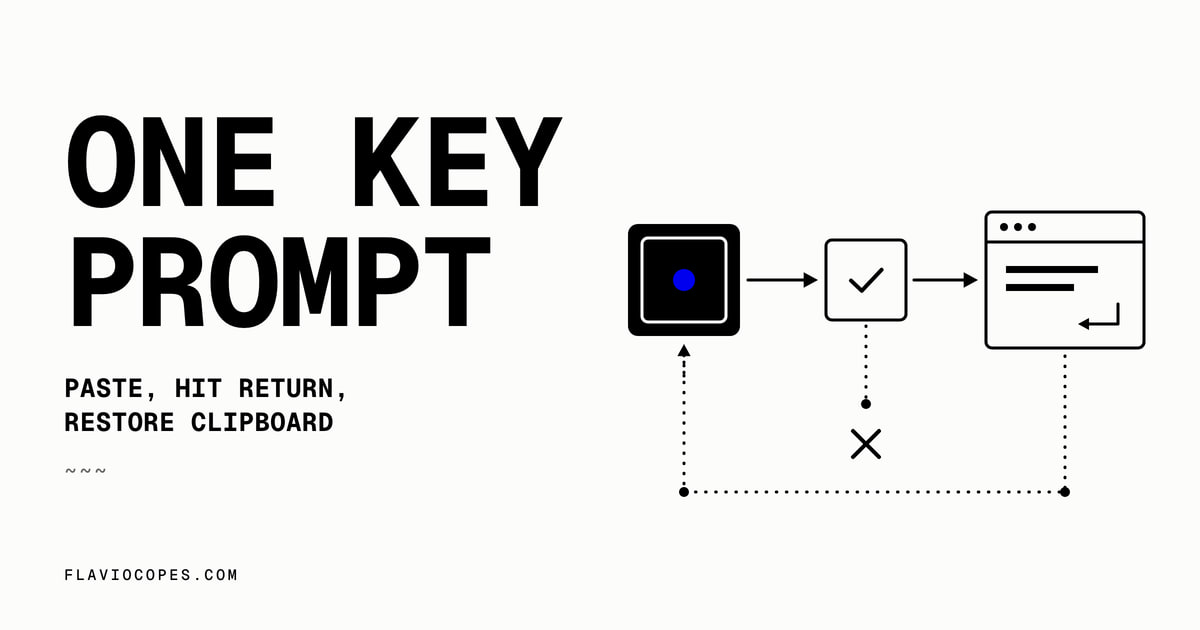
If you want one keyboard shortcut (like ⌃⌥E) to insert a repeated prompt or canned reply and submit it in a single press, you can wire up a tiny shell script as a Raycast Script Command (or use one of the other Mac tools covered below). The script checks which app is in front, backs up your clipboard, pastes the text, presses Return, and restores your previous clipboard.
How the single-keypress trick works #
Global hotkeys come with one big risk: if you press ⌃⌥E in the wrong window, it’ll paste text and hit Return wherever your cursor happens to be. In a terminal or a chat app, an accidental Return can run a command or send a half-written reply.
The script prevents misfires by checking the frontmost app’s bundle ID before touching the clipboard or sending keystrokes.
Find the target app’s bundle ID #
Checking the frontmost app by bundle ID is safer than checking its display name. App names change across releases (for example, T3 Code (Beta) becoming T3 Code), while the bundle ID stays the same.
You can ask macOS for any installed app’s bundle ID with osascript (see how to find the bundle ID of a Mac app for two other ways):
osascript -e 'id of app "Discord"'
com.hnc.Discord
Here are a few bundle IDs from apps installed on my Mac so you can see the pattern:
| App | Bundle ID |
|---|---|
| TextEdit | com.apple.TextEdit |
| Discord | com.hnc.Discord |
| Claude Desktop | com.anthropic.claudefordesktop |
| T3 Code | com.t3tools.t3code |
Create the Raycast Script Command #
Create a folder for your scripts, like ~/raycast-scripts, and save this file as ~/raycast-scripts/paste-and-send.sh. Replace TARGET_BUNDLE and MESSAGE with the app and text you want.
#!/bin/bash


TARGET_BUNDLE="com.anthropic.claudefordesktop"
MESSAGE="Anything else should I do here?"

FRONT_BUNDLE=$(osascript -e 'tell application "System Events" to get bundle identifier of first application process whose frontmost is true')

if [ "$FRONT_BUNDLE" != "$TARGET_BUNDLE" ]; then
  exit 0
fi

TMP_CLIP=$(mktemp)
trap 'rm -f "$TMP_CLIP"' EXIT
pbpaste > "$TMP_CLIP"

printf '%s' "$MESSAGE" | pbcopy

osascript <<'APPLESCRIPT'
delay 0.15
tell application "System Events"
  keystroke "v" using command down
  delay 0.08
  key code 36
end tell
APPLESCRIPT

sleep 0.15
pbcopy < "$TMP_CLIP"
Make the script executable so Raycast loads it:
chmod +x ~/raycast-scripts/paste-and-send.sh
A few small details in this script keep it reliable day to day:
@raycast.mode silentruns the script in the background without opening a Raycast output window. Because nothing prints tostdout, Raycast doesn’t show a HUD toast either.- The script only talks to
System Events. Because it never callstell application "..."on the target app, macOS doesn’t nag you with per-app Automation prompts. You just grant Accessibility permission to Raycast once underSystem Settings → Privacy & Security → Accessibility . pbpaste > "$TMP_CLIP"saves your clipboard to a temporary file instead of a shell variable. UsingOLD_CLIP=$(pbpaste)strips trailing newlines from whatever you copied.printf '%s'copiesMESSAGEwith no trailing newline.echoadds a newline that can insert a blank line inside chat composers.- Paste with
⌘Vinstead ofkeystroke "$MESSAGE". Typing character by character through AppleScript is slower, breaks on accents and non-US keyboard layouts, and collides with modifier keys you haven’t released yet. key code 36presses Return on every keyboard layout.
If you want to go deeper into the command line and shell scripting, grab the free CLI Handbook.
Why the short delays matter #
The three small s (0.15, 0.08, and 0.15 seconds) fix two real timing bugs.
The first delay 0.15 gives your fingers time to lift off Control and Option after pressing ⌃⌥E. If System Events sends ⌘V while you’re still holding Option, macOS sees ⌥⌘V instead of a normal paste.
The final sleep 0.15 avoids a clipboard race condition. ⌘V posts a key event to the frontmost app’s queue and returns immediately, so the target app reads the pasteboard a few milliseconds later. If the script restores your previous clipboard right away, the app can read the restored text instead of MESSAGE.
I measured this on macOS 15.7.7 against TextEdit across five trials per delay, starting each run with OLD_CLIPBOARD on the clipboard:
| Restore delay | Pasted the message | Pasted OLD_CLIPBOARD |
Restored clipboard cleanly |
|---|---|---|---|
0s |
4 / 5 | 1 / 5 | 5 / 5 |
0.05s |
5 / 5 | 0 / 5 | 5 / 5 |
0.15s |
5 / 5 | 0 / 5 | 5 / 5 |
With 0s, the very first trial pasted OLD_CLIPBOARD instead of the new message. Keeping 0.15s gives heavier Electron apps plenty of breathing room too.
In the same test run, the wrong-app guard exited in 71 ms without touching the clipboard, and the full paste, Return, and restore cycle finished in 489 ms.
Bind the hotkey in Raycast #
Open Raycast Settings → Extensions, click +, choose Add Script Directory, and pick ~/raycast-scripts.
Filter by Scripts, expand Script Commands, and click Record Hotkey on Paste and Send Text. Press a key combo that doesn’t clash with your target app’s shortcuts, like ⌃⌥E.
The script also shows up in Raycast’s launcher with its shortcut badge, so you can trigger it by name or check its binding anytime.
A concrete use case: wrapping up threads in T3 Code #
The reason I looked into this trick was T3 Code. At the end of almost every coding agent thread, I want to ask "Anything else should I do here?" to catch uncommitted changes, skipped checks, or loose ends.
T3 Code’s keybindings.json has dozens of bindings for panels, threads, and composer actions, but nothing that inserts arbitrary text and submits it. Dropping com.t3tools.t3code into TARGET_BUNDLE and binding ⌃⌥E turns that wrap-up question into a single keypress that won’t fire outside T3 Code.
For T3 Code itself, I ended up going one step further and building a native /else skill in ~/.agents/skills/else/SKILL.md. I wanted the agent to run a fixed wrap-up checklist (git state, pending verification, manual steps, and follow-up reminders) instead of just answering a plain sentence. Still, the Raycast Script Command works in every app that doesn’t have a skill system: Claude Desktop, Discord, Slack, Linear comments, or a browser tab.
One tip if you use this shortcut to send a slash command like /else or /status: apps with a slash autocomplete popup use the first Return to pick the menu item. Add a second delay 0.08 and a second key code 36 so the script selects the command first, then submits it.
Two caveats to keep in mind #
First, pbpaste only reads plain text (public.utf8-plain-text). If your clipboard holds a screenshot or a copied file when you press ⌃⌥E, pbpaste returns nothing, and pbcopy < "$TMP_CLIP" wipes it out. For plain text like URLs, logs, and code snippets, the restore works cleanly. If you regularly keep images on your clipboard, skip the restore lines and rely on Raycast’s Clipboard History, or use Hammerspoon or Keyboard Maestro below since they preserve every pasteboard data type.
Second, this shortcut sends keystrokes to whichever text field has focus inside the target app. If you’re focused on a sidebar or search box instead of the message composer, that’s where the text lands.
Alternate ways to do the same thing on macOS #
Raycast is handy if you already use it, but it’s far from the only way to build an app-scoped paste-and-send shortcut on a Mac.
| Tool | Price | App scoping | Preserves image clipboard | Sends Return automatically | Extra setup |
|---|---|---|---|---|---|
| Raycast Script Command | Free | Manual bundle ID check in script | No ( pbpaste is text-only) |
Yes | Raycast + Accessibility |
| macOS Shortcuts Quick Action | Built-in | Manual bundle ID check in script | No ( pbpaste is text-only) |
Yes | Shortcuts + Accessibility |
| Hammerspoon | Free, open source | frontmostApplication():bundleID() |
Yes ( readAllData /writeAllData ) |
Yes | Lua config + Accessibility |
| Keyboard Maestro | Paid | Native per-app macro groups | Yes (built-in) | Yes | GUI macro + Accessibility |
| BetterTouchTool | Paid | Native per-app sidebar groups | Yes (built-in) | Yes | GUI action + Accessibility |
| Karabiner-Elements | Free, open source | frontmost_application_if rule |
Depends on shell script | Yes | JSON rule + Accessibility |
| Raycast Snippets / Espanso | Free | Global or per-app (Espanso) | Yes | No (you press Return) | Text expander |
macOS Shortcuts (no third-party app)
Apple’s built-in Shortcuts app runs the exact same shell script without the @raycast.* comment headers:
- Create a new shortcut and add a Run Shell Script action.
- Paste everything from
TARGET_BUNDLE=topbcopy < "$TMP_CLIP". - Open the right-hand Shortcut Details panel, enableUse as Quick Action andServices Menu , then clickAdd Keyboard Shortcut and record
⌃⌥E. - Grant Accessibility permission to Shortcuts inSystem Settings → Privacy & Security → Accessibility .
The main catch is that Quick Action shortcuts go through macOS Services, which can feel slower on cold start and behave inconsistently in apps that don’t expose a standard Services menu.
Hammerspoon (free, open source, full clipboard restore)
If you’d rather run a single lightweight daemon in Lua, Hammerspoon replaces the bash script, osascript, and pbcopy in one file (~/.hammerspoon/init.lua). Its hs.pasteboard.readAllData() and hs.pasteboard.writeAllData() helpers save and restore every pasteboard UTI, including screenshots and rich text:
local targetBundle = 'com.t3tools.t3code'
local message = 'Anything else should I do here?'

hs.hotkey.bind({ 'ctrl', 'alt' }, 'e', function()
  local app = hs.application.frontmostApplication()
  if not app or app:bundleID() ~= targetBundle then return end

  local previous = hs.pasteboard.readAllData()
  hs.pasteboard.setContents(message)

  hs.timer.doAfter(0.15, function()
    hs.eventtap.keyStroke({ 'cmd' }, 'v', 0)
    hs.timer.doAfter(0.08, function()
      hs.eventtap.keyStroke({}, 'return', 0)
      hs.timer.doAfter(0.15, function()
        if previous then hs.pasteboard.writeAllData(previous) end
      end)
    end)
  end)
end)
Because everything runs inside Hammerspoon’s own process without spawning a shell, it triggers fast and keeps non-text clipboard items intact.
Keyboard Maestro and BetterTouchTool
If you already pay for Keyboard Maestro or BetterTouchTool, you don’t need any scripting at all.
In Keyboard Maestro, create a Macro Group restricted to the target app, add a hot key trigger (⌃⌥E), add an Insert Text by Pasting action (which restores your clipboard automatically), and follow it with Type the Return Keystroke. Because the group itself is app-scoped, ⌃⌥E stays free in every other app on your Mac.
BetterTouchTool works the same way: pick the target app in the left sidebar, add a keyboard shortcut trigger, and chain Insert / Type / Paste Custom Text with a Return key action.
Karabiner-Elements
If you already remap keys with Karabiner-Elements, a complex modification rule can match frontmost_application_if on bundle_identifiers (like ^com\.t3tools\.t3code$) and run the shell script through shell_command. That’s useful if you want to bind the action to a Hyper key or a single unused function key instead of a three-key chord.
Text expanders when you don’t need automatic Return
If you don’t mind pressing Return yourself, skip synthetic keystrokes altogether. Raycast Snippets and Espanso both expand short triggers like ;else reliably inside Electron composers, where macOS built-in Text Replacements often fail. They also leave your clipboard untouched, and you get a chance to glance at the text before hitting Return.
Want me to talk about your product? You can sponsor this site.