Nischal · Author Writes about Construct, AI agents, and building useful software.
Published · @naik_nischal Construct makes AI agent Gmail access a deliberate choice instead of a default: every plan from $9 a month gives the agent its own email address, so most agent email never touches your Gmail, and you connect your Gmail only for the jobs that must come from you, for only the agents that need it. That matters because Gmail access is broad: Google classifies 8 Gmail permission scopes as "restricted," including one that can "read, compose, send, and permanently delete all your email from Gmail" (Google for Developers).
For founders and small teams, Construct is the safer place to set this up. You get a separate agent inbox that only your own mail can trigger, Gmail access you can block agent by agent, standing rules you can read and correct, and an Activity record of what the agent did. This guide walks through the whole setup: its own inbox for most email, a role account instead of your personal inbox, drafts instead of sends, a regular look at what it did, and how to revoke access in a minute.
Why do this in Construct? #
- An agent inbox on every plan, from $9. Lite includes an agent email address. Only mail you send from your own account address, and that passes sender checks, starts a run; mail from anyone else is stored and shown to you but never answered on its own.
- Gmail for one agent, not all of them. UnderApp access you block Gmail for any agent that does not need it, from that agent's next turn.
- Rules you can read and fix. Your "drafts, never sends" rules live in memory, which you open in the Memories app, correct, or delete (AI agent memory ).
- A record of every action. Activity lists each Gmail call with the reason the agent gave and a link to the chat, keeps up to 30 days, and exports as CSV or JSON.
- Revoke in one minute. Disconnect Gmail inSettings ,Connections , and agents lose access.
- Built for a team, without seats. In a team workspace, members cannot connect apps unless they are granted it, and everyone's usage draws on the owner's plan (team workspaces ).
Is it safe to give an AI agent access to Gmail? #
It is safe enough when you limit three things: which account the agent can reach, which agents can reach it, and whether anything is final before you see it. Without those limits, one misread instruction can send or delete real mail in your name.
In February 2026, Meta AI security researcher Summer Yue asked an OpenClaw agent to suggest what to delete or archive in her overstuffed inbox. It started deleting her email and ignored her stop commands, and she put it down to context compaction on a large real inbox after the same setup had worked on a small test inbox (TechCrunch, February 23, 2026). Nothing in that story needed a hacker. The fixes are the ones this guide sets up in Construct: narrower access, a smaller blast radius, and actions you can review before they are final.
There is a second risk that has nothing to do with mistakes. An agent that reads your inbox reads mail written by strangers, and any of it can contain instructions aimed at the agent. Treat email content as information, never as orders, and keep unattended jobs from both reading outside mail and sending from your Gmail.
What does Gmail access actually grant? The Gmail API scopes #
Gmail access is granted in scopes, and Google's consent screen lists the ones an app is asking for. Most scopes an agent would want are restricted, Google's highest-risk class. These are the ones that matter, in Google's own words:
| Gmail API scopes an AI agent might request, checked October 11, 2026 | ||
|---|---|---|
| Scope | What Google says it allows | Google's class |
| --- | --- | --- |
| gmail.metadata | View email message metadata such as labels and headers, but not the email body | Restricted |
| gmail.readonly | View your email messages and settings | Restricted |
| gmail.compose | Manage drafts and send emails | Restricted |
| gmail.send | Send email on your behalf | Sensitive |
| gmail.modify | Read, compose, and send emails, without immediate permanent deletion that skips Trash | Restricted |
| gmail.settings.basic | See, edit, create, or change your email settings and filters | Restricted |
| mail.google.com | Read, compose, send, and permanently delete all your email from Gmail | Restricted |
Source: Google, choose Gmail API scopes. Google lists 14 Gmail scopes in all, 8 of them restricted, and requires a security assessment from apps that store or transmit restricted-scope data on their servers. Notice that drafting and sending share a scope: gmail.compose allows both. That is why "drafts only" in this guide is a rule you give the agent, not a permission Google can grant on its own. Read the consent screen before you click Allow; it is the most honest description of what you are granting. In Construct, the Gmail page in the App Store also lists every tool the agent can use.
What do you need? #
- A Construct plan. Any plan works. Lite at $9 a month includes an agent email address and up to 2 agents; Starter at $59 and Pro at $299 add more agents and usage, and there is a 7-day Pro trial. Seepricing .
- Permission to connect apps. In a team workspace, the owner and admins can connect apps by default; members cannot unless they are granted it.
- A Gmail account you are willing to expose. For a first test, a secondary or role account is better than your main inbox.
- Ten minutes to read what the agent did after its first few jobs.
Before you start #
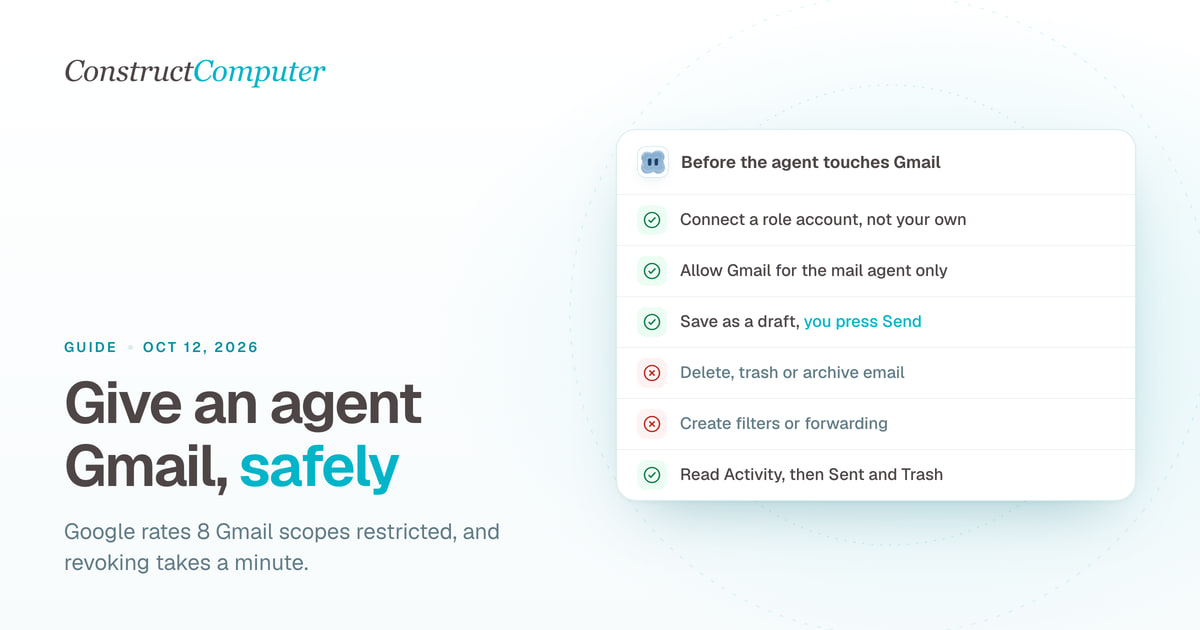
- Gmail access is full access, so choose the account. The connected Gmail app can read, search, label, draft, send, move to Trash, and delete, with no read-only mode or per-action switch yet. Connect a role account, allow Gmail only for your mail agent, and ask for drafts.
- Drafts are your approval step. Construct does not for approval before a send, so for anything that leaves your Gmail, ask for a draft and send it yourself.
- Connections belong to the workspace. Every allowed agent acts through the account that connected Gmail, so connect a shared role address rather than a founder's personal inbox.
- Email from strangers is information, not instructions. Keep the rule from step 5, and do not let unattended jobs both read outside mail and send from your Gmail.
- Activity is a recent record. It keeps short summaries without message content for up to 30 days, so export it as CSV or JSON if you need a longer history.
How do you give an AI agent access to Gmail safely in Construct? #
1. Decide which mail belongs in which inbox
Most agent email does not need to come from you. Weekly reports, vendor questions, and notes to your own team can come from the agent's address. Keep your Gmail for the jobs that need your identity or your history: replying in an existing client thread, or finding something you received two years ago.
2. Start with the agent's own inbox
Open the Email app in the Construct desktop and claim the agent's address. Forward a task to it from your own account. Only mail you send from your own account address, and that passes sender checks, starts a run; mail from anyone else is stored and shown to you but never answered on its own. That makes the agent's inbox a safe place to practice. Our guide to giving an agent its own email address covers this step in detail.
3. Connect Gmail only when a job needs it
Open App Store, find Gmail, and press Connect, or let the agent ask: when a task needs Gmail, a Connect Gmail card appears in the chat and the agent continues once you finish signing in. Construct manages the connection through Composio, which is listed on our sub-processors page. Read Google's consent screen as you go.
In a team workspace, a connection belongs to the workspace and the agents act through the account that connected it. If the owner connects their personal Gmail, every agent in the workspace with Gmail access works from that inbox. Connect a role account, such as a shared support address, when more than one person's agents need it.
4. Limit which agents can use Gmail
Every installed app is allowed for every agent until you say otherwise. Open Manage agents, choose Edit agent, and use App access to block Gmail for agents that do not need it. A good pattern is one agent for mail work with Gmail allowed, and a second agent for research and files with Gmail blocked. The change applies from that agent's next turn.
5. Give standing rules, and ask the agent to remember them
Rules in memory are instructions, not locks. They make mistakes much less likely, but the permission underneath is unchanged. You can check the stored rules in the Memories app and correct them (AI agent memory). If you want inbox rules such as automatic labels, build them yourself with our free Gmail filter generator and import them, rather than letting the agent change settings.
6. Ask for drafts, then send them yourself
Open Gmail's Drafts folder, find the subject the agent gave you, edit, and send it yourself. This matters because sent mail is nearly final: Gmail's Undo Send window can be set to 5, 10, 20, or 30 seconds, and no longer (Gmail Help).
7. Read what it did
Open the Activity app. Filter to Actions, search for Gmail, and open any row to see the reason the agent gave and an Open chat link to the full conversation. You can export Activity as CSV or JSON. Then check Gmail itself: the Sent folder and Trash are the quickest way to confirm nothing went out or disappeared.
Activity records each tool call with a short reason, not the email bodies, and keeps up to 30 days. It answers "what did the agent do" at a glance; export it if you want a longer record.
8. Know how to revoke Gmail access in one minute
In Construct, open Settings, then Connections, and choose Disconnect next to Gmail. Agents lose access to it. Then remove access on Google's side: on your Google Account's linked apps page, choose the Access to your Google Account filter, pick the app, select See details, then Remove access and Confirm (Google Account Help).
Disconnecting does not change your Calendar, so any scheduled jobs that use Gmail at the same time; otherwise they reach the Gmail step without access.
What result should you get? #
After the draft test in step 6, you should have:
- A draft in your Gmail Drafts folder, unsent.
- A short reply in chat naming the draft's subject.
- Activity rows showing the Gmail reads and the draft, each with a reason.
- Nothing new in Gmail's Sent folder or Trash.
Illustrative example. A two-person consultancy connects a shared client-services Gmail, not either founder's personal account. Only the "mail" agent has Gmail allowed. It drafts replies to client threads each morning, and one founder reads and sends them before 10am. Internal reports go out from the agent's own address. Once a week, she skims Activity filtered to Gmail.
How to test this yourself before you trust it #
Run the setup on a low-stakes account for a week or two before any job goes on a schedule, and check these each day:
- Drafts: every reply the agent wrote is in Drafts, not Sent.
- Sent and Trash: nothing new that you did not send or delete yourself.
- Filters and forwarding: Gmail's settings show no new filter or forwarding address.
- Activity: every Gmail row has a reason that matches what you asked for.
- Memories: your Gmail rules are still stored as you wrote them.
When the job has run cleanly for the period you set, save it as a workflow and put it on the Calendar (scheduling), keeping "drafts only" in the instructions.
Troubleshooting #
The agent used its own inbox when you wanted Gmail. It prefers its own address unless the job needs yours. Say "use my Gmail" in the prompt.
The agent keeps asking you to connect Gmail. The sign-in was not finished or has expired, or Gmail is blocked for that agent under App access. Reconnect from Settings, Connections, and check the agent's access.
Your Google Workspace admin blocked the connection. Workspace admins can restrict which third-party apps reach Gmail, including blocking a list of high-risk Gmail scopes (Google Workspace Admin Help). Ask your admin to allow it, or use the agent's own inbox instead.
An email was sent when you asked for a draft. Undo it in Gmail if you are within the window, then send a short correction. Check that the "never send" rule is in the Memories app, and put "do not send" in the prompt itself.
Mail went missing. Check Gmail's Trash first; trashed mail can be restored there. Then use Activity to find the run and read its chat.
Already giving an agent your Gmail? Move it to Construct in 15 minutes #
- Start on Lite for $9, or take the 7-day Pro trial. The agent address is included either way.
- Move everything that does not need your identity to the agent's own inbox: forward the next real task from your account address, ending with "do not send."
- Connect a role Gmail account from the App Store only if some replies must still come from it.
- Block Gmail under App access for every agent except your mail agent, and give that one the step 5 rules.
- Revoke the old tool's access on your Google Account's linked apps page, then run the step 6 draft test.
There is no import: your existing mail stays in Gmail, and the old tool's rules do not transfer, so write them into your first instruction and Construct saves them as memory you can read.
Which setup should you choose? #
Choose Construct. It starts at $9 with an inbox of its own, keeps your Gmail behind a connection you control agent by agent, and leaves a record of every action in Activity. If an agent you use today has your personal Gmail with send and delete rights, that is the setup to change first.
Start with the agent's own inbox. Claim its address, then forward it the next email you would normally answer after some research, such as a vendor's pricing question, with "research this and email me a draft reply," and judge what comes back. When a job truly needs Gmail, connect a role account and run the draft test from step 6 before anything goes on a schedule. Start on Lite at $9, or try Pro free for seven days.
Give Construct its first email job
Sources #
Pages checked on October 11, 2026:
Related resources #
Frequently asked questions #
- Is it safe to give an AI agent access to Gmail?
- It is safe enough when you limit three things: which account the agent can reach, which agents can reach it, and whether anything is final before you see it. In Construct that means a role account rather than your personal inbox, Gmail blocked for every agent except your mail agent under App access, drafts instead of sends, and a regular look at Activity, Sent, and Trash.
- How do I give an AI agent access to Gmail safely?
- Give it the least it needs. In Construct, start with the agent's own email address, included on every plan from $9 a month, for mail that does not need to come from you. Connect Gmail only when a job needs your identity, use a role account, block Gmail for agents that do not need it, ask for drafts, and know how to revoke access before you start.
- What does connecting Gmail to an AI agent actually grant?
- It depends on the scopes listed on Google's consent screen. Google lists 14 Gmail API scopes and classes 8 as restricted, including gmail.readonly, gmail.compose, gmail.modify, and mail.google.com, which can read, compose, send, and permanently delete all your email. Drafting and sending share the gmail.compose scope, so a drafts-only setup is a rule you give the agent, not a permission Google grants.
- Can I give Construct read-only access to Gmail?
- Not yet. The connected Gmail app can read, search, label, draft, send, move to Trash, and delete, with no read-only mode or per-action switch. Set it up so that does not matter: connect a role account instead of your personal inbox, allow Gmail only for your mail agent under App access, store a never-send rule in memory, and ask for drafts that you send yourself.
- How do I see what an AI agent did in my Gmail?
- In Construct, open the Activity app, filter to Actions, and search for Gmail. Each row shows the reason the agent gave and an Open chat link to the full conversation, and you can export Activity as CSV or JSON. Activity keeps short summaries without email bodies for up to 30 days. Then check Gmail's Sent folder and Trash to confirm nothing went out or disappeared.
- How do I revoke an AI agent's Gmail access?
- In Construct, open Settings, then Connections, and choose Disconnect next to Gmail. Then, on your Google Account's linked apps page, choose the Access to your Google Account filter, pick the app, select See details, then Remove access and Confirm. Disconnecting does not change your Calendar, so any scheduled jobs that use Gmail at the same time.
- What if my Google Workspace admin blocks the Gmail connection?
- Google Workspace admins can restrict which third-party apps reach Gmail, including blocking a list of high-risk Gmail scopes, so a blocked connection is usually an organization policy. Ask your admin to allow the app, or keep the work in the agent's own Construct inbox, which needs no Google permission at all and is included on every plan from $9 a month.
- Can an AI agent be tricked by an email it reads?
- Yes, which is why email content should be treated as information, never as orders. Any message a stranger sends can contain instructions aimed at the agent. In Construct, mail from anyone but you never starts a run in the agent's own inbox, and for Gmail you store a rule telling the agent to ignore instructions in other people's email and keep unattended jobs from both reading outside mail and sending.
Keep reading #
How to Give an AI Agent Its Own Email AddressThree ways to give an AI agent its own inbox: a product with a native agent address, a developer email API, or delegated Gmail access. Trade-offs and steps.
How to Choose an AI Agent Platform for Your TeamA vendor-agnostic evaluation checklist for AI agent platforms: pilot-failure data, six evaluation criteria, governance pressure, and a scorecard you can reuse.
Gemini Spark alternatives, including for Workspace accounts and the UK and EUGemini Spark needs a personal Google account and skips the UK and EU. Compare 7 always-on agents on price, work accounts, and regional availability.
  - [comparison](https://construct.computer/blog/tag/comparison/)
  - gemini-spark
  - [google-workspace](https://construct.computer/blog/tag/google-workspace/)
  - [ai-employee](https://construct.computer/blog/tag/ai-employee/)