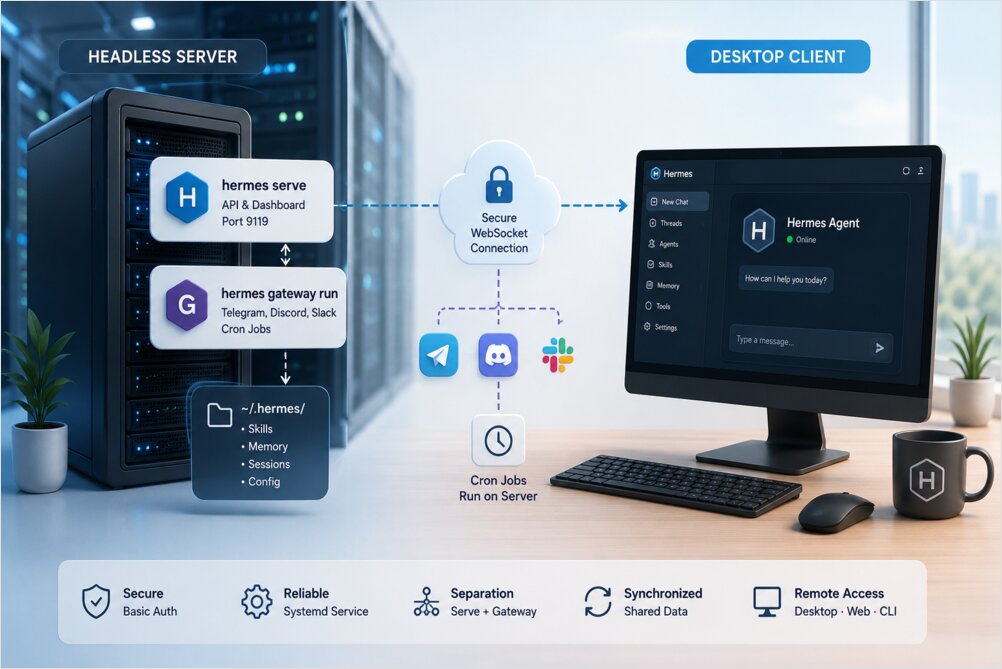
Headless Hermes server with remote desktop access
Running Hermes Agent on a headless server while connecting from a desktop client on another machine requires two server processes and a single client connection.
The architecture separates the Hermes backend into two server-side processes and one client-side surface. The hermes serve
backend handles the API and dashboard connections, while the hermes gateway run
process manages messaging channels independently. The desktop client connects to the serve backend, not the gateway.
--host 0.0.0.0
:9119"] gateway["hermes gateway run
Telegram, Discord, Slack"] end subgraph Client["DESKTOP PC"] desktop["hermes desktop
(WebSocket connection)"] end desktop <--->|WebSocket| serve gateway -.->|Shares ~/.hermes/| serve
Two processes on the server, one app on the client. Both server processes share the same ~/.hermes/
config, skills, memory, and sessions. Cron jobs execute on the server where the gateway runs.
For installation, provider setup, and initial configuration, start with the Hermes AI Assistant — Install, Setup, Workflow, and Troubleshooting.
Set up the headless server #
1. Configure authentication
Basic auth provides sufficient protection for a trusted LAN. Add credentials to the environment file:
cat >> ~/.hermes/.env << 'EOF'
HERMES_DASHBOARD_BASIC_AUTH_USERNAME=admin
HERMES_DASHBOARD_BASIC_AUTH_PASSWORD=choose-a-strong-password
HERMES_DASHBOARD_BASIC_AUTH_SECRET=$(openssl rand -base64 32)
EOF
chmod 600 ~/.hermes/.env
The .env
file lives alongside config.yaml
under ~/.hermes/
. Hermes resolves configuration with CLI overrides first, then config.yaml
, then .env
, then built-in defaults. Secrets belong in .env
.
2. Start the backend
Run the serve backend on all interfaces:
hermes serve --host 0.0.0.0 --port 9119
The backend listens on port 9119 and accepts WebSocket connections from the desktop client. Verify it is running with a quick status check:
curl -s http://localhost:9119/api/status | jq '.auth_required, .auth_providers'
3. Run as a systemd service
For a persistent server that survives reboots, install a user-level systemd service. Create the unit file at /etc/systemd/user/hermes-serve.service
:
[Unit]
Description=Hermes Agent Serve Backend

[Service]
EnvironmentFile=%h/.hermes/.env
ExecStart=/home/rg/.hermes/hermes-agent/venv/bin/python -m hermes_cli.main serve --host 0.0.0.0 --port 9119
Restart=on-failure

[Install]
WantedBy=default.target
Reload the daemon, enable the service, and start it:
systemctl --user daemon-reload
systemctl --user enable hermes-serve
systemctl --user start hermes-serve
Check the service status:
systemctl --user status hermes-serve
4. Start the gateway
The gateway is a separate process that handles messaging channels — Telegram, Discord, Slack, and others. Start it independently:
hermes gateway run
The gateway and the serve backend are two separate processes. The gateway manages sessions, runs cron jobs, and routes messages. The serve backend provides the API surface for desktop and web dashboard connections. They share the same home directory but run independently.
For the full list of gateway commands and subcommands, see the Hermes Agent CLI cheat sheet. If your primary interface is mobile messaging, pair this setup with Hermes Voice Control from Your Phone for voice-first workflows on top of the same gateway process.
5. Verify the backend
Confirm the backend is responding and authentication is active:
curl -s http://localhost:9119/api/status | jq '.auth_required, .auth_providers'
Expected output:
true
"basic"
If authentication is not enabled, the response will show false
for auth_required
. Check that the .env
file contains the correct variables and that the service has restarted after configuration changes.
Connect from the desktop client #
Option A: Hermes Desktop App
Install Hermes Desktop from the official site. Launch the app, navigate to Settings → Gateway → Remote gateway, and enter the server address:
http://<server-ip>:9119
Sign in with the username and password you configured on the server.
Alternatively, set the remote URL via environment variable:
HERMES_DESKTOP_REMOTE_URL=http://<server-ip>:9119 hermes desktop
Option B: Web dashboard
Open http://<server-ip>:9119
in a browser and sign in with the basic auth credentials. The web dashboard provides a browser-based interface to the Hermes backend without requiring a desktop installation.
Option C: CLI
From the desktop PC’s terminal, configure the remote URL via the desktop app settings or the HERMES_DESKTOP_REMOTE_URL
environment variable. The CLI surface connects through the same WebSocket channel as the desktop app.
Network and security considerations #
| Scenario | Recommendation |
|---|---|
| Trusted LAN | --host 0.0.0.0 + basic auth |
| Exposed to internet | Use Tailscale (--host <tailscale-ip> ) or OAuth provider |
| Firewall | Open port 9119 TCP on the server |
For a trusted local network, basic auth on 0.0.0.0
is adequate. If the server is exposed to the internet, use Tailscale to bind to the Tailscale IP instead of 0.0.0.0
, or configure an OAuth provider for stronger authentication. Always open port 9119 TCP in the server’s firewall when the backend needs to accept external connections.
Important process distinctions #
Understanding the separation between the two server processes prevents common configuration mistakes:
— The backend that the desktop app and web dashboard connect to. Handles the API surface and WebSocket connections.hermes serve
— The process that handles Telegram, Discord, Slack, and other messaging channels. Manages sessions, runs cron jobs, and routes messages.hermes gateway run
- These are
two separate processes on the server. They share
~/.hermes/
config, skills, memory, and sessions, but run independently. - Cron jobs execute on the server where the gateway runs.
- Profiles, skills, and memory are configured on the server side. The client connects to the already-configured backend.
For profile-first configuration and skills tuned to different production roles, see Hermes AI Assistant Skills for Real Production Setups.
Troubleshooting #
Desktop cannot connect to the server
-
Verify the backend is running:
systemctl --user status hermes-serve -
Check the port is open:
ss -tlnp | grep 9119 -
Test from the server:
curl -s http://localhost:9119/api/status -
Test from the client machine:
curl -s http://<server-ip>:9119/api/status -
If the client test fails, check firewall rules:
sudo ufw status
orsudo iptables -L
Authentication fails
- Confirm
.env
file has correct permissions:ls -la ~/.hermes/.env
(should be600
) - Verify the secret was generated:
grep HERMES_DASHBOARD_BASIC_AUTH_SECRET ~/.hermes/.env
- Restart the service after config changes:
systemctl --user restart hermes-serve
Gateway does not respond to messages
The gateway is a separate process from the backend. If the desktop connects but messaging platforms do not work:
-
Check gateway status:
hermes gateway status -
Start the gateway if stopped:
hermes gateway start -
Review logs:
hermes logs gateway -f
References #
Hermes Agent Desktop App DocumentationHermes Agent Configuration GuideHermes Agent Messaging GatewayHermes AI Assistant — Install, Setup, Workflow, and TroubleshootingHermes Agent CLI cheat sheet — commands, flags, and slash shortcutsHermes AI Assistant Skills for Real Production Setups
This article is part of the AI Systems cluster, which covers self-hosted assistants, retrieval architecture, local LLM infrastructure, and observability.