I almost didn’t make it.
My WordPress site had been running for years on a budget hosting provider — you know the type. Cheap, functional, good enough. But “good enough” started showing cracks: slow load times, frequent downtime, and a support team that seemed to be operating from a different timezone and century. When renewal time came around, I asked my AI assistant to do the math on switching to Hostinger.
The answer was clear: Hostinger’s 24-month Premium plan, even with the upgrade fee, worked out cheaper per year than staying — and the specs were incomparable. So I did what any reasonable but non-technical person would do: I asked AI to walk me through the WordPress migration to Hostinger step by step.
What followed was one of the most stressful evenings of my side-project life. Here’s the full story — including the pitfalls, the fixes, and the exact tools I used.
🧰 Tools Used in This Migration #
Before diving into the story, here’s every tool involved — so you can replicate this yourself:
| Tool | What It Does | Cost |
|---|---|---|
| Hostinger |
All-in-One WP MigrationLiteSpeed CacheYoast SEOHostinger hPanelClaude AI## Step 1: Make a Backup First
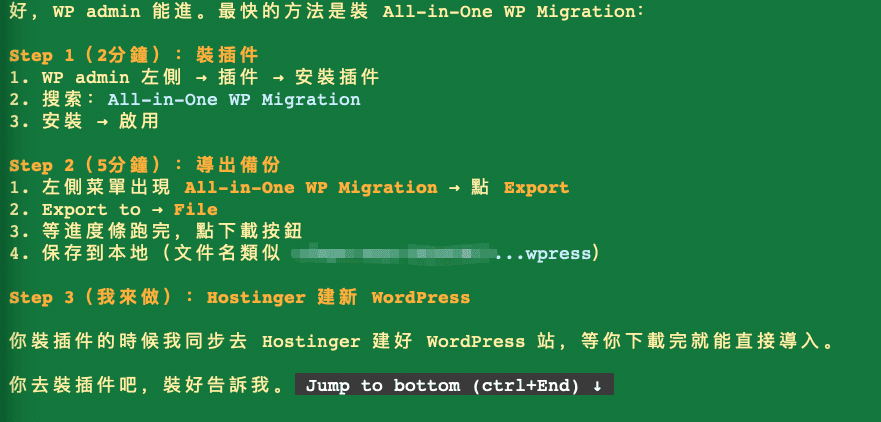
The AI’s first instruction was sensible: install All-in-One WP Migration and export a full backup before touching anything. The plugin is free, installs in 2 minutes, and creates a single portable .wpress file containing your entire site — database, themes, plugins, media, and all.
The backup completed — a hefty 460MB .wpress file. Great. Now I just needed to download it to my computer.
The First Pitfall: 4-Hour Download on Cheap Hosting #
My old host’s download speed was brutal. The browser showed an estimated 4 hours remaining for a 439MB file. That’s the moment I realised exactly what I’d been paying for all these years.
I cancelled. The AI suggested FTP — but the host’s passive mode blocked external connections. Three different approaches. All failed.
The Second Pitfall: Disk Quota Exceeded #
After the failed downloads, I tried creating a second, smaller backup. It failed. A third attempt. Also failed. The terminal finally revealed the actual problem:
The 460MB backup I’d created had used up all available disk space. Every new export failed because there was no room to write anything. Classic catch-22: delete the backup to free space, but lose the only copy in the process.
💡 Lesson learned: Before running a full backup export, check your disk usage in your host’s control panel. If you’re above 70% full, the backup itself may push you over the limit.
The Fix: Delete, Re-export Smaller, Upload to Hostinger #
The AI walked me through deleting the old backup from the WP admin panel to free disk space, then exporting a fresh backup without the media library. The new file came in at 148MB — manageable.
Meanwhile, I’d already signed up for Hostinger and set up a fresh WordPress installation. The migration wizard offers two paths:
The Hidden Trick: Increasing PHP Upload Limits #
I installed All-in-One WP Migration on the new Hostinger site and tried up the 148MB file. Failed. “Upload failed — connection lost or timeout.”
The default PHP upload limit on WordPress is 64MB. My backup was 148MB. The fix: increase the limits in Hostinger’s hPanel under PHP settings. Here’s exactly what to change:
upload_max_filesize = 256M
post_max_size = 256M
max_execution_time = 300
memory_limit = 256M
On Hostinger: hPanel → Websites → your domain → PHP → PHP Options → update the four values above → Save.
After that, the upload flew through. Hostinger’s servers are genuinely fast:
Import, DNS, and SSL — All Done in Under an Hour #
The All-in-One WP Migration import asked for the destination URL. Enter your domain with https://www
— matching the old site exactly — and the plugin handles all database URL replacements automatically. No manual find-and-replace needed.
After import: update DNS to point to Hostinger’s servers, then install SSL — a one-click operation:
Within 30 minutes of changing DNS, the site was live. The hPanel dashboard gives you a clean overview of everything:
Post-Migration Fixes the AI Handled #
The migration itself was done, but a few things needed fixing on the new site:
Homepage showing QR codes as thumbnails— posts had no featured images, so the theme grabbed the first image from post content. Fixed with a small custom plugin to show a default thumbnail.WordPress encoding breaking JavaScript— WP was converting&
to&
inside a JS block, breaking a URL parameter. Rewrote usingString.fromCharCode(38)
to bypass the encoding.LiteSpeed lazy-load blocking a dynamic image— the cache plugin was intercepting dynamically-setsrc
attributes. Fixed by creating a fresh image element at runtime withcreateElement()
.
None of these are things I’d have found on my own in a single evening.
Is Hostinger Worth It? My Honest Take #
After running on Hostinger for less than 24 hours, the difference is already noticeable. Pages load faster. The control panel is cleaner. Backups are automated. And the support documentation actually exists.
The math: Hostinger’s Premium Web Hosting at ~$2.99/month (24-month plan) costs less annually than many “budget” hosts I’ve seen — and you’re getting LiteSpeed servers, free SSL, a proper CDN option, and 100GB storage.
If you’re ready to make the switch, here’s my referral link — same price for you, small commission for me:
👉 Get Hostinger Web Hosting (use this link for the best discount)
Quick Checklist: WordPress Migration to Hostinger #
-
Check disk usage on old host — must be below 60% before exporting
-
Install All-in-One WP Migration → export backup (without media if large)
-
Sign up for Hostinger→ install WordPress - hPanel → PHP settings → set upload limits to 256M
-
Upload backup via hPanel file manager to
wp-content/ai1wm-backups/ -
All-in-One WP Migration → Backups → Restore
-
Update DNS → install SSL → verify site
-
Test all plugins and custom functionality