Affiliate links on Android Authority may earn us a commission. Learn more.
Aug 20, 2026 — 5:53 AM ET
- Google heavily restricted the Pixel 11 Pro’s rear HiLight LED array out of the box, limiting it to Gemini and calls from favorite contacts.
- The open-source HiLight Studio app unlocks the LED’s full potential with custom app notifications, light patterns (comet, pulse, rainbow), Quick Settings toggles, and built-in hardware protection limits.
- You can set up the app by side its APK and granting core permissions using Shizuku over Wireless debugging.
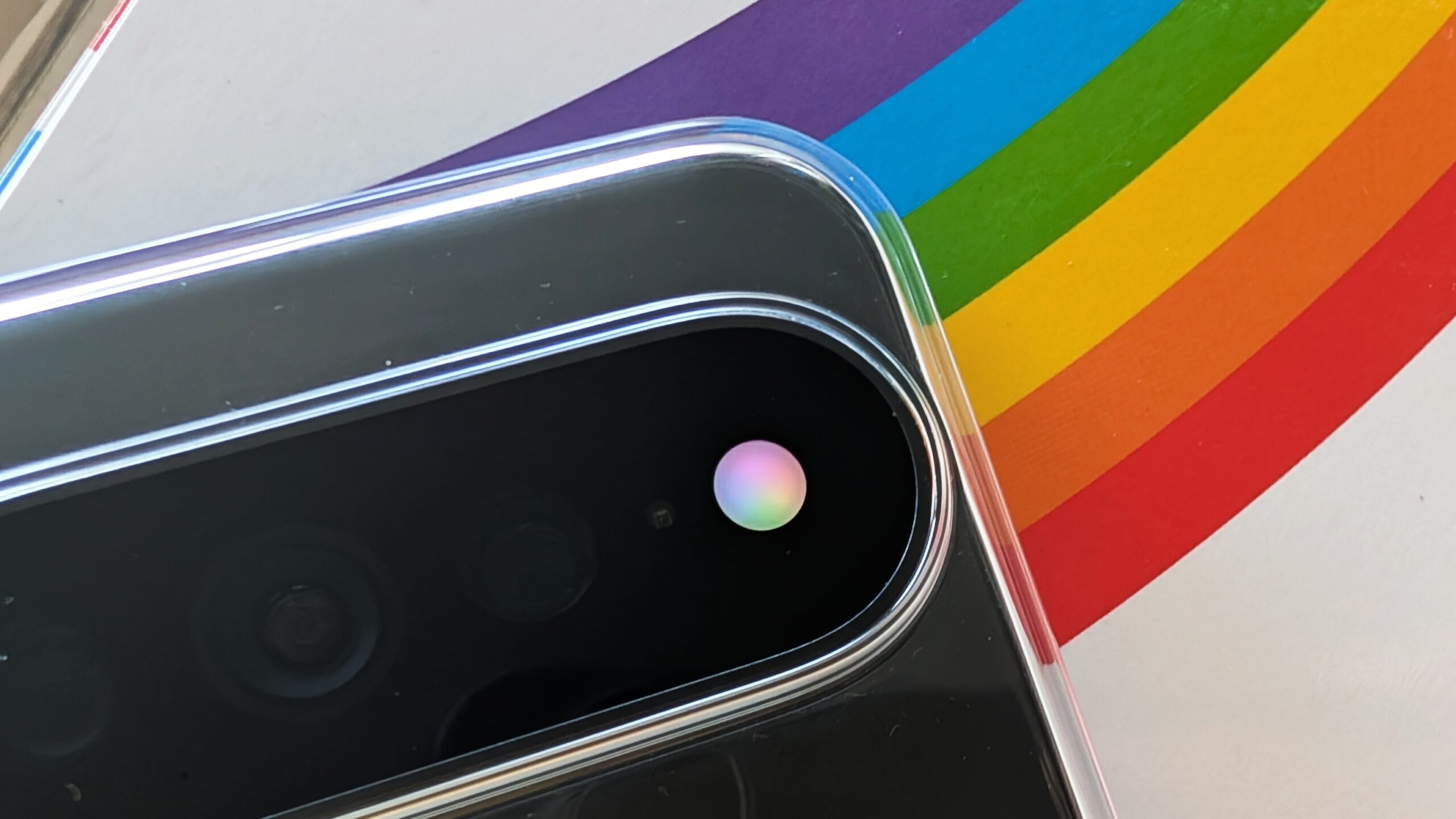
The Pixel 11 Pro series has a new “HiLight” LED system built around the camera’s flash on the back of the device. HiLight can be used as a notification LED to let you know about calls from your favorite contacts, and it also glows when you’re having a Gemini conversation… and that’s about it. HiLight has plenty of potential, but disappointingly, Google hasn’t blessed it with much functionality out of the box. If you want more out of HiLight and are okay with taking matters into your own hands, the open-source HiLight Studio app supercharges Pixel 11 Pro’s HiLight LED so it’s actually useful.
HiLight Studio is an open-source app by YouTuber-turned-vibecoder Dhananjay Bhosale that expands HiLight’s functionality beyond just favorite calls and Gemini, allowing you to configure the notification LED to work with any app you choose. The HiLight LED can be activated either when the app sends you a notification, when it’s open, or both if you want. You can set any color for any app, or even go crazier with multiple pattern options like comet, pulse, breathe, wave, or even rainbow.
If you can’t decide which option to choose, HiLight Studio also lets you save presets and import or export them for backup and sharing. Further, you can also pull in colors from your wallpaper if you’re gunning for a cohesive look for your phone. Beyond customization, HiLight Studio also gives you full, easy control over all its HiLight functionality. It comes with a Quick Settings tile that lets you toggle its features on and off without opening the app. It also respects your Do Not Disturb settings, and you can also set quiet hours separately. HiLight Studio also s its functionality when your battery drops below the level you set.
All of this control is great, but the HiLight LED array wasn’t designed to stay on continuously for long stretches, so HiLight Studio complements it with built-in safety limits. The developer notes that the LED array’s brightness will be gradually dimmed automatically if it remains on for more than 10 seconds at a time. If you’ve set the LED to turn on when an app opens, it will automatically switch off after 30 seconds by default, though you can extend this to a maximum of five minutes after clicking through a few warnings. Notification colors are capped to a minute maximum.
There’s also a global safety limit: the LED will not remain active for more than 5 minutes within any 10-minute period, regardless of your configuration. Whenever any of these safety precautions are triggered, the app also informs you about it.
While the app is vibe-coded with AI, it has been tested extensively on the developer’s Pixel 11 Pro XL. The developer also assures us that the app will remain open-source, ad-free, and subscription-free.
How to set up and use HiLight Studio on your Pixel 11 Pro/Pro XL/Pro Fold to control HiLight #
You can download HiLight Studio from GitHub and install it on your Pixel 11 Pro, Pixel 11 Pro XL, or Pixel 11 Pro Fold like any sideloadable APK. However, you’ll need Shizuku to activate the app’s core functionality after every reboot:
- Install Shizukufrom the Play Store. - Open Shizuku and start it via Wireless debugging. Shizuku will walk you through the pairing process.
- Once Shizuku is installed, open HiLight Studio > Setup > Request access, then allow access when Shizuku prompts you for it.
Once you have the core functionality set up, you have to grant HiLight Studio “Notification access” when you want notification rules, and “Usage access” when you want a rule to run while an app is open. The app’s Setup tab guides you through all of this. There’s an ADB-driven setup too, but we couldn’t get the command to work on our end.
Our experience with HiLight Studio on a Pixel 11 Pro XL #
My colleague Adamya Sharma tried out HiLight Studio on her Pixel 11 Pro XL. For her, installing the app was probably the trickiest part of the whole experience. The ADB method didn’t work for her, and getting Shizuku set up and granting it the necessary permissions took some effort. She also had to navigate Android’s Play Protect warnings and other restrictions before she could actually get the app running.
Once she got past all of that, though, the app worked pretty well for what it promises. You get six different effects — Rainbow, Random, Comet, Pulse, Breathe, and Wave — and you can assign different colors to individual apps. One of the coolest features is the ability to create your own color presets for the LEDs.
You can even customize each LED color individually, so you can pick up to 10 different colors and adjust their saturation, intensity, and brightness to create your own patterns.
You can also set up rules for individual apps and decide exactly how HiLight should react when you receive notifications from them. By default, HiLight turns off after 30 seconds, but you can extend that to five minutes with a toggle. There are also options to keep it disabled at certain times, which is particularly useful if you don’t want your phone lighting up in the middle of the night.
Overall, she found the app to be pretty cool. It’s the kind of feature that makes you wonder why Google didn’t offer something like this itself. Perhaps there are technical reasons for keeping tighter control over the LEDs, such as concerns about their longevity, but HiLight shows just how much more flexibility Google could have offered from the start. That’s something a lot of users have been unhappy about.
There is one pretty big caveat with her experience, though. After installing and using HiLight, the base feature stopped working properly on her phone. She was no longer seeing the LEDs light up when talking to Gemini or when receiving calls from my favorite contacts, two situations where HiLight is actually supposed to work.
She deleted the app and restarted her Pixel 11 Pro XL, and everything went back to normal. So while the app does a pretty good job of unlocking more control over the LEDs, in her case, it also seemed to interfere with some of the system’s built-in HiLight functionality. For now, she’ll be sticking with Google’s implementation.
Thank you for being part of our community. Read our Comment Policy before posting.