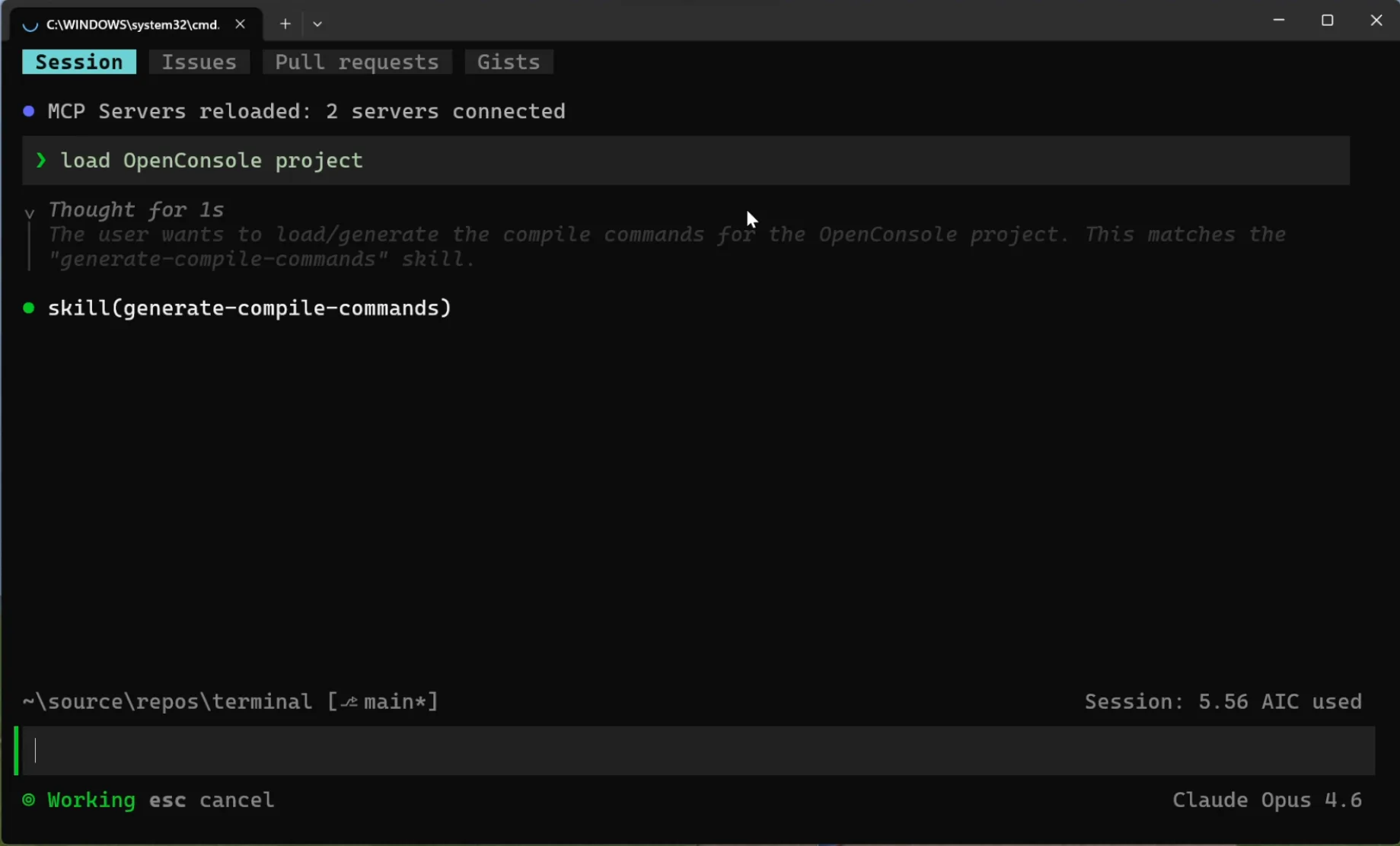
C++ developers can now bring IDE-style semantic intelligence into Copilot CLI with less setup. The C++ language server plugin supports richer code navigation, diagnostics, symbol understanding, and code changes by using the same build context your compiler does.
That build context usually comes from a compile_commands.json
file, which tells the language server how each source file is compiled. Instead of manually wiring that file together, the C++ language server plugin now provides a setup LSP skill that can help generate or refresh compile commands for common project types, including CMake and MSBuild. For custom build systems, teams can still provide their own compile_commands.json
file or create a project-specific skill that captures their build setup once and makes it repeatable.
To get started with the C++ language server for Copilot CLI, please download via the Copilot Plugins marketplace and follow the Quick Start guide in the repo to accept EULA and configure compile_commands.json
:
/plugin install cpp-language-server@copilot-plugins
Whether your project uses CMake, MSBuild, or a custom build pipeline, the goal is the same: make it easier for you to configure the C++ language server for Copilot CLI so Copilot can provide better navigation, diagnostics, explanations, and code changes, even when you’re outside the IDE.
Configuring the language server
The language server needs a compile_commands.json
file to understand your project. If you do not already have one generated via your build, you can utilize the skill to generate this for you.
To generate compile commands, type “regenerate compile commands” or “load project” in Copilot CLI, based on your desired configuration and platform (if necessary).
See “Recommended configuration path by project type” section below for suggestions based on your project build configuration.
Note: If your configuration changes, the skill should be re-invoked to regenerate your compile_commands.json
to keep the LSP server in sync. The LSP server will automatically watch for changes to the compile_commands.json
file.
Recommended configuration path by project type
CMake projects
For CMake-based projects, if you don’t have a compile_commands.json
already generated from your CMake builds. the recommended path is to use the skill to onboard the project to generate compile_commands.json
. You can also generate a compile_commands.json
by passing
set to “-DCMAKE_EXPORT_COMPILE_COMMANDSTRUE
” when configuring CMake.
CMake has native support for compile command generation and the skill can help configure the project, so the language server has the compilation database it needs.
MSBuild projects
For MSBuild-based projects, users have two options.
For teams that want a guided setup, the skill can still help onboard the project by producing the configuration needed for the language server.
However, if you’d like to generate your own compile commands, you can refer to this sample application for an example of how to generate compile_commands.json from MSBuild projects. While the sample application is designed to work out-of-the-box for many projects, it may require adaptation for complex projects.
Custom build systems
Custom builds often use hermetic, vendored, or wrapper-based toolchains that standard discovery cannot always detect.
For teams with custom toolchains, a project-specific skill can capture the setup once and make it repeatable. The detailed guidance provided in the cpp-language-server repo covers when custom configuration is needed, what settings to pin, and how to structure a skill so Copilot can regenerate compile commands reliably. It is especially useful for repositories where the default extractor produces incomplete output, picks up the wrong toolchain, or needs to run through a repo-provided build environment.
Getting started with the Microsoft C++ language server
The Microsoft C++ language server is available as a Copilot CLI plugin and runs on Windows, Linux, and macOS. An active GitHub Copilot subscription is required.
To get started, install the C++ language server plugin from the Copilot Plugins marketplace and follow the Quick Start guide:
/plugin install cpp-language-server@copilot-plugins
The Microsoft C++ language server requires a small amount of setup so it can understand your project the same way your compiler does:
- Authenticate with GitHub Copilot CLI
- Provide or generate a
compile_commands.json
file for your project
Share your feedback
Let us know your feedback and if there’s anything else you’d like to see. Help us improve the Microsoft C++ server for Copilot CLI by filling out this short survey: [Fill out form].
To report a problem or suggest an improvement, open an issue in our GitHub repo.