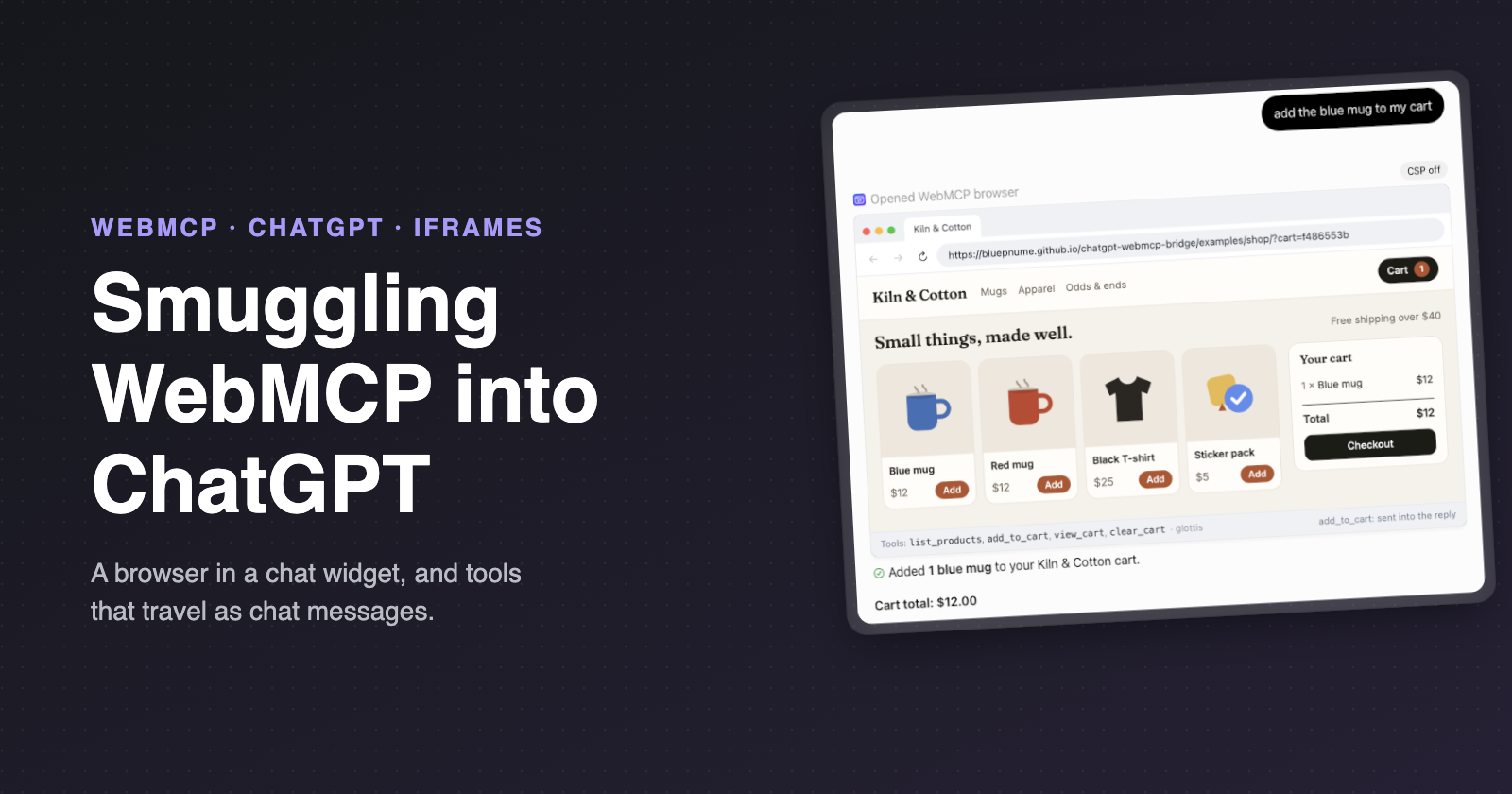
ChatGPT can't run a web page's tools, yet. An iframe, a fake browser and some creative use of chat messages, and now it can.
WebMCP is a pretty great idea: a web page offers a few tools ("add to cart", "search flights", "check out"), an AI agent in your browser calls them. Instead of the agent guessing, the page says what it can do, and the agent does it.
Almost nothing can use it yet, though: it's behind a flag in Chrome, and the agents most people actually talk to have no idea it exists.
I wanted to know whether I could get ChatGPT to use a web page's WebMCP tools today, without waiting for anyone to build out support.
As it turns out, yes, more or less, and it was an interesting hack. It took an iframe, a fake browser, and bending chat messages into something they probably weren't meant for.
#
Most agents use websites the hard way today: they take screenshots and click on things, or they read the page's HTML and guess which button does what, which is slow and can break whenever the page changes.
The other option is an MCP server, the standard way apps like ChatGPT call outside tools. The site builds a seperate server on the internet, and ChatGPT connects to it, logs in as you, and calls its tools over HTTP.
WebMCP puts the tools in the page instead. The page calls registerTool() with a name, a description, an input schema and a function, and an agent working in your browser can call it. That has some nice properties:
- You may already be logged in. The tool runs in your tab, with your session, so there's no OAuth and no API keys.
- The page knows things the server doesn't, like what's on screen, the half-filled form and the filters you just picked.
- You can see what's going on, because the agent works in the page you're looking at, and the page can ask you before doing anything risky.
- There's no new backend. For a lot of sites the front end already is the product, so it's a few functions instead of a new server to build and secure.
Chrome has an early version behind a flag.
#
WebMCP lives in your browser tab, and ChatGPT lives on OpenAI's servers, with nothing connecting the two.
ChatGPT only talks to servers. In developer mode you can add your own MCP server to ChatGPT as a plugin, and ChatGPT calls it over HTTPS from OpenAI's side.
A server on the internet can't see your browser, so it can't see a page's tools either. WebMCP, meanwhile, only exists in the browser: only code running in the same browser as the page can find and call its tools.
So, on one side there's a model that can only call servers, and on the other, tools that only exist inside a tab and behind a feature flag. To connect them, I need something that runs in my browser, inside ChatGPT, that the model can talk to. While ChatGPT doesn't offer that as a feature, it has a few pieces that add up to it.
#
I mention the plugin and ask it to open the browser, and ChatGPT shows a small browser in the chat, with a button for a demo shop. That browser is the plugin's UI, an iframe that ChatGPT renders in the chat, and I'll call it the plugin frame:
I click it, and the shop loads in an iframe of its own inside the plugin frame (the website frame) and, before anything else happens, asks whether ChatGPT may use my cart. That question comes from the shop itself.
I click Allow, the plugin frame's status bar lists the four tools the shop offers, and ChatGPT tells me what it can do:
From there I just ask for things:
The mug really is in the cart, because the shop's own add_to_cart function ran in my browser, and ChatGPT answered from its actual result.
#
There are four problems to solve: show a website, tell the model about its tools, let the model call one, and get the result back.
- The plugin MCP server offers ChatGPT a tool called
open_browser. - I ask for the browser, the model calls the tool, and the plugin MCP server says it's opening. The plugin MCP server also serves the plugin frame's HTML, which ChatGPT fetches separately and caches.
- ChatGPT shows the plugin frame in the chat: an address bar, back and forward buttons, a status bar, and the website frame.
- I pick a website (here, the demo shop), and it loads in the website frame like any page I'd visit.
- The model confirms, and that turn is done.
So far so good, but the model still has no idea what the website can do.
- The plugin frame connects to the website frame and gets its list of tools (more on how in a minute).
- Now the tools need to reach the model. Normally a plugin's tools come from its MCP server, but the plugin MCP server never sees the website, so the only route left is a chat message.
- So the plugin frame posts one. It's a single line for me,
✓ Opened Kiln & Cotton: 4 tools, with the tools attached as JSON for the model. - ChatGPT shows the message for a moment, tucks it away, then gives the model a new turn.
- With the tools in front of it, the model says in plain english what it can do on this website. I never asked the model to list anything, the instructions attached to the plugin frame's message did that.
- The plugin MCP server's second tool is
call_site_tool, and it's completely generic: a website, a tool name and some arguments. - When I say "add the blue mug to my cart", the model calls it with
add_to_cartand the blue mug. - That call goes to the plugin MCP server, and the plugin MCP server can't reach my browser, so all it can do is hand back a ticket number and tell the model to wait for the result.
- ChatGPT opens a fresh copy of the plugin frame for every tool call, right there in the chat, and hands it the call's arguments and the ticket number. ChatGPT is doing the delivery for me.
- I'd rather it kept the same plugin frame and sent the new arguments down as a
postMessage, so the website could keep its state, but a new plugin frame per call is what ChatGPT does. - The new plugin frame loads the same shop in its website frame (the cart lives in the URL, so it finds the same cart), connects, and runs
add_to_cart. - The blue mug lands in the cart, and the older plugin frame folds itself away, so it still looks like one browser.
Yes, this means the plugin MCP server is basically a receptionist that takes a message and points at the door. But it works, and it also means the plugin MCP server never sees the website, the tools or the results.
- The plugin frame posts the result as another chat message,
✓ add_to_cart ran on Kiln & Cotton. Result attached, carrying the same ticket number so the model knows which call it answers. - It's the same trick as step 2, except this time the model is usually still busy with its reply, and this is where it got kinda finicky.
- A message from the plugin frame can either start a new turn, or be slipped into a reply that's still being written, and which one works depends on whether the model is busy at that moment.
- None of it is documented, and ChatGPT shows a red "Steering requires an active compatible turn" when you guess wrong, so the plugin frame tries one, then the other, and waits a couple of seconds if both say no.
- Then the model reads the result and answers from what actually happened on the website.
One last bit of polish: at first the model narrated the wait, with "I've sent the request to add 1 blue mug ($12) to your cart. Awaiting confirmation from the shop." Thats accurate, but it gets old fast, so now it's told to say nothing until the result arrives, and the whole reply is the one line you see in the screenshot above.
#
This is everything at once, what runs where and what flows between the pieces:
The main thing to notice is that everything real happens in your browser, and the only thing outside it that knows about the shop is the model, which only knows what the website chose to tell it.
#
When a normal program calls a function, a few things are always true: the function was declared up front, the answer comes straight back from the call, and a message from the user really came from the user. Break any of those and a normal program falls over; and this plugin breaks all three:
- The shop's tools are never declared to ChatGPT, they just turn up in a chat message.
- When the model calls one, it gets a ticket number back instead of an answer.
- The real answer arrives later, as a chat message that looks like it came from me.
And the model doesn't mind, because a model doesn't see calls, return values or senders the way a program does. It sees one long stretch of text, so a message that says add_to_cart ran, here's the result reads to the model just like a proper tool result would. As long as the information lands in the conversation and it's clear what it is, the model picks it up.
I think that's worth remembering when you build for LLMs. We're used to strict systems, where every message has to arrive in the right shape, through the right pipe, but models are a lot more forgiving, and that leaves plenty of room for hacks like this one.
#
I skipped one thing in step 2, which is how the plugin frame gets the website's tools in the first place.
The plugin frame and the website frame are on different origins, so they can't touch each other's code, and all they can do is send each other messages with postMessage. As I've said before, messaging is a pain: you need a bunch of stuff on top, like requests and responses, errors, timeouts, and some way to know the other side is even there.
Native WebMCP would solve this, but it isn't on by default anywhere yet, so for now the website serves its tools with glottis, a small library that makes a page's functions callable from another window. The website wraps each function in tool() with a zod schema, and the plugin frame connects and gets them back as ordinary async functions. glottis turns the schemas into the JSON Schema the model sees and checks every call against them before the handler runs, and whatever the handler returns goes back to ChatGPT, while whatever it throws reaches ChatGPT as the error.
There's a lot more to glottis than that, and it has its own post:
#
Letting a chatbot drive your cart should probably involve asking you first, and here it's the website that asks, not ChatGPT and not the plugin. glottis lets exports be an async function, and holds the connection open until it returns:
serve({
  clients: {
    remoteWindow: { allowed: true, domain: '*' }
  },
  exports: async ({ client }) => {
    if (!await askTheUser(`Let ${ client.origin } use your cart?`)) {
      throw new Error('The user declined.');
    }
    return tools;
  }
});
The request to the user is drawn inside the the website frame, so neither ChatGPT nor the plugin can click it, only me, and the demo shop remembers the answer per cart, so the plugin frames that come later (one per call, remember) don't ask again.
A quick note on security: the plugin MCP server never sees a website, a tool or a result; the website decides who gets in and what they can do once they're in; and the model can only call the tools the website offers, and nothing else on the website.
#
What about actual WebMCP? The plugin supports that too. If you'd rather not use glottis, register your website's tools with the browser's own registerTool(), and the plugin frame will find them with getTools() and run them with executeTool(), with no connection needed. (glottis can do that registration for you as well, with one extra line in serve().)
Except that WebMCP is guarded by a browser permission called tools, which every frame between ChatGPT's page and the website frame needs, and ChatGPT's frames don't have it. To try it anyway, the repo has a launcher that opens your own Chrome in a separate profile, with the flag on and every iframe given the permission:
npx chatgpt-webmcp-bridge chrome
#
This works, and I use it, but it's a hack, and there are rough edges:
- Results are chat messages, not tool results. The model has to wait for a message it was told is coming, and it nearly always does, but occasionally you'll see that red "Steering requires an active compatible turn" line while the plugin frame works out which way in is open.
- A plugin frame per call. Each call reloads the website in a fresh plugin frame, which is fine for a shop whose state lives in the URL and in storage, and less fine for a website that keeps everything in memory.
- Only websites you've listed. ChatGPT only lets the plugin frame show websites from origins the plugin MCP server lists up front (they become the plugin frame's
frame-src), as exact origins with no wildcards, so "any website" really means any website whose origin you've listed on a server you run. - The website has to allow framing, with no
X-Frame-Optionsheader that blocks it and aframe-ancestorsthat allows ChatGPT's sandbox. - Developer mode only. OpenAI's app directory isn't going to approve an app that frames arbitrary websites, so for now this is a tool for people who build things.
- Native WebMCP needs a flag and a launcher, until browsers ship WebMCP and ChatGPT grants the permission.
I think most of these go away the day ChatGPT can talk to a website's WebMCP tools directly, and my bet is that it will, eventually. This is just a version you can use today, while the real thing gets built.
#
You need ChatGPT with developer mode on, and then it's three steps:
- In ChatGPT, open Plugins › Add › Add custom MCP server , choose no authentication, and use this server URL:
https://webmcp.danielbrain.ai/chatgpt-webmcp-bridge/mcp
- Start a chat, mention the plugin with
@, and ask it to open the browser. - Click Try the demo shop , clickAllow , and ask it to add something to your cart.
To point it at your own websites, run your own plugin MCP server (one command on Cloudflare Workers, or the package's serve command behind a tunnel) and list your website's origin. Everything is on GitHub, and it's on npm as chatgpt-webmcp-bridge, MIT licensed and very much 0.1.
Give it a try, and please steal any of these ideas. It's very much an experiment, so if you're building websites with tools, or agents that use them, I'd love to hear what you'd do with it, and what I got wrong.
Comments #
No comments yet. Be the first to comment.