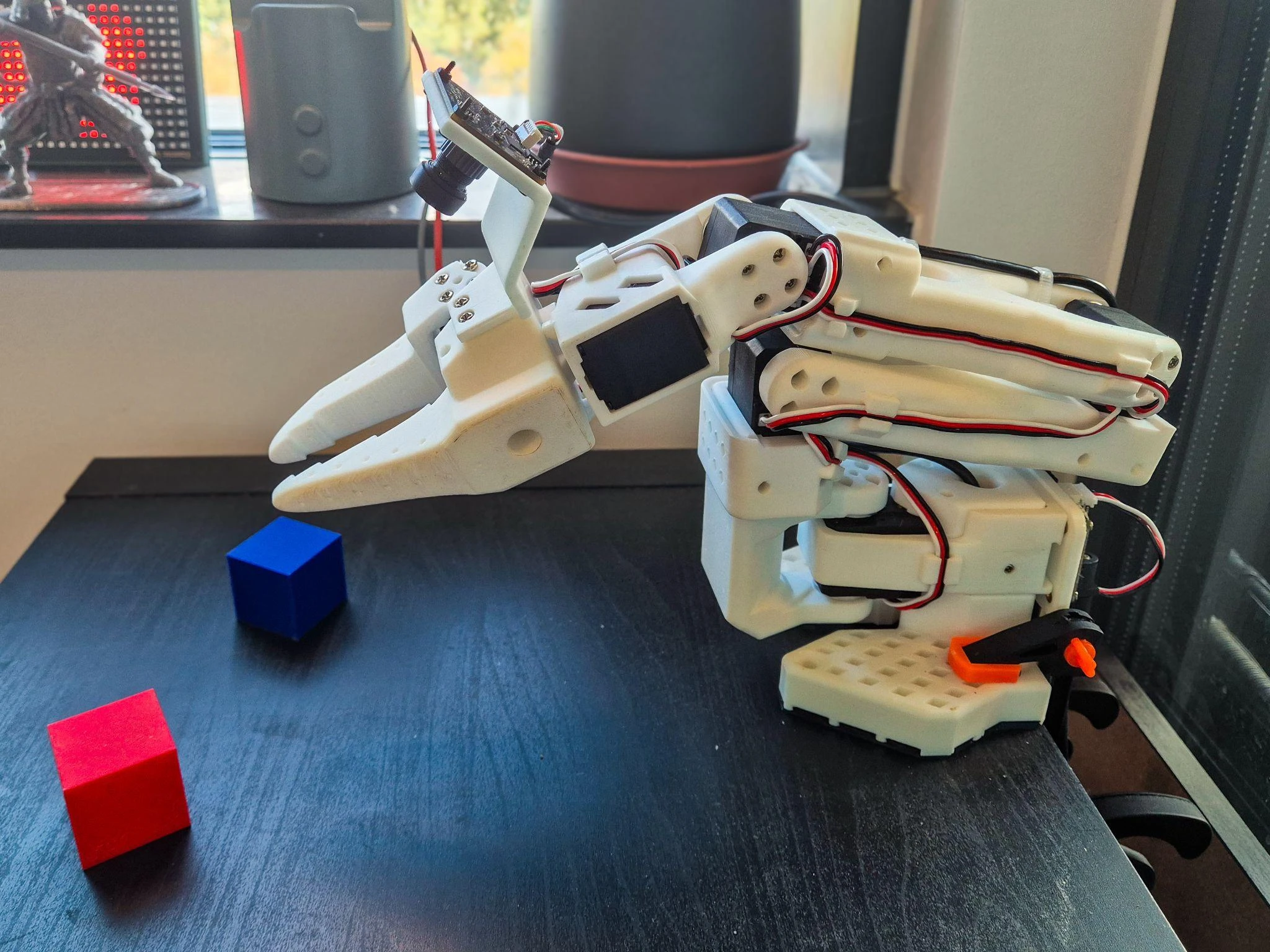
tl;dr: The SO-101 can now record a motion to an MCAP ROS bag — by hand-guiding the arm or by teleoperating it — and play it back through the same collision-checked path that teleop uses. Since the recordings are plain MCAP files, they open directly in Foxglove, where I used Comparison Mode to line up the same replay on the real arm and in mock mode and overlay the two. If you’d like to see it in action then jump to the Try It Yourself section to see the interactive data.
Project Context #
This post is part of my ongoing series on building a ROS 2 stack for the SO-101, an open-source 5-DoF robot arm normally operated with LeRobot, Hugging Face’s framework for physical AI. I’m using ROS 2 and Foxglove instead, following the same approach I’ve been taking with LeKiwi all year. If you haven’t read the previous articles, SO-101: Kicking off a new series covers the build, including some hardware upgrades, and Using Foxglove as an SO-101 Simulator covers the mock mode, inverse kinematics-based teleop, and self-collision checking that this post builds on.
Making Do with One Arm #
Record-and-replay has been on my list since I started building this arm, and the idea comes straight from its LeRobot roots. In the standard setup, the follower SO-101 arm mimics a leader arm, which a human moves by hand. The leader uses the same motors but with a lower torque, and includes a handle with a trigger instead of the follower’s moving jaw. While you teleoperate the follower with the leader, LeRobot records the motion as a LeRobotDataset, which stores joint states and actions in Parquet files, and its replay command can play any recorded episode back on the follower later.
I wanted to implement a similar mechanism with ROS 2, but I don’t have a second arm to use as a leader, so I had to get creative with just one follower arm. With a single arm, there are three ways to record data: the first two are the teleop modes I explained in my Foxglove-as-a-simulator post, driving the end effector with inverse kinematics or moving each joint individually using sliders in UI tools like Foxglove. The third is to hand-guide the arm with its torque off (i.e., the software emergency stop engaged), which is the most direct way to show the arm a motion. In all three cases, the arm’s joint states are continuously recorded into ROS bags (the ROS 2 counterpart to LeRobot’s LeRobotDataset) as the arm moves while recording is active.
Like everything else in so_arm_ros2, this feature was built using small, separate pieces. record and replay are plain std_srvs/srv/SetBool services, owned by a standalone record_replay_node that doesn’t know or care where a call comes from — CLI, a joystick, Foxglove’s Service Call panel, or my Button extension all look the same to it.
Replay also doesn’t get a path of its own to the motors — it goes through the same one as teleop, which I’ll come back to once the basics are covered.
Recording by Hand #
One thing I absolutely wanted to include was recording motion by hand-guiding the arm. To do this, I need to disengage the motors by disabling torque, which the software emergency stop already does. This saved me the trouble of implementing a separate “disable torque” button. With torque off, the arm is limp and can be moved by hand. Disabling the torque doesn’t stop the motors from reporting their state, so I can still read the state interfaces and get joint feedback. I made sure recording keeps running through an emergency stop so record_replay_node can capture this joint feedback while I hand-guide the arm. I can still record while teleoperating with torque on; the recording works the same way.
On the other hand, since replay (i.e., sending motion commands to the motors) needs the motor torques to be enabled, enabling the emergency stop aborts any replay commands.
Recording Data #
The recorded bags use MCAP as their storage format, an open-source container format developed by Foxglove. It is the default storage format for ROS 2 bags and plays the same role that Parquet does in a LeRobotDataset. MCAP is advantageous because I can open my recordings in the Foxglove app and review them on a timeline without special processing.
To keep the recordings simple, record_replay_node subscribes only to three topics: /joint_states, /dynamic_joint_states, and /tf, and writes all three straight into an MCAP bag via rosbag2_py, the Python API for ROS 2’s bag library. It writes the raw message bytes directly, so it only needs the topic’s type rather than its message layout. If I need to add another topic to record later, I can simply append the topic name and type to the list.
self._recorder = BagRecorder(self._recordings_dir, [
    (0, self._joint_states_topic, 'sensor_msgs/msg/JointState'),
    (1, self._dynamic_joint_states_topic, 'control_msgs/msg/DynamicJointState'),
    (2, self._tf_topic, 'tf2_msgs/msg/TFMessage'),
])
Replay, on the other hand, only reads joint_states from the bag — it doesn’t need /tf, because so_arm_ros2’s base is fixed, and every frame on the arm is derived by robot_state_publisher from joint states plus the URDF. During replay, TF is regenerated from the arm’s current joint feedback. The recorded TF is still useful, but only for reviewing the bag in RViz or Foxglove; replay itself doesn’t depend on it.
I’m not recording the wrist camera I introduced in the kickoff post. It isn’t calibrated yet and isn’t part of this demo, so this is joint motion only for now. I eventually want to capture what the arm sees alongside its motion, which I’ll add once the camera is calibrated.
Playing It Back #
replay loads the most recent recording and uses the samples’ recorded timestamps to follow the motion at its original pace. A timer publishes the current joint-position target from the recorded joint_states samples at 50 Hz by default, matching the controller’s update rate. It uses the latest sample due at each tick, without interpolating between recorded samples. For now, replay always plays the newest bag; picking a specific one is planned, but not yet supported.
replay_loops controls how many times it repeats: 0 loops forever until d or e-stopped, any positive N plays exactly N passes and stops. The default is one pass. If the replay is d or finishes executing, control returns to the slider or IK input, depending on which mode was active before the replay command was sent. An e-stop abort is different: after clearing it, the next replay starts from the beginning.
Recording and replay can’t run at the same time — starting one while the other is in progress is rejected.
This is the part of the design I care about most. Replay has no route to the motors of its own: the replay timer publishes its joint-position target into the same path that IK teleop and slider control already use, so every target is held to the joint limits and goes through the self-collision checker from the previous post before it reaches the controller. Replay has no separate set of safety checks, and a recording follows the same rules as a live command.
There are a few caveats: First, if the arm isn’t at the recording’s start pose, the replay will cause the arm to jump to the start pose at speed. The motors will still operate within their individual position and velocity limits, and the self-collision checker still works. The self-collision checker only knows about the arm itself, so it won’t stop a replay from hitting external obstacles. So, it’s best to clear the arm’s workspace before replaying a recording, even if the arm is at the correct start pose.
This holds for hand-guided recordings too. Nothing checks the motion while I move the limp arm, but when it’s replayed, every pose goes through the same limits and collision checks as a joystick command. This keeps a hand-guided recording from driving the arm past its joint limits or into itself on replay. As noted above, it still can’t see anything outside the arm.
Status at a Glance #
With several ways to control the arm, plus recording and e-stop, it’s easy to lose track of which mode is active, so I wanted a quick-glance indicator. So, I implemented the target_visualizer_node, which reuses the IK target marker in Foxglove’s 3D panel and colors it based on the active mode: recording, emergency stop, replay, slider control, or IK teleop. When multiple modes apply, the highest-priority mode wins, except that recording and e-stop flash between their two colors, since recording keeps running through an e-stop. The colors and priority order come from the teleop configuration file.
Comparison Mode #
In the previous mock-mode post, I mentioned wanting to try Foxglove’s Comparison Mode, a feature of Foxglove’s Pro tier that opens two or more recordings on a shared timeline and lets you compare them using the existing Foxglove panels.
My goal was to compare the real arm and simulated arm in mock mode. To keep the motions the same in both cases, I used the record-replay feature to record a motion, then replayed it twice: once on the real arm and once in mock mode. While each replay ran, I recorded its joint feedback with a separate ros2 bag record process, since record_replay_node can’t record and replay at the same time. This resulted in two MCAP files, which I opened in Foxglove using the “Compare local files” option, which loads them as separate sources in a single shared timeline.
Each source gets its own slot, labeled A and B. My first step was to plot the joint angles from the real arm and the mock mode arm in the same panel so I could see the offset between them. Then, using the plot as a reference, I lined up the two recordings in the source list, nudging it until the joint traces overlapped. Once lined up, I opened two 3D panels side by side, each pointed to a different source, so I could watch the two arms’ motion at the same time.
The plots showed how closely the real arm tracked mock mode and where they diverged. The STS3215 motors are quite accurate, and the mock mode implementation in sts_hardware_interface matches them well, so the divergence is small (median error 0.2–2.4° per joint) in the plots and hardly noticeable in the 3D panels. One observable insight is that the mocked arm moves faster than the real one. This is expected, as the real arm is affected by real-world physics while the mock arm assumes ideal conditions. The real-vs-mock comparison can be seen in the video below, which shows the motion of the mocked arm on the left and the real arm on the right:
Try It Yourself
Want to explore the comparison data interactively? Click below to launch the Foxglove viewer with both MCAP recordings loaded in Comparison Mode. You’ll be able to scrub through the timeline, plot joint positions from both sources, and see exactly how closely the real arm tracked the mock mode simulation.
Mock Mode and
Real Arm in Foxglove. Comparison Mode requires a Foxglove account with a Pro plan.
The two recordings start at different times, so the joint traces will not line up at first. Open the Sources tab and click Manage, then drag one of the sources to shift its time offset until the plots align.
The interactive viewer needs you to be signed in to Foxglove. If you can’t use it, download the mock recording and the real-arm recording and open them in Foxglove.
I can see this being useful well beyond this experiment. Recording the same motion before and after a change to the teleop code, or with different PID settings, would show what the change did without having to eyeball two separate runs, and since Comparison Mode isn’t limited to two sources, a whole series of runs could be lined up the same way. Comparing the real arm with mock mode, as I did here, can help with tuning too, as long as I keep in mind that mock mode doesn’t model gravity or external contacts, as I discussed in the previous post.
What’s Next #
Camera and video in the recording is the big one — captured alongside joint states, replayed differently depending on whether there’s a real camera streaming live or not — but I want to finish calibrating the wrist camera before adding it to these recordings. I’ve seen a few examples of people using a robot arm to move the camera around a fixed checkerboard calibration pattern instead of moving the pattern around a fixed camera, and now that I have the arm working, I’d love to give it a shot.
All the code for this lives in the so_arm_ros2 repository. It’s a work in progress, so expect some rough edges, but feedback and contributions are always welcome. If you try it on your own SO-101, or are working on something similar on another robot arm, I’d love to hear about it.