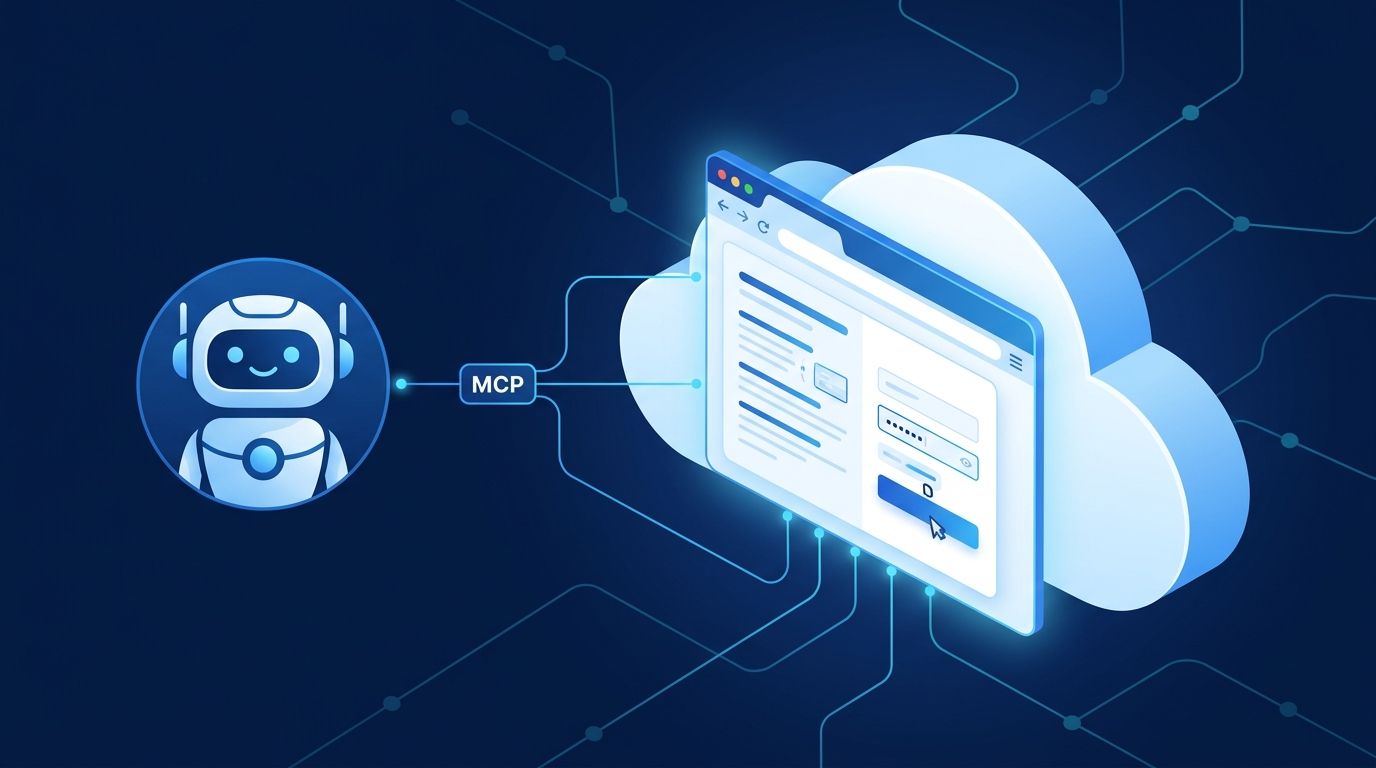
Microsoft shipped a remote MCP server for Playwright Workspaces this month, and it does something developers building AI agents have been kludging around for two years: it gives any MCP-compatible agent a fully managed cloud browser without a single local Playwright installation. Point your agent at one Azure HTTPS endpoint, and it can open browser sessions, navigate pages, fill forms, extract data from authenticated apps, and take screenshots — no browser binaries, no session management code, no self-hosted infrastructure. The service is in preview, costs $0.01 per Linux browser minute on Azure, and integrates directly into VS Code with GitHub Copilot and Microsoft Foundry agents.
The Infrastructure Problem It Solves #
Browser automation has always been the last-mile headache for agentic AI. When your agent hits a task that only exists in a web UI — a portal, a legacy app, an authenticated dashboard — the options were ugly: install Playwright in every agent environment (operationally painful), use a third-party managed service (separate billing, separate auth), or skip the task entirely. The Playwright Workspaces Remote MCP Server is a fourth path: Azure-native, Entra-authenticated, and built by the Playwright team themselves.
https://eastus.mcp.playwright.microsoft.com/playwrightworkspaces/YOUR-WORKSPACE-ID/mcp
The server uses MCP over Streamable HTTP, which allows real-time bidirectional communication between the agent and the remote browser session. Seven Azure regions are available at launch: East US, West US 3, West Europe, Switzerland North, East Asia, Japan East, and Australia East — useful for teams with data residency requirements.
How to Connect It #
There are two integration paths, and both require a workspace access token (treat it like a password — never commit it to source control or include it in a prompt).
VS Code with GitHub Copilot: Enable MCP support in Copilot settings, add a remote MCP server entry pointing at your workspace endpoint, and pass the access token as an x-api-key header. VS Code handles the rest.
Microsoft Foundry: Create a Custom Keys project connection in the Foundry portal, store your access token as x-api-key, then add a remote MCP tool to your agent configuration with the connection and endpoint URL. Microsoft recommends requiring approval for every tool call while you evaluate the integration — good advice for preview software.
Lock Down Your Tool List #
The MCP server exposes over 22 browser tools. Do not enable all of them. Microsoft is explicit: browser_run_code has “the highest privilege and can produce arbitrary side effects” — enabling it by default is a security mistake. The same applies to browser_evaluate. For read-oriented workflows, start with the minimal allow list:
create_browser_sessionbrowser_navigatebrowser_snapshotbrowser_findbrowser_take_screenshotclose_browser_session
Add interaction tools — browser_click, browser_type, browser_fill_form — only when your specific workflow requires them. Always call close_browser_session in a cleanup step even when the flow fails; inactive sessions auto-expire after 15 minutes, but clean closure releases browser capacity immediately.
Session Rules You Must Know #
Sessions are not durable. A connection loss is terminal — the session cannot be reopened. If your agent loses connectivity mid-task, create a new session and restart from a known application state. There is no concurrent action support on a single session; tool calls are processed sequentially. Foundry has an additional 100-second client timeout on non-streaming MCP calls, so break long workflows into multiple shorter tool calls rather than one large sequence.
When retrying actions: a timeout does not prove an action had no effect. Before retrying a non-idempotent operation like a form submit or a file upload, call browser_snapshot to check whether the expected state change already occurred. Blindly retrying a timed-out click is how agents double-submit forms.
The Token Cost Math #
Here is the number the announcements gloss over: browser automation through MCP consumes roughly 114,000 tokens per typical task. At current Sonnet pricing, that is about $0.34 per task in LLM costs alone — before the $0.01/minute Azure browser time. The CLI alternative runs the same task in around 27,000 tokens, a 4x difference.
That gap matters for high-frequency automated pipelines. For an agent running a browser task 1,000 times per day, the MCP route adds roughly $310 in daily LLM costs over the CLI approach. For low-frequency human-in-the-loop workflows, or teams building in serverless environments where local Playwright is impractical, the managed MCP wins on simplicity. Know your task frequency before committing to the architecture.
Bottom Line #
The Playwright Workspaces Remote MCP Server is genuinely useful — a first-party, enterprise-authenticated, multi-region managed browser for AI agents is something the ecosystem has needed. The preview caveats are real (no SLA, sessions are fragile), but this is worth setting up and testing now so your team is ready when it reaches GA. Start with VS Code, use the minimal tool list from the official guide, and build in session restart logic from day one.