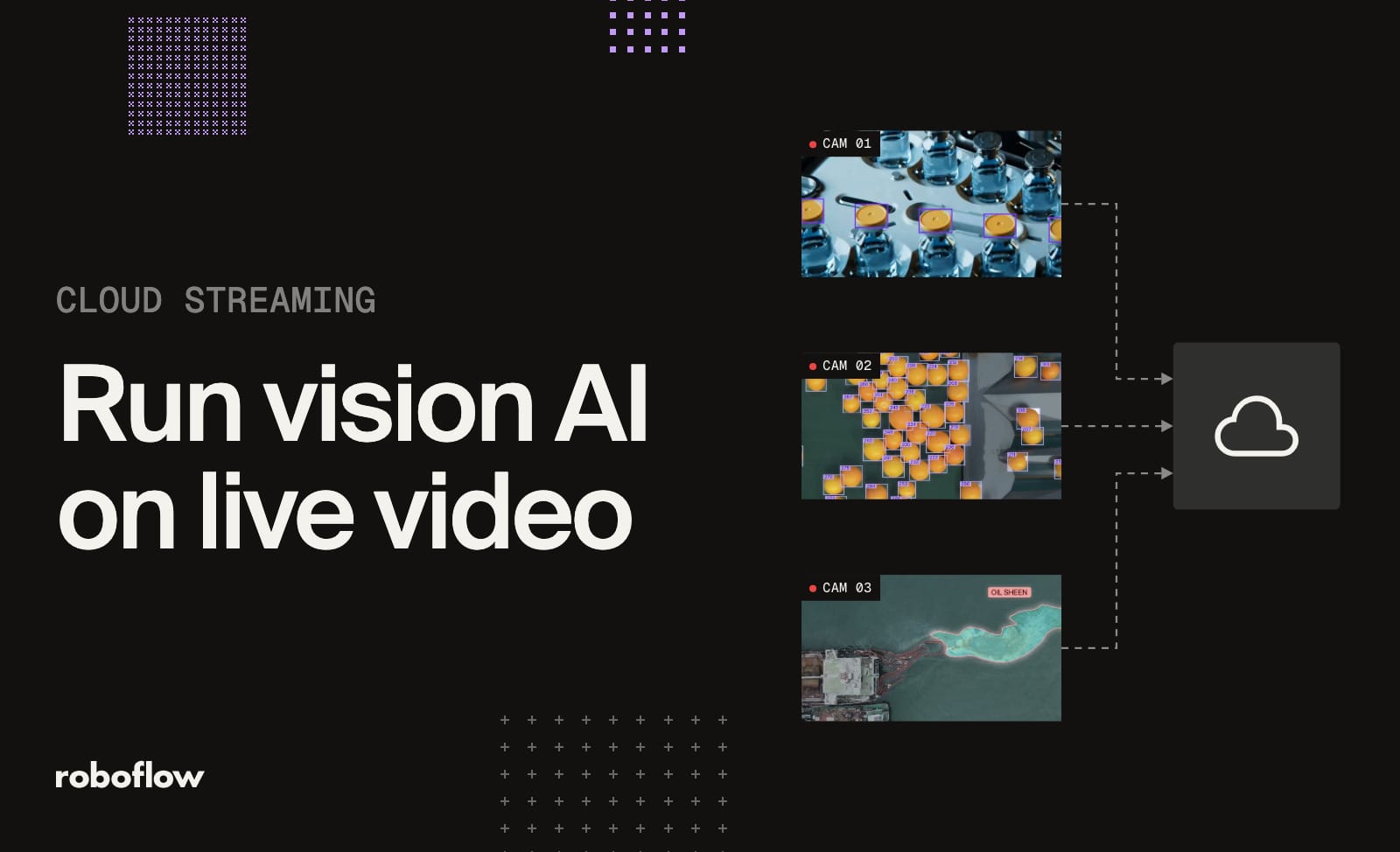
Today we’re announcing Roboflow Cloud Streaming, a managed service for bringing vision AI to continuous video streaming and turning any camera in your fleet into a source of real-time intelligence.
Roboflow Cloud Streaming lets you deploy vision applications that combine models, logic, and integrations, on live camera streams and get going in minutes. Roboflow manages the compute infrastructure, so you don’t need to set up and maintain GPUs in the same location as every camera. That means you can run AI on camera feeds from remote locations, from sites with no room for extra hardware, and from many locations at once, with far less to manage.
Turn camera feeds into visual intelligence
Many jobs come down to looking at something, understanding what’s happening, and deciding what to do next. A warehouse manager counts pallets at the dock to log what came in and went out. A manufacturing team watches for visible defects so operators can pull a product before the next stage. An inspection team scans a live drone feed for damage while the drone is still on site. When AI runs on a live camera feed, checks like these can happen automatically.
Getting AI running on live video streams has traditionally meant buying a GPU for each site, installing an inference server, and keeping everything updated. That takes time and resources, and it can slow the process of going from an idea to a deployed vision system.
That is why we built Cloud Streaming. You can connect your cameras, design a computer vision application, and deploy it to the cloud. That way you can deploy a working application sooner, without managing GPUs or servers yourself, and you can spend more time on the larger goals or problems you want to solve.
See what a live camera can tell you
In the video above, a camera moves through a logistics yard while a vision application detects shipping containers and reads their IDs. With those IDs, a yard operator can confirm they have the right container before moving it, which helps keep and departure windows on schedule. All of the processing happens in Roboflow’s cloud, so there is no GPU to install in the yard.
Connect any camera
Cloud Streaming works with cameras you might want to use in a project, whether they’re on the public internet, a local network, or connected to a streaming encoder. How you connect depends on a few things:
Is the camera reachable from the internet? Paste its stream URL (RTSP, RTSPS, or HLS). Verkada cameras connect with an API key from your Verkada account.
Is the camera on your local network? Run the Roboflow Video Connector on a computer near your cameras. It sends the stream to our cloud over outbound connections, so you don’t need to set up port forwarding. The connector runs on macOS, Linux, Windows, and Docker.
Already have a streaming encoder? Publish RTMP or RTMPS directly to Roboflow.
Start with the camera in your pocket
Roboflow Outpost, our new mobile app for iOS and Android, turns your phone into a live video source for Cloud Streaming. Connect your phone’s camera to your Roboflow workspace, then deploy a vision application to process the stream in the cloud. You can try an idea where the work happens without setting up a separate camera.
Outpost also lets your mobile device act as a connector for compatible cameras on the same local network, sending their streams to Roboflow for processing.
Build a vision application, deploy it, and keep improving it
Ask Roboflow Agent to help you build a vision application for your stream. You can start with pretrained and foundation models, or collect frames from the stream to fine-tune a model on your data.
When you’re ready, click Deploy and close your laptop. The vision application keeps running on your stream in our cloud without your browser, on a GPU that Roboflow sizes for your workload. If a camera drops, processing resumes when the video returns. You can also schedule workloads ahead of time.
Send results to your systems with webhooks, WebSockets, or integrations like Slack. Store outputs in Vision Events or cloud storage buckets so your team can review them later.
You pay in credits for the time your application runs. The deploy screen shows the hourly rate before you start, so you know the cost up front.
Get started today
Open Deployments, then Cloud Streaming, and click Add Video Source. The quickstart (opens in a new tab) walks you through it, and rates are on the credits page. Start with one camera and one useful result, then build from there.