title: "How to Set Up Ollama and Apple Intelligence in VaultSort (Step by Step)" date: "2026-10-02" excerpt: "Install Ollama, pick the right model for your memory, connect it to VaultSort, or switch on Apple Intelligence. Plus fixes for every common error. Mac and Windows." coverImage: "/images/blog/set-up-ollama-apple-intelligence-vaultsort.png" categories: ["AI", "Ollama", "Apple Intelligence", "How-To", "Setup Guide", "macOS", "Windows"] #
VaultSort 5.5 can run its AI features on your own computer, with Apple Intelligence or Ollama: no cloud, no API key, no per-request cost. This guide walks through setting up either one, choosing a model, and fixing the handful of things that can go wrong.
Which one should you set up?
- On a Mac that runs Apple Intelligence: start with Apple Intelligence. It takes about a minute and needs nothing installed.
- On Windows, or if you want the strongest local results: set up Ollama with the largest model your computer can hold.
- Already using OpenAI, Anthropic or Gemini? Keep it, and add Apple Intelligence in front of it (see Option 3 below).
You can switch at any time in Settings → AI.
Option 1: Apple Intelligence (Mac) #
What you need
- An Apple silicon Mac (M1 or later)
- macOS 26 or later
- VaultSort 5.5 or later
Step 1: Turn on Apple Intelligence
- Open System Settings → Apple Intelligence & Siri .
- Turn on Apple Intelligence .
- The first time, macOS downloads its model in the background. Keep your Mac connected to Wi-Fi and power until it finishes.
If you don't see Apple Intelligence in System Settings, your Mac, macOS version, or language and region settings may not support it yet. On those Macs, use Ollama (Option 2) instead.
Step 2: Choose it in VaultSort
- In VaultSort, choose VaultSort → Settings… (or press ⌘,) and open theAI tab.
- Under AI Provider , chooseApple Intelligence .
- Press Use Apple Intelligence .
That's it: no key, no model to pick. If VaultSort says Apple Intelligence is turned off or still down, finish step 1 and press Check again.
What it's best at: the AI Storage Advisor, and clear, focused Build with AI requests like "move all PDFs in Downloads into Documents/PDFs". Apple's on-device model is compact, so very large requests can be too much for it. VaultSort tells you when that happens.
Option 2: Ollama (Mac and Windows) #
Step 1: Install Ollama
- Download Ollama from ollama.com/download .
- Mac: open the download, drag Ollama to Applications and launch it. A llama icon appears in the menu bar.
- Windows: run the installer. Ollama starts in the background and appears in the system tray.
Ollama keeps a small server running on your computer at http://127.0.0.1:11434. VaultSort connects to that address, and nothing goes over the internet.
Step 2: Download a model that fits your computer
Model size matters more than anything else. Bigger models write noticeably more reliable rules, but they need the memory to hold them. On a Mac, check Apple menu → About This Mac → Memory. On a Windows PC, what matters most is your graphics card's video memory (VRAM).
| Your memory | Download this | Size |
|---|---|---|
| 8 GB | qwen2.5:3b |
about 2 GB |
| 16 GB | qwen2.5:7b orllama3.1:8b |
about 5 GB |
| 24–32 GB | qwen2.5:14b (recommended ) |
about 9 GB |
| 48 GB or more | qwen2.5:32b |
about 20 GB |
Open Terminal on a Mac, or PowerShell on Windows, and download your model. For example:
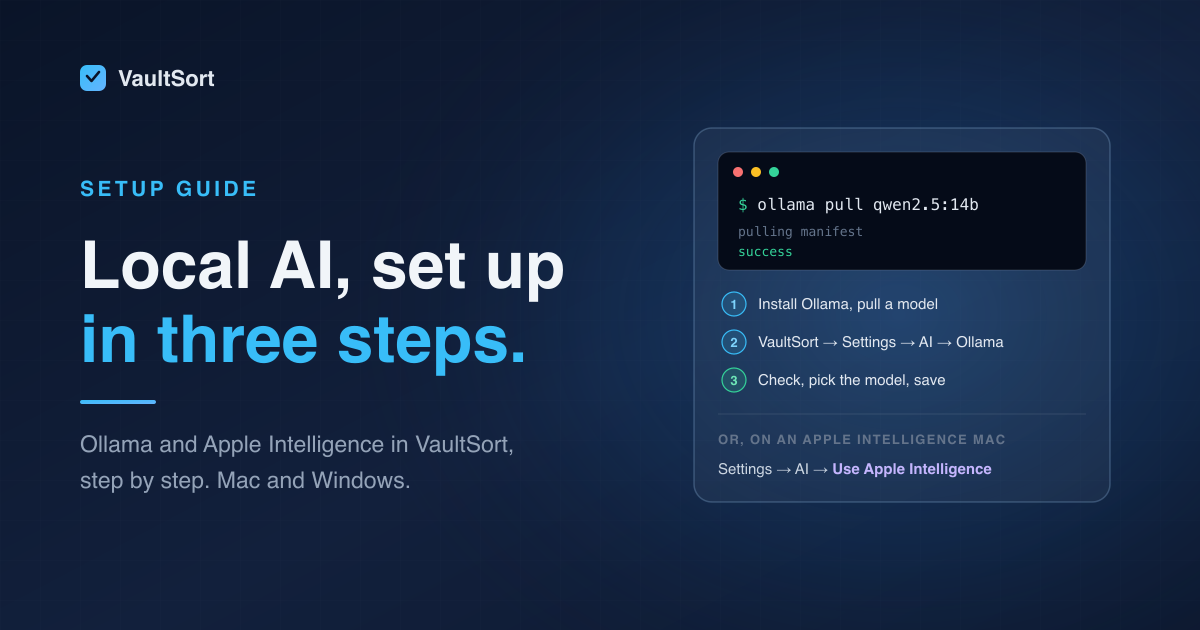
ollama pull qwen2.5:14b
When it finishes, check it's there:
ollama list
Prefer a different model family? Any chat model from the Ollama library works. Larger is better for Build with AI. For the Storage Advisor alone, a small model is fine.
Step 3: Connect VaultSort
- Open Settings → AI and chooseOllama .
- Leave the address as
http://127.0.0.1:11434, unless you run Ollama on another computer. - Press Check . VaultSort lists the models you've downloaded.
- Pick your model and press Validate & Save .
Using Ollama on another computer
If a more powerful machine on your network runs Ollama, VaultSort can use it:
- Enter its address , for example
http://192.168.1.20:11434. You can leave off thehttp://. - On that machine, make Ollama accept connections from the network. Ollama's
OLLAMA_HOSTsetting controls this; see Ollama's documentation. - Expect a warning. VaultSort warns you that the address is on another computer. Your requests (which include folder names) travel there, and over plain
http://they are not encrypted, so only do this on a network you trust.
Option 3: On-device first, with a cloud provider as backup #
If you already have an OpenAI, Anthropic or Gemini key set up, you can put Apple Intelligence in front of it.
In Settings → AI, under Use Apple Intelligence first, turn on:
- AI Storage Advisor
- Build and Revise with AI
VaultSort now tries the free, on-device model first. It hands the request to your cloud provider only when the on-device model can't do it well: the request is too large, or the answer doesn't pass VaultSort's checks. You pay for the hard requests only.
Using your local AI #
With a provider set up, all three AI features use it:
- Build with AI: go toAdvanced Organize → Create New Job → Create with AI . Describe the job and pressGenerate Job .
- Revise with AI: open any job in the Visual Rule Builder and chooseRevise with AI . Describe the change, review the diff, and accept it.
- AI Storage Advisor: in Storage Analysis, theAI Storage Advisor card appears once a provider is set up. PressAnalyze .
Tips for local models:
- Be specific."Move PDFs from Downloads to Documents/PDFs, but skip the Keep folder" gets better rules than*"tidy my stuff"* .
- One job per request. Small models handle three clear categories far better than twelve vague ones. Build the job in steps with Revise with AI.
- Give it time. Local models typically take from ten seconds (Apple Intelligence) to a minute or more (a large Ollama model). The first request after a break takes longest, while the model loads.
Why VaultSort sometimes holds a job back
Every AI-built job is checked before you can save it. If the rules would move files to the Trash or overwrite existing files, or don't match what you asked, VaultSort tells you why:
- Red (danger): something looks wrong, usually a delete you didn't ask for. Rephrase your request, or open the rules and fix them yourself.
- Yellow (notice): you did ask for a delete or overwrite, and VaultSort is making sure the rules only match the files you meant.
Either way, nothing is saved or run until you choose. Run a dry-run preview before running the job for real.
Troubleshooting #
| What you see | What to do |
|---|---|
| "Ollama isn't running. Open the Ollama app, then try again." | Launch Ollama. On a Mac, check for the llama icon in the menu bar. |
| "Ollama is running but has no models yet…" | Download one with ollama pull qwen2.5:14b (or a smaller model), then pressCheck . |
| "The Ollama model "…" isn't installed." | The model was removed or renamed. Run the ollama pull command shown, or pick another model in Settings → AI. |
| "The Ollama model took longer than 5 minutes to answer." | Use a smaller model, or close memory-hungry apps. The first request after a break is always the slowest. |
| "Apple Intelligence is turned off…" | Turn it on in System Settings → Apple Intelligence & Siri, then press Check again . |
| "macOS is still down the Apple Intelligence model…" | Wait for the download to finish. Keep your Mac on Wi-Fi and power. |
| "This request is too large for Apple Intelligence's on-device model…" | Shorten the request or split it in two, or use Ollama or a cloud provider for big jobs. Use Apple Intelligence first does that hand-off for you. |
| "This Mac doesn't support Apple Intelligence." | Use Ollama instead. |
| Apple Intelligence isn't listed as a provider | It needs an Apple silicon Mac with macOS 26 or later. On Windows it isn't available; use Ollama. |
| "This address is on another computer…" | Expected when Ollama runs elsewhere. Only use addresses you trust. |
FAQ #
Do I need an API key for Ollama or Apple Intelligence? No. Neither needs an account or key, and neither charges per request.
Can I use both? Yes. Choose one as your provider. With a cloud provider set up, Use Apple Intelligence first adds Apple Intelligence in front of it. Switching providers in Settings → AI takes a few seconds.
What happens to my saved API key if I switch to Ollama? Switching providers replaces the saved key. If you switch back to a cloud provider later, enter its key again.
How much disk space do I need?
Apple Intelligence's model comes with macOS. Ollama models range from about 2 GB (3B) to about 20 GB (32B). Run ollama rm <model> to remove one you no longer use.
Is a 7B model good enough? It's good for the Storage Advisor and simple jobs. For Build and Revise with AI on more complex requests, 14B or larger is noticeably more reliable, which is why VaultSort recommends it in Settings.
Still stuck? Contact us and include the exact message you see.