To route images between a cheap model and an expensive model, run a fast object detector like RF-DETR first, then use its classes and confidence scores to decide where each image goes. In Roboflow Workflows, you set those routing rules with conditional branches: high-confidence, routine results go to a lightweight model, while uncertain or high-priority cases go to a larger VLM or to a person. That way you pay for the expensive model only on the images that need it.
Routing images between a cheap model and an expensive model helps control inference costs by choosing which model analyzes each image. Instead of sending every image to your most expensive vision language model (VLM), you can use a lightweight detector’s predictions to route routine cases to a lower-cost model and reserve more expensive analysis for uncertain detections or priority defect classes. This approach is called model routing.
Consider a furniture manufacturing line inspecting wooden panels before finishing. A familiar surface feature detected with high confidence may need only a lightweight check. A possible crack, missing knot, or low-confidence detection may warrant a different model. Routing rules make that choice explicit, using detected classes and confidence scores to select the next step.
In this guide, you’ll build an image-routing system in Roboflow Workflows using an RF-DETR Small detector and conditional logic. Each image will go to one of three Gemini models Flash-Lite, Flash, or Pro, or be flagged for human review. You’ll also validate model responses, flag disagreements, and collect selected images for retraining. Finally, you’ll learn what to measure to determine whether routing reduces total cost while meeting your inspection requirements.
What Is Model Routing for Computer Vision?
Model routing for computer vision is the process of selecting which model should analyze an image using signals such as detected objects, confidence scores, or the task being performed. The goal is to choose a model that meets the application’s accuracy and latency requirements at the lowest practical cost.
For example, a lightweight object detector can inspect an image first and return the objects it found with their confidence scores. Routing rules then use those predictions to choose the next model. A routine detection might send the image to a cheaper vision language model (VLM), while a possible crack or an uncertain detection sends it to a more expensive model.
Model routing is related to image pre-filtering and sequential escalation. But each answers a different question:
Approach
Question it answers
Example
Image pre-filtering
Does this image need further analysis?
Send an image to a VLM only when a detector finds a wooden panel.
Model routing
Which model should analyze this image?
Select Flash-Lite, Flash, or Pro using detected classes and confidence scores.
Sequential escalation
Does the first model’s answer need another check?
Run a cheaper VLM, evaluate its response, and call another model if needed.
How to Build an Image Model Router in Roboflow
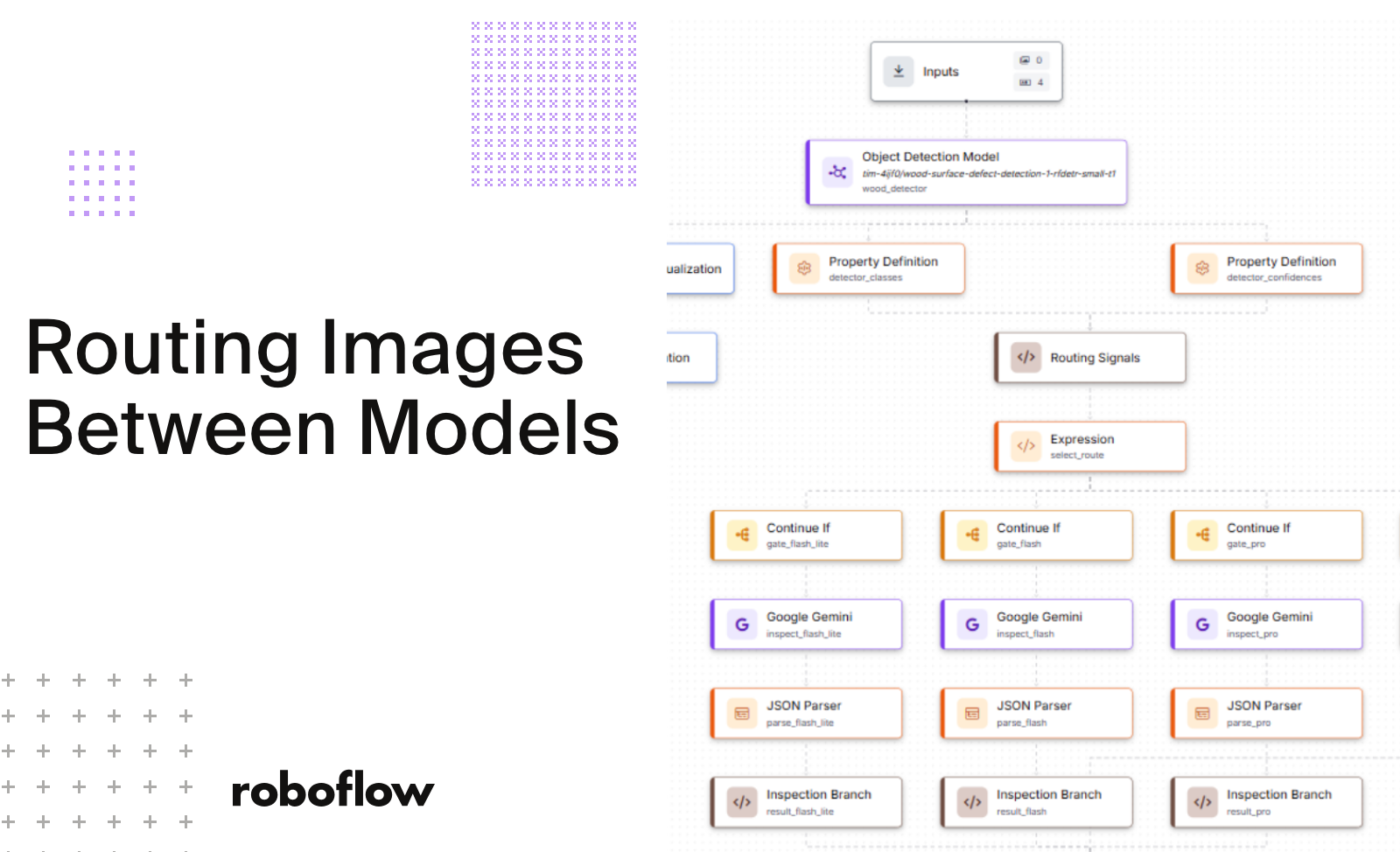
We will build the inspection system, wood-defect-model-router workflow, in Roboflow Workflows by connecting the detector, routing logic, model branches, and review checks. First, RF-DETR will locate surface features in the panel image. Property Definition blocks will extract the class names and confidence scores, and a custom Python block (opens in a new tab) named Routing_Signals will validate the predictions. An Expression block will then choose a route, while Continue If gates will activate the selected branch.
For a Gemini route, the chosen model will analyze the original image. A JSON Parser will extract the response fields, and Inspection_Branch will group them with the model identifier and error flags. The human-review branch will use Human_Result to record that manual inspection is needed. First Non Empty Or Default will pass the result from the selected branch to Inspection_Decision, which will validate it, compare the detector and Gemini class sets when a Gemini response is available, and decide whether human review or image collection is needed.
Finally, visualization blocks will draw the detector boxes, class labels, and confidence scores, then add the selected route, model, and review flag. We will also add an optional Dataset Upload path to collect selected images for retraining and a Webhook Sink to send flagged cases to a review application. Figure 1 shows how these components connect.
Step 1: Define the Workflow inputs
Start with the image and the parameters that the Workflow needs for each inspection. Configure these four inputs:
Input
Purpose
Default
image
Original image of the wooden panel
Supplied for each inspection
inspection_id
ID used to link the result to an inspection
Supplied by the calling application
detector_confidence
Minimum confidence for detections returned by the detector
0.20
enable_collection
Allows selected images to enter the collection path
false
Use an image input for image and parameter inputs for the other values. The calling application supplies inspection_id; later blocks include it in the results and collection metadata. Keep enable_collection=false while checking the routing behavior, then enable it when you are ready to collect images.
Crack, Marrow, Resin, Dead_Knot, Knot_with_Crack, Quartzity, Live_Knot, and Knot_Missing.
Its output contains bounding boxes, class names, and individual confidence scores. Object detection is useful here because a single panel can contain several features or defects, each with its own location and score.
The initial cutoff of 0.20 keeps lower-confidence detections available for routing. Predictions below this cutoff are still removed, so the router can inspect only the detections returned by the model.
Step 3: Extract and validate the routing signals
Add two Property Definition blocks that read $steps.wood_detector.predictions. Name them detector_classes and detector_confidences. Use DetectionsPropertyExtract to extract class_name in the first block and confidence in the second.
Next, add a custom Routing_Signals block and name it routing_signals. Connect the original detector predictions to its predictions input, the extracted class names to classes, and the extracted confidence scores to confidences.
The block checks that the numbers of class names, confidence scores, and bounding boxes match the number of detections. It also checks that each class is supported, each score is a finite number between 0 and 1, and each box has finite coordinates with positive width and height. A finite value excludes NaN and infinity. Configure the block to return these six Boolean outputs:
Flag
When it is true
invalid
The prediction data fails validation or an exception occurs while checking it.
critical
At least one Crack, Knot_with_Crack, or Knot_Missing is present.
low
At least one returned confidence is below 0.60.
medium
At least one returned confidence is below 0.90.
empty
A valid detector result contains zero detections.
high
At least one detection exists and every returned confidence is at least 0.90.
The block starts with invalid=true and all other flags set to false. It sets the other flags only after the prediction data passes validation. Here, critical identifies the three classes given priority by our routing policy; it does not measure the panel’s physical strength or assign a wood grade.
Use the following code in the routing_signals Custom Python block:
Python
def run(self, predictions, classes, confidences):
    import math
    import numpy as np

    flags = {
        "invalid": True,
        "critical": False,
        "low": False,
        "medium": False,
        "empty": False,
        "high": False,
    }

    allowed = {
        "Crack", "Marrow", "Resin", "Dead_Knot",
        "Knot_with_Crack", "Quartzity", "Live_Knot", "Knot_Missing",
    }
    priority_classes = {"Crack", "Knot_with_Crack", "Knot_Missing"}

    try:
        names = list(classes) if classes is not None else []
        scores = list(confidences) if confidences is not None else []
        boxes = predictions.xyxy
        n = len(predictions)

        if (
            len(names) != n
            or len(scores) != n
            or boxes is None
            or len(boxes) != n
        ):
            return flags

        for name, score, box in zip(names, scores, boxes):
            if (
                not isinstance(name, str)
                or name not in allowed
                or score is None
                or not math.isfinite(float(score))
                or not 0 <= float(score) <= 1
                or not np.all(np.isfinite(box))
                or float(box[2]) <= float(box[0])
                or float(box[3]) <= float(box[1])
            ):
                return flags

        flags.update(
            invalid=False,
            critical=any(name in priority_classes for name in names),
            low=any(float(score) < 0.60 for score in scores),
            medium=any(float(score) < 0.90 for score in scores),
            empty=n == 0,
            high=n > 0 and all(float(score) >= 0.90 for score in scores),
        )

    except Exception:
        pass

    return flags
These flags describe the detector’s results. In the next step, the select_route Expression block uses them to choose one route for the image.
Step 4: Define which route each image takes
Add an Expression block (opens in a new tab) named select_route. Connect the six flags from routing_signals and configure the cases in the following order. The first matching case determines the route for the entire image.
Order
Condition
Route value
1
Invalid prediction data or an unexpected class
human
2
Any Crack, Knot_with_Crack, or Knot_Missing, regardless of its returned confidence
pro
3
Otherwise, any returned confidence below 0.60
pro
4
Otherwise, any returned confidence below 0.90
flash
5
Successful detector result with zero detections
flash_lite
6
Otherwise, every returned confidence is at least 0.90
flash_lite
Default
No matching valid rule
human
The order matters because some flags overlap. A confidence below 0.60 also satisfies the medium flag, but the Pro rule is checked first. A priority class also selects Pro even when its confidence is high.
The router checks every detection separately and does not average confidence scores. One low-confidence detection can therefore change the route for the whole image, even when the other detections have high scores.
If the detector successfully returns no detections, Flash-Lite checks the complete image. An empty detection result alone does not establish that the panel is defect-free.
We will use 0.60 and 0.90 as initial routing thresholds in the custom code. The 0.20 detector cutoff is a Workflow input. Adjust these values after evaluating the Workflow on your inspection images. If you change the routing thresholds, also update the matching routing-reason text in Inspection_Decision.
We will use per-detection confidence scores as the numeric routing signal. The Gemini response contains classes, an assessment, and a reason; it does not contain a likelihood score. If you add a score from another model, check what it means and test whether it helps with routing before choosing thresholds. A confidence value requested in a VLM prompt should not automatically use the detector's thresholds.
A score returned by Gemini is available only after that model runs. It can support a later review decision, but it cannot decide whether to make the call that produced it.
Step 5: Connect the Gemini and human-review branches
Add four Continue If gates (opens in a new tab). Each gate compares $steps.select_route.output with one route value. Set its next_steps connection to the first block in the matching branch:
Gate
Route value
Next step
gate_flash_lite
flash_lite
inspect_flash_lite
gate_flash
flash
inspect_flash
gate_pro
pro
inspect_pro
gate_human
human
human_result
For the first three branches, add a Google Gemini block (opens in a new tab) with the corresponding step name. Configure model_version for each branch as follows:
Branch
Configured Gemini model
Flash-Lite
gemini-3.5-flash-lite
Flash
gemini-3.8-flash
Pro
gemini-3.1-pro-preview
Check that all three models are available in the environment where you will run the Workflow.
Set each Gemini block's image input to $inputs.image and its task to structured-answering. For a Gemini route, the selected model receives the original image. The visualization blocks prepare the annotated output separately.
Configure all three Gemini blocks to request the same response fields:
Field
Expected content
visible_classes
A list containing supported class names, or an empty list.
assessment
Exactly visible_defect, no_visible_defect, or unclear.
reason
A short explanation based on visible evidence.
Ask the model to identify the eight supported surface classes and return multiple classes when appropriate. It should return unclear when blur, glare, obstruction, or insufficient detail prevents a reliable assessment. Limit the model's answer to visible surface conditions and exclude judgments about internal strength or commercial wood grade.
For the human branch, use the custom Human_Result block named human_result. It creates a result with model="none", an empty class list, assessment="unclear", and the reason Manual review required. This records the need for a person to inspect the case; it does not perform that review.
Each parser reads its Gemini block's output and extracts visible_classes, assessment, and reason. It also exposes an error flag. Each Inspection_Branch block packages these fields, the model identifier, and the model/parser error flags into a bundle: a dictionary that keeps the related values together.
Only the selected branch supplies a result. The join passes that bundle to the next stage, giving the review logic a common structure to read. It does not combine answers from multiple Gemini models or run an ensemble.
Configure its default bundle with model="none", an empty class list, assessment="unclear", the reason No branch completed, and both error flags set to true. This marks a missing branch result as unavailable when execution reaches the join.
Step 7: Validate the answer and decide whether review is needed
Add the custom Inspection_Decision block and name it inspection_decision. Connect the selected route, the bundle from selected_result, the detector predictions, inspection_id, and the invalid and critical routing flags.
The block first checks whether the route is recognized and whether routing_signals has marked the predictions as invalid. It skips reading predictions already marked as invalid. Otherwise, it reads the class names and confidence scores, checks that their counts match the number of detections, and verifies that the classes are supported and the scores are finite numbers between 0 and 1. If reading or validating this data fails, the case is flagged for review.
Next, the block checks Gemini’s response. The visible_classes field must be a list of supported class names, assessment must be visible_defect, no_visible_defect, or unclear, and reason must be a nonempty string. The fields must also agree: visible_defect requires at least one class, while no_visible_defect requires an empty class list.
The block sets needs_review=true when any of these conditions applies:
The route is human or unrecognized, or the detector predictions are invalid or cannot be read.
The model or JSON Parser reports an error, or the response values fail validation.
Gemini returns an unclear assessment.
Gemini and the detector report different class sets.
For a valid Gemini response with no reported errors and valid detector data, the block compares distinct class sets. A class set contains each class only once. For example, detector labels Crack, Crack, Live_Knot and Gemini labels Crack, Live_Knot produce the same set. Repeated boxes for one class do not create a disagreement.
The final parsed_result keeps Gemini’s response when the selected route is a recognized Gemini route, the detector data and response values are valid, and neither the model nor the parser reports an error. All other cases receive a fallback: an empty visible_classes list, assessment="unclear", the reason Invalid or unavailable response, and parser_error=true. This includes the initial human-review route.
Here, parser_error acts as a combined status flag for all these fallback conditions. The fallback prevents an unavailable or invalid automated result from being returned as no_visible_defect.
A valid Gemini response that says unclear or disagrees with the detector is retained and flagged for review. The review decision and the assessment therefore serve different purposes. Likewise, needs_review=false means these checks did not flag the case; the detector and Gemini may still agree that a visible defect is present.
The block returns the inspection ID, routing reason, selected model, parsed result, review flag, and review reason. It also returns the detected classes and confidence scores as JSON strings, the final assessment, and the collect flag used by the collection path in Step 9.
Use the following code in the inspection_decision Custom Python block:
Python
def run(self, route, bundle, predictions, inspection_id, invalid, critical):
    import json
    import math
    import numpy as np

    allowed = {
        "Crack", "Marrow", "Resin", "Dead_Knot",
        "Knot_with_Crack", "Quartzity", "Live_Knot", "Knot_Missing",
    }
    route = route if isinstance(route, str) else ""
    known_route = route in {"flash_lite", "flash", "pro", "human"}

    names = []
    score_list = []
    prediction_error = bool(invalid)

    if not prediction_error:
        try:
            names = list(predictions.data.get("class_name", []))
            scores = predictions.confidence
            score_list = [float(x) for x in scores] if scores is not None else []
            count = len(predictions)

            if len(names) != count or len(score_list) != count:
                raise ValueError("Missing class names or confidence scores")
            if any(not isinstance(x, str) or x not in allowed for x in names):
                raise ValueError("Unsupported detector class")
            if any(not math.isfinite(x) or not 0 <= x <= 1 for x in score_list):
                raise ValueError("Invalid detector confidence")
        except Exception:
            prediction_error = True
            names = []
            score_list = []

    b = bundle if isinstance(bundle, dict) else {}
    model = str(b.get("model") or "none")
    raw = b.get("visible_classes")
    assessment = b.get("assessment")
    reason = b.get("reason")
    failed = bool(b.get("parser_error", True) or b.get("model_error", True))

    valid = (
        isinstance(raw, list)
        and all(isinstance(x, str) and x in allowed for x in raw)
        and isinstance(assessment, str)
        and assessment in ("visible_defect", "no_visible_defect", "unclear")
        and isinstance(reason, str)
        and bool(reason.strip())
    )
    if valid and assessment != "unclear":
        if (assessment == "visible_defect") != (len(raw) > 0):
            valid = False

    if route == "human":
        route_reason = "Invalid prediction data, unexpected class, or no matching rule"
    elif route == "pro":
        route_reason = (
            "Critical class present"
            if critical else "Detection confidence below 0.60"
        )
    elif route == "flash":
        route_reason = "Detection confidence below 0.90"
    elif route == "flash_lite":
        if prediction_error:
            route_reason = "Flash-Lite selected, but detector predictions are invalid"
        else:
            route_reason = (
                "No detections; full-image verification required"
                if not names else "All detector confidences at least 0.90"
            )
    else:
        route_reason = "Unexpected route"

    problems = []
    if not known_route:
        problems.append("Unexpected route")
    if prediction_error:
        problems.append("Invalid or unreadable detector predictions")

    if route == "human":
        if not problems:
            problems.append(route_reason)
    elif not problems:
        if failed or not valid:
            problems.append(
                "Gemini or JSON parsing failure, or invalid required response values"
            )
        else:
            if assessment == "unclear":
                problems.append("Gemini assessment unclear: " + reason.strip())
            if set(raw) != set(names):
                problems.append("Gemini classes disagree with detector classes")

    usable = (
        valid
        and not failed
        and not prediction_error
        and known_route
        and route != "human"
    )
    clean = {
        "visible_classes": raw if usable else [],
        "assessment": assessment if usable else "unclear",
        "reason": reason if usable else "Invalid or unavailable response",
        "parser_error": bool(
            failed or not valid or prediction_error
            or not known_route or route == "human"
        ),
    }
    needs_review = bool(problems)

    collect = (
        route in ("pro", "human")
        or needs_review
        or (route == "flash_lite" and np.random.random() < 0.05)
    )

    return {
        "inspection_id": str(inspection_id),
        "routing_reason": route_reason,
        "selected_model": model,
        "parsed_result": clean,
        "needs_review": needs_review,
        "review_reason": "; ".join(problems),
        "collect": bool(collect),
        "detected_classes": json.dumps(names),
        "detected_confidences": json.dumps(score_list),
        "assessment": clean["assessment"],
    }
Step 8: Create the annotated image and inspection outputs
Add bounding_box_visualization using the original image and wood_detector.predictions. Connect its image output to label_visualization, use the same predictions, and select Class and Confidence for the label text.
Then add a Text Display block named route_banner. Use the labeled image as its input and show the selected route, Gemini model, and review flag across the top of the image. Use this template for the banner:
ROUTE: {{ $parameters.route }} | {{ $parameters.model }} | REVIEW: {{ $parameters.review }}
Map the banner parameters as follows:
route → $steps.select_route.output
model → $steps.inspection_decision.selected_model
review → $steps.inspection_decision.needs_review
The annotated image retains the original detector boxes, class names, and per-box confidence scores. The banner makes the route and review decision visible alongside those detections. Expose the following Workflow outputs:
Output
What it contains
inspection_id
The ID supplied by the calling application.
predictions
Original detector predictions.
output_image
Annotated image with the route banner.
selected_route
The route chosen for the image.
routing_reason
Why the route was selected, or a problem identified with that route.
selected_gemini_model
Model identifier from the selected branch, or none for the human branch or an unavailable model identifier.
parsed_gemini_result
Validated Gemini response, or an unclear fallback when no usable automated response is available.
needs_review
Whether the case needs human review.
review_reason
Why human review was requested.
collection_requested
Whether the enabled collection gate selected the image.
collection_status
Message from the upload block when it runs.
collection_error
Upload error status when the block runs.
The calling application can use inspection_id to link these outputs to the original inspection. Read parsed_gemini_result together with needs_review and review_reason to understand both the assessment and whether a person needs to check it. The next step configures the collection outputs.
Step 9: Collect useful images for retraining
The Inspection_Decision block also decides whether an image is useful for collection. It selects Pro referrals, initial human cases, and any case flagged for review, including class disagreements. Each remaining Flash-Lite case has a 5% chance of being selected for collection.
This sampling happens in the custom block. The upload block is not configured to sample 5% of all incoming images.
Add an Expression block named collection_switch that returns true only when both inspection_decision.collect and enable_collection are true. Connect it to gate_collection, a Continue If block whose next step is collect_for_review.
With persist_predictions=false, uploaded images do not carry detector predictions as annotations. With fire_and_forget=false, the upload is synchronous: the Workflow waits for it to finish so the upload message and error status can be checked.
Add inspection_id and detector_model to the upload metadata so each collected image can be linked to its inspection and detector. To keep a fuller record for retraining analysis, have the calling application save the routing and review outputs alongside the inspection ID.
Map collection_requested to collection_switch.output, collection_status to collect_for_review.message, and collection_error to collect_for_review.error_status. A request to collect an image does not prove that it was uploaded; check the status and error outputs when the upload block runs.
Collection stays off while enable_collection=false. When enabled, the single gated upload path prevents multiple collection paths within one execution, even if a Pro referral also has a class disagreement. It does not remove duplicates across repeated inspections or neighboring video frames.
Step 10: Prepare the optional human-review handoff
Add a Continue If block named gate_webhook that checks inspection_decision.needs_review. Connect it to a Webhook Sink (opens in a new tab) named review_webhook. Configure the sink to send a POST request containing the inspection ID, route, selected model, parsed result, review flag, and review reason.
The calling application must also handle detector or Gemini request failures and unhandled exceptions. These can stop execution before a review result is returned and must be treated as failed inspections requiring attention, never as clean panels.
Testing the Workflow
Open the Workflow testing interface (opens in a new tab), supply a panel image and inspection_id, and run the Workflow. Check both output_image and the structured results so you can follow the route, model choice, and review decision.
Use representative images to cover priority classes, non-priority detections in each confidence range, and successful results with no detections. Also check unreadable images, invalid prediction data where the routing check can run, and responses that are unclear, invalid, or disagree with the detector.
When testing image collection or the webhook, check the test panel's Sinks setting as well as the Workflow's own enable/disable settings. The external write must be enabled at both levels for a browser test to perform it.
In an initial test with one wood image, a priority-class detection selected the Pro branch. Gemini and the detector returned different class sets, so the banner displayed REVIEW: True.
Figure 7 shows the annotated image and structured results from this test. This confirms the Pro path and visual output for that image. The other routes and operating conditions still need representative testing before production reliance.
Measure the Results and Improve the Detector
Compare the router with a baseline that sends every image to one selected Gemini model. Record how often each route runs, how many cases need human review, missed defects, false alarms, and total processing time.
Include the detector, the model calls actually made, and external review work when calculating costs. The outputs we defined track inspection decisions and collection status. Record processing time and billing details separately in the calling application or its monitoring system. Fewer Pro calls alone do not establish a lower total cost.
Use the collected images to identify recurring problems, such as uncertain cracks, disagreements about knots, or wood appearances that the detector has not learned well. Annotate and review suitable images, then generate a new dataset version (opens in a new tab) and train an updated model. A dataset version is a fixed snapshot; adding collected images does not automatically update an existing training version.
Finally, evaluate the updated detector (opens in a new tab) and test the routing policy again. Retraining can change the predictions and the distribution of confidence scores, which can change how often each branch is selected.
Conclusion
Model routing uses the detector's results to choose the next step for each wood inspection. Routine images can receive a lightweight check, selected conditions can receive more detailed analysis, and uncertain results can be flagged for a person.
Build and test the policy in Roboflow Workflows (opens in a new tab), choose thresholds using reviewed inspection results, and use collected cases to improve the detector over time.