✋ Note: This article was originally published on my blog Wiki Cloud.
The development of artificial intelligence agents is changing how organizations access information, automate tasks, and improve their business processes. However, building an agent is only the first step. To make the most of its potential, we need an environment where it can run continuously, serve different users, and support important requirements such as security, scalability, and monitoring.
In this context, deploying AI agents to the cloud allows us to move from a solution developed locally to an enterprise application capable of supporting an organization's needs.
In the previous article, we built a Corporate Policies Assistant using Google ADK, Gemini, Google Drive, and Streamlit. We learned how to query corporate documents using an in-memory lexical RAG system and generate natural-language answers with references to their original sources.
Now we'll take the next step: deploy our agent to Google Cloud Agent Runtime, a managed service that allows us to run it in the cloud without relying on our local computer, and then integrate it with Gemini Enterprise so users can access the assistant through an enterprise platform.
We won't rebuild the application or the tools developed previously. Instead, we'll focus on preparing the agent for deployment, validating its operation in the cloud, and publishing it in Gemini Enterprise.
For this hands-on exercise, we'll continue using Windows, PowerShell, Python 3.12, and the same project repository. Both Spanish and English versions of the project are available in the repository.
The goal of this exercise is to continue developing our Corporate Policies Assistant by reusing the agent built with Google ADK, deploying it to Google Cloud Agent Runtime, and then integrating it with Gemini Enterprise.
To achieve this, we'll package the agent as an installable Python distribution so that its logic and dependencies can run in a managed cloud environment. Google Drive will remain our document repository, while Gemini, through Vertex AI, will interpret queries and generate responses.
Figure 1 – Target architecture of the Corporate Policies Assistant.
In the previous article, we tested the assistant locally in three ways: Streamlit, through a custom web interface; ADK Web, which allowed us to interact with the agent and observe how its tools were executed; and ADK CLI, which we used to submit queries directly from the command line.
These tests helped us validate the integration between the different components and confirm that the agent could retrieve information from corporate policies through RAG, generate natural-language answers, and provide references to the documents it consulted.
In this second part, we'll evolve the architecture without changing its core functionality. Google Cloud Agent Runtime will host the agent in a managed environment that supports availability, scalability, and monitoring. Gemini Enterprise will add a new access layer for business users, allowing them to interact with the assistant without using development tools directly.
In this way, we'll preserve the solution built previously while making it available to more users across the organization.
Google ADK will continue to coordinate the conversation and execute the policy search tool, while our RAG system will retrieve relevant information from documents stored in Google Drive. Gemini will use that content as context to produce grounded responses. This integration takes us from an agent validated on a local computer to a solution accessible through Gemini Enterprise.
Architecture note: Connecting Streamlit to the remote agent is presented as a possible future enhancement. The Streamlit integration developed in the previous article ran the agent locally.
To deploy our Corporate Policies Assistant to Google Cloud and integrate it with Gemini Enterprise, we'll follow seven stages. As shown below, we'll first prepare the environment and package the agent, then deploy it to Agent Runtime, validate it with remote tests, and finally publish it in Gemini Enterprise for authorized users within the organization.
Figure 2 – Agent implementation and deployment phases.
Before continuing, we'll assume that the local application is already responding correctly, that the policy documents are stored in an authorized Google Drive folder, and that the project's virtual environment has the dependencies listed in requirements.txt installed.
For deployment, we'll need a Google Cloud project with billing enabled, Google Cloud CLI, permissions to create Agent Runtime resources, a service account for runtime execution, and a Cloud Storage bucket for temporary artifacts. The user performing the deployment must also have permission to use the service account.
Before configuring the Google Cloud resources, we'll define a few PowerShell variables to use throughout the deployment. These variables identify our project, region, storage bucket, service account, and Google Cloud user. This makes the commands easier to run without repeatedly entering the same values.
Simply replace the placeholders with the values for your Google Cloud environment.
$PROJECT_ID = "YOUR_PROJECT_ID"

$REGION = "europe-west1"

$BUCKET_NAME = "YOUR_STAGING_BUCKET_NAME"

$SA_NAME = "YOUR_SERVICE_ACCOUNT_NAME"
$SA_EMAIL = "$SA_NAME@$PROJECT_ID.iam.gserviceaccount.com"

$STAGING_BUCKET = "gs://$BUCKET_NAME"

$USER_EMAIL = "YOUR_USER@YOUR_DOMAIN.com"
Before deploying our agent, we need to configure access to the Google Cloud project we'll be using. Open a PowerShell terminal in Visual Studio Code and run the following commands to verify the Google Cloud CLI installation, sign in, and select the project.
gcloud --version
gcloud auth login
gcloud config set project $PROJECT_ID
gcloud auth application-default login
gcloud auth application-default set-quota-project $PROJECT_ID
We'll use Application Default Credentials (ADC), a Google Cloud authentication mechanism that allows Python applications and libraries to obtain credentials automatically when accessing Google services.
The two sign-in commands serve different purposes: gcloud auth login authenticates the Google Cloud CLI, while gcloud auth application-default login configures the ADC credentials used by our deployment script. Finally, setting the quota project associates API usage with the selected project and helps avoid warnings about user credentials without an associated quota project, provided we have the necessary permissions.
Once access to the project is configured, we'll enable the APIs needed to deploy and run the agent on Agent Runtime and integrate it with Gemini Enterprise. These APIs provide access to the AI, storage, authentication, and enterprise resources used by our solution.
Run the following command from PowerShell:
gcloud services enable `
  aiplatform.googleapis.com `
  storage.googleapis.com `
  cloudresourcemanager.googleapis.com `
  iam.googleapis.com `
  iamcredentials.googleapis.com `
  drive.googleapis.com `
  discoveryengine.googleapis.com `
  logging.googleapis.com `
  --project=$PROJECT_ID
This command enables the services required for Vertex AI and Agent Runtime, storing deployment artifacts in Cloud Storage, managing identities and permissions with IAM, reading documents from Google Drive, and integrating our agent with Gemini Enterprise. We also enable Cloud Logging so we can review execution logs.
Keep in mind that enabling APIs does not automatically grant access permissions. We'll configure those separately using the appropriate IAM roles.
Next, we'll create a Google Cloud Storage bucket to serve as temporary storage during the deployment to Agent Runtime. It will hold the Python packages and artifacts needed to prepare and deploy our agent.
gcloud storage buckets create $STAGING_BUCKET `
  --project=$PROJECT_ID `
  --location=$REGION `
  --uniform-bucket-level-access
In this example, we'll use europe-west1 and enable uniform bucket-level access, which allows access permissions to be managed through IAM. Replace the example bucket name with a globally unique name and the project placeholder with your actual project ID.
If the bucket already exists, there's no need to create it again. We only need to confirm that we have the permissions required to use it during deployment.
With storage ready, we'll create a service account for our Corporate Policies Assistant to use when it runs on Google Cloud Agent Runtime. This gives the agent its own identity for accessing authorized Google Cloud services without relying on the developer's personal credentials.
Run the following PowerShell command using the variables defined earlier:
gcloud iam service-accounts create $SA_NAME `
  --display-name="Corporate Policies Agent Runtime" `
  --project=$PROJECT_ID
This creates the service account used by the deployed agent. Its email address follows this pattern: YOUR_SERVICE_ACCOUNT_NAME@YOUR_PROJECT_ID.iam.gserviceaccount.com.
Next, we'll grant the roles/aiplatform.user role so the agent can use the Vertex AI services required to interact with Gemini.
gcloud projects add-iam-policy-binding $PROJECT_ID `
  --member="serviceAccount:$SA_EMAIL" `
  --role="roles/aiplatform.user"
We use this role in the demo to simplify execution. For production environments, we should evaluate more specific permissions and follow the principle of least privilege.
Besides interacting with Gemini, our agent needs to read the documents stored in Google Drive. To enable this, share the corporate policies folder with the service account's email address and grant Viewer access, provided that your Google Workspace policies allow it.
Remember that Google Drive permissions are managed separately from Google Cloud IAM roles. Assigning roles/aiplatform.user does not automatically grant access to documents.
In the previous article, we used a JSON credentials file to run the agent locally. This time, we'll use the identity attached to Agent Runtime and Application Default Credentials (ADC), avoiding private keys in the deployment package.
This gives our agent a dedicated identity for accessing authorized services and running more securely in Google Cloud.
After configuring the service account, we need to ensure that our Google Cloud user has permission to deploy the agent and run tests from PowerShell.
It's important to distinguish these identities: the service account is used when the agent runs, while our user prepares the deployment, creates the Agent Runtime resource, and verifies that it works.
For this lab, we'll use the following roles:
| IAM role | Description |
|---|---|
roles/aiplatform.user |
Allows the user to access Vertex AI and Agent Runtime services, interact with Gemini models, and send queries to deployed agents. |
roles/aiplatform.sessionUser |
Allows the user to create and manage conversation sessions with agents deployed on Agent Runtime. |
Run these commands from PowerShell:
gcloud projects add-iam-policy-binding $PROJECT_ID `
  --member="user:$USER_EMAIL" `
  --role="roles/aiplatform.user"
gcloud projects add-iam-policy-binding $PROJECT_ID `
  --member="user:$USER_EMAIL" `
  --role="roles/aiplatform.sessionUser"
Before moving on to deployment in Google Cloud Agent Runtime, let's briefly review the project structure and identify the files we'll need for this stage. Since we already developed the agent and its main components in the previous article, we don't need to change its architecture or rebuild its functionality.
We'll focus on the files responsible for creating the Python package, deploying the agent, and checking that it works once it's running in the cloud.
To make the process easier to follow, here's a simplified view of the repository highlighting the deployment and test files.
google-adk-gemini-corporate-policies-agent/
├── requirements.txt
├── sources_en/
│   ├── .env
│   ├── corporate_agent/          # Previously developed agent code
│   ├── pyproject.toml            # Wheel package metadata
│   ├── deployment/
│   │   ├── deploy_agent.py
│   │   └── runtime_resource.txt  # Created after deployment
│   └── test/
│       └── test_runtime.py
└── sources_es/                   # Equivalent Spanish version
| File | Description |
|---|---|
sources_en/pyproject.toml |
Defines the installable corporate-policies-agent package and specifies thatcorporate_agent must be included. |
sources_en/deployment/deploy_agent.py |
Validates the environment, builds the wheel, deploys AdkApp , and saves the remote resource path. |
sources_en/deployment/runtime_resource.txt |
Output file containing the full path of the created resource. |
sources_es/test/test_runtime.py |
Retrieves the remote resource reference, connects to Agent Runtime, and sends test queries. |
requirements.txt |
Contains the project's dependencies; the script also specifies those required by the runtime. |
With our project ready, the next step is to review the environment variables used to deploy the agent to Google Cloud Agent Runtime and verify that it works. These settings identify the project and region where the agent will run, the resources it needs, and how it will authenticate to Google Cloud services.
Since we configured the variables for local development in the previous article, we'll focus only on those related to cloud deployment and testing.
| Variable | Description |
|---|---|
GOOGLE_CLOUD_PROJECT |
Identifies the Google Cloud project where we'll deploy our agent. |
AGENT_RUNTIME_LOCATION |
Defines the Google Cloud region where the agent will run. In this demo, we'll use europe-west1 . |
AGENT_RUNTIME_STAGING_BUCKET |
Specifies the Cloud Storage bucket used to temporarily store deployment files. Its format is gs://YOUR_STAGING_BUCKET . |
AGENT_RUNTIME_SERVICE_ACCOUNT |
Contains the email address of the service account the agent will use to access authorized Google Cloud resources. |
GOOGLE_GENAI_USE_VERTEXAI |
Indicates that the agent will connect to Gemini through Vertex AI. We'll set it to TRUE in Agent Runtime. |
GEMINI_MODEL |
Specifies the Gemini model used to process queries and generate answers. Our project uses gemini-3.5-flash-lite as its default, provided the model is available to the project. |
GEMINI_VERTEX_LOCATION |
Specifies the location used for Gemini model inference. In this example, we'll use global , which can differ from the Agent Runtime deployment region. |
DRIVE_AUTH_MODE |
Controls how the agent authenticates to Google Drive. We'll use adc to rely on the runtime's identity without including a JSON credentials file. |
AGENT_RUNTIME_RESOURCE |
Optionally specifies the deployed agent resource for remote tests. If omitted, test_runtime.py can also read it fromdeployment/runtime_resource.txt . |
We'll also retain GOOGLE_DRIVE_FOLDER_ID and RAG_REFRESH_INTERVAL_SECONDS, which were introduced in the previous article. The first identifies the Google Drive folder containing our corporate policies, while the second sets the refresh interval for the agent's RAG index.
Before deploying our Corporate Policies Assistant to Google Cloud Agent Runtime, we need to prepare its code so it can be installed and run in the cloud. To do that, we'll use a wheel package (.whl), a Python distribution format that bundles an application's code and metadata into an installable file.
Wheel packages make it easier to distribute and install Python applications because they contain the files the target environment needs to recognize and import their modules. In our project, this mechanism will let us deploy the corporate_agent code to Agent Runtime and ensure its components can be imported correctly during execution.
To build the wheel, we'll use pyproject.toml, located in both the sources_en/ and sources_es/ directories. This file contains the configuration needed to build and distribute our agent as a Python package.
It defines setuptools as the build tool, sets the package name to corporate-policies-agent, and specifies that the corporate_agent module must be included, along with its main files such as __init__.py, agent.py, and drive_rag.py.
This allows Python to recognize and install our agent in the remote environment without manually copying files or changing the imports implemented earlier.
Before deployment, let's make sure our virtual environment has the tools required to build the wheel package.
From the Visual Studio Code PowerShell terminal, run:
cd C:\Projects\google-adk-gemini-corporate-policies-agent
.\.venv\Scripts\Activate.ps1
python -m pip install --upgrade setuptools wheel
python -m pip check
These commands activate the virtual environment, install or update the packaging tools, and check for dependency conflicts.
We won't need to build the wheel manually, because deployment/deploy_agent.py already handles this task, as we'll see in the next section.
When executed, the script temporarily builds the .whl file, verifies that it includes the agent's main files, and adds it to the dependencies installed in Agent Runtime.
This also helps ensure compatibility between our Windows development environment and the Linux environment used by Agent Runtime, avoiding absolute local paths that won't exist in the cloud.
With this approach, our agent's code will be ready for installation in Agent Runtime while retaining its original structure and without having to rebuild the components developed in the previous article.
Now that we've prepared the Google Cloud resources and configured the agent's packaging process, we're ready to deploy it to Agent Runtime. We'll use deploy_agent.py to perform the necessary checks, prepare the code and its dependencies, and create the agent in Google Cloud's managed environment.
This file is located at sources_en/deployment/deploy_agent.py (English version) or sources_es/deployment/deploy_agent.py (Spanish version). It is organized into nine main blocks, summarized below.
| Block | Description |
|---|---|
| 1. Imports and project environment variables | Imports the libraries required for deployment and loads configuration variables from .env . It also identifies reserved variables managed automatically by Agent Runtime that should not be passed into the remote agent configuration. |
| 2. Configuration and validation | Checks that all required information is available, including the project ID, staging bucket, service account, and Google Drive folder. These checks help catch incomplete settings before creating cloud resources. |
| 3. Authentication environment preparation | prepare_deployment_environment() configures the use of Vertex AI and prepares ADC authentication. It also prevents accidental use of an API key or local JSON credentials. |
| 4. Credentials and Cloud Storage access checks | verify_deployment_credentials() verifies that valid ADC credentials are available and confirms access to the staging bucket. |
| 5. Remote agent environment variables | build_runtime_env() prepares the Gemini model settings, ADC authentication, Google Drive document location, and RAG index refresh interval. |
| 6. Wheel package generation | build_agent_wheel() builds the installable agent package, verifies that the main files are included, and prepares its paths for the remote environment. |
| 7. Agent Runtime resource creation | AdkApp prepares the ADK agent, andclient.agent_engines.create() creates the managed resource with its dependencies, wheel, bucket, service account, and environment variables. |
| 8. Deployed resource identifier recording | The script retrieves the full resource identifier and saves it to deployment/runtime_resource.txt for testing and later registration in Gemini Enterprise. |
| 9. Deployment entry point | Runs main() when the file is invoked as a Python module and coordinates the preceding stages. |
Now that we understand what deploy_agent.py does, we can run the deployment. Open the PowerShell terminal in Visual Studio Code, navigate to the repository root, and make sure the virtual environment is active.
For the English version:
$env:PYTHONPATH = "$PWD\sources_en"
python -m sources_en.deployment.deploy_agent
For the Spanish version, use the corresponding package:
$env:PYTHONPATH = "$PWD\sources_es"
python -m sources_es.deployment.deploy_agent
This command starts the deployment using the configuration prepared earlier. During execution, the script verifies credentials, checks access to the Cloud Storage bucket, builds the wheel package, and sends the required components to Google Cloud Agent Runtime.
If everything succeeds, we'll see a message confirming that the agent was created, along with an identifier similar to the following:
Recurso creado:
projects/YOUR_PROJECT_NUMBER/locations/europe-west1/reasoningEngines/RESOURCE_ID
This identifier refers to the resource created in Agent Runtime and is saved in deployment/runtime_resource.txt, so we won't need to copy it manually for the following tests.
Keep in mind that deployment may incur Google Cloud charges and that a successful deployment doesn't necessarily mean the agent can answer queries. That's why we'll test it remotely before integrating it with Gemini Enterprise.
Figure 3 – Agent deployment in Agent Runtime.
After deploying our Corporate Policies Assistant, we need to verify that it runs correctly in Google Cloud and can still access the documents stored in Google Drive.
We'll use sources_en/test/test_runtime.py (English version) or sources_es/test/test_runtime.py (Spanish version) to connect to the deployed agent and submit questions from the PowerShell terminal.
Unlike the tests in the previous article, these queries won't run against our local agent. They'll be sent to the resource we created in Google Cloud Agent Runtime.
From the repository root, with the virtual environment active, run the English version:
python -m sources_en.test.test_runtime
For the Spanish version:
python -m sources_es.test.test_runtime
The script automatically retrieves the deployed agent's identifier and connects to Agent Runtime. If the connection is successful, the output will look similar to this:
Proyecto: YOUR_PROJECT_ID
Región: europe-west1
Agente: projects/YOUR_PROJECT_NUMBER/locations/europe-west1/reasoningEngines/RESOURCE_ID
Conexión con Agent Runtime establecida.
The script will then submit several test queries, such as:
During these tests, we need to confirm that the agent responds correctly, uses search_corporate_policies when it needs to retrieve information, and generates answers grounded in the documents available in Google Drive.
It's also important to inspect the events returned by Agent Runtime. A successful connection does not necessarily mean that the Gemini model request completed successfully.
Once we've completed the tests and confirmed that the agent works correctly in the cloud, we'll be ready to integrate it with Gemini Enterprise and make it available to authorized users.
Once we've deployed our Corporate Policies Assistant and confirmed that it works in Google Cloud Agent Runtime, the next step is to integrate it with Gemini Enterprise. This platform allows users across the organization to interact with our agent through a conversational interface, without having to use development tools such as Streamlit, ADK Web, or the command line.
We'll create an application in Gemini Enterprise and register the agent already deployed to Google Cloud, reusing its logic, tools, and connection to the documents stored in Google Drive.
First, we'll create a new application in Gemini Enterprise that will serve as the entry point for our Corporate Policies Assistant.
From the Google Cloud Console, follow these steps:
Corporate Policies Assistant, and complete the required fields. global.
During application creation, make sure your project has the permissions and licenses required to use Gemini Enterprise. Also note that the application's location can differ from the region where Agent Runtime is deployed, as long as the configuration is supported.
Figure 4 – Creating an application in Gemini Enterprise.
Once created, the enterprise application will be ready for us to add the agent developed with Google ADK.
With the application created, we'll register the Corporate Policies Assistant we previously deployed to Google Cloud Agent Runtime.
Open the settings for our Corporate Policies Assistant application in Gemini Enterprise and follow these steps:
| Field | Example value |
|---|---|
| Name | Corporate Policies Assistant |
| Description | An agent that consults internal policies—covering Human Resources, Finance, Legal, Security, and other areas—based on authorized documents stored in Google Drive. |
| Resource path | projects/PROJECT_NUMBER/locations/europe-west1/reasoningEngines/RESOURCE_ID |
The description helps identify the agent's purpose and the types of questions it can answer. The resource path establishes the connection to the agent running in Agent Runtime. It's the same identifier we obtained during deployment and saved in deployment/runtime_resource.txt.
Figure 5 – Registering the agent in Gemini Enterprise.
Once the agent is registered, we'll configure its availability so authorized users or groups can access it through Gemini Enterprise.
We also need to confirm that the application has permission to invoke the agent. If Gemini Enterprise and Agent Runtime are in different Google Cloud projects, we must configure cross-project access permissions.
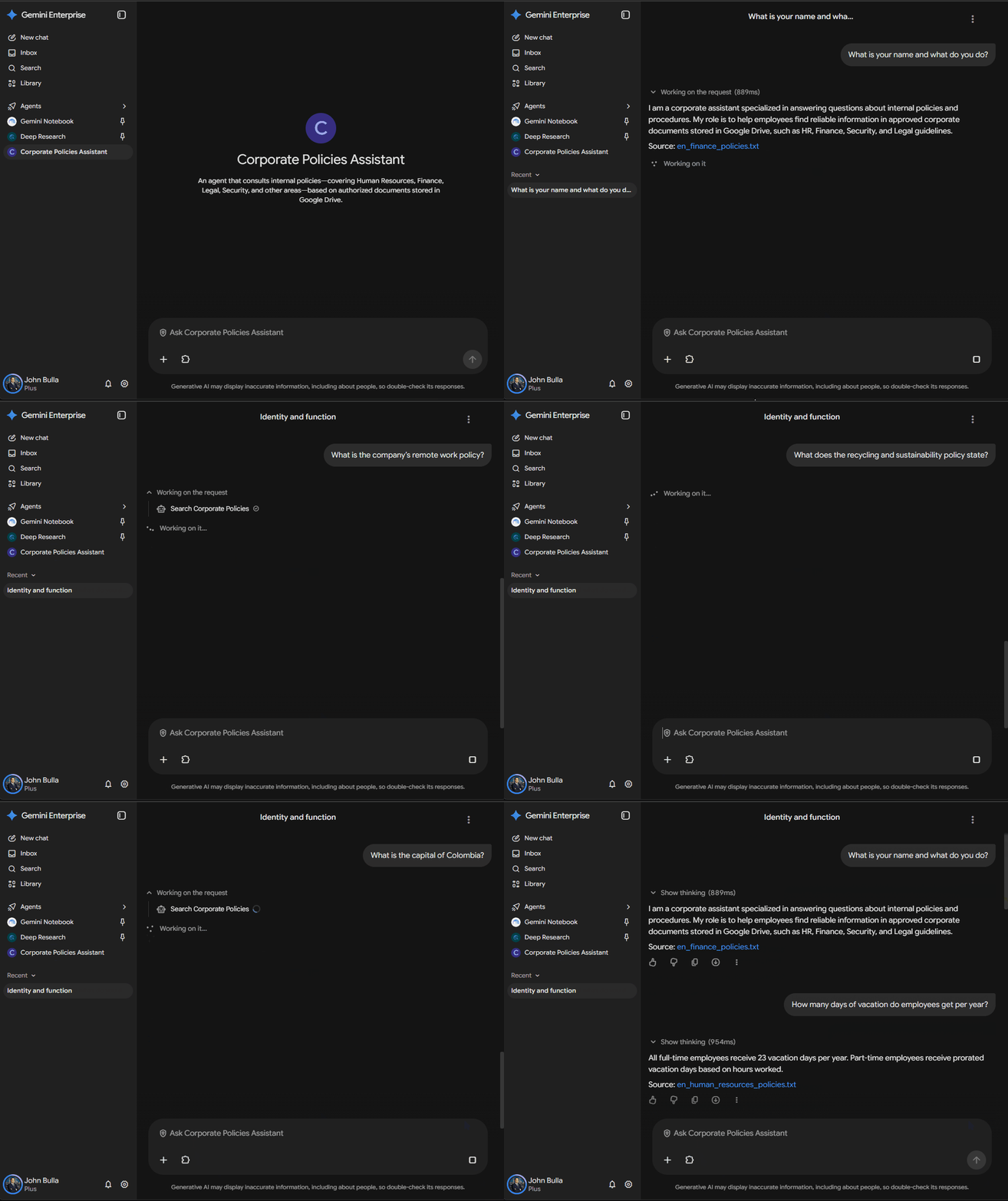
After registration, we can open our Gemini Enterprise application and interact with the Corporate Policies Assistant through its conversational interface.
To verify that the integration works correctly, we'll repeat some of the questions used during our PowerShell tests, such as asking about vacation days, remote work conditions, or reimbursement procedures.
During these tests, we should check that the agent provides coherent answers, retrieves information from documents stored in Google Drive, and includes source references when available.
We should also confirm that authorized users can access the agent and that its answers reflect the available corporate policies.
In our implementation, the agent accesses Google Drive using a service account. This means employees' individual document permissions are not automatically applied. If we later need to use confidential or department-restricted information, we'll need additional authorization and access-control mechanisms.
With these checks complete, we'll have integrated our Corporate Policies Assistant with Gemini Enterprise, allowing users to access the Google ADK agent from an enterprise platform while it continues to run in a managed Google Cloud Agent Runtime environment.
Figure 6 – Corporate Policies Assistant in action in Gemini Enterprise.
Once our agent is deployed in Google Cloud Agent Runtime, we need to consider how to keep it secure and reliable. This means following the principle of least privilege, keeping sensitive credentials out of deployment artifacts, and controlling who can access the agent and corporate information.
Agent Runtime also provides observability capabilities that help us monitor execution and identify problems. During this demo, we can review Google Cloud logs and metrics to examine response times, query volume, execution errors, Gemini usage, and authentication issues.
We should also remember that our RAG index is stored in memory and refreshed on demand, so changes made to Google Drive might not become available immediately across all runtime instances.
If we decide to move this solution into production, we should strengthen security controls, review document access permissions, and evaluate persistent storage, monitoring, and scaling strategies that fit the organization's requirements.
Throughout this second part, we've taken an important step forward with our Corporate Policies Assistant, moving from an application developed and tested locally to a solution deployed on Google Cloud Agent Runtime and integrated with Gemini Enterprise.
We reused the agent built earlier with Google ADK, Gemini, and Google Drive, showing that we can move its existing components into a managed cloud environment without rebuilding the entire solution.
This hands-on exercise also showed why proper packaging, authentication, permissions, and post-deployment validation matter. The tests helped us identify and resolve potential issues related to dependencies, access to Google Cloud services, and Gemini model availability—all essential for a reliable integration.
Deploying AI agents to the cloud creates new opportunities for organizations by making solutions developed by technical teams available to more users through platforms such as Gemini Enterprise. To realize that potential, however, we also need to consider security, scalability, observability, and agent governance.
With this implementation, we've established a practical foundation for evolving our assistant into a more robust enterprise solution capable of integrating information, tools, and business processes securely and efficiently.
To explore the concepts and procedures covered in this hands-on exercise, here are some additional resources. You'll find the demo's source code, the previous article in this series, and official Google Cloud documentation for learning more about deploying, configuring, and integrating AI agents with Agent Runtime and Gemini Enterprise:
I hope you find this guide useful!
Follow us:
👉Wiki Cloud | 👉LinkedIn | 👉X | 👉Github | 👉Youtube