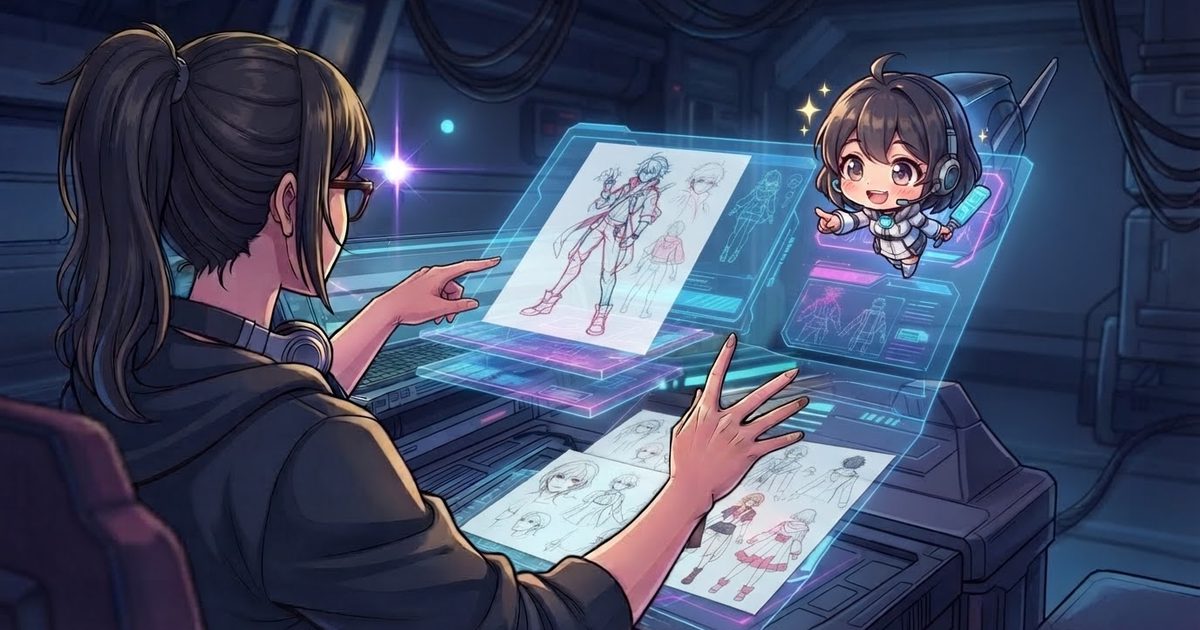
I am usually very grounded in my blog posts, but this time I am really excited. Last week Antigravity’s team released Antigravity 2.22.0, which includes a new feature that blew my mind: the support for UI Extensions in Antigravity plugins. Why is this important? Because it changes the whole developer experience with coding agents for the better. Let’s see how.
UI Extensions allow you to render custom user interfaces inside Antigravity’s side panel. The main reason why this is great is because now we can augment Antigravity’s interface with all sorts of features, bringing onboard functionality that by other means we would need separate apps to execute, like working on images, testing software, log mining, and data analysis.
For example, imagine that you are designing the interface for your next app. Explaining this in text is often a terrible experience. With a drawing you can be much more precise than text and Gemini, being multimodal, will understand the drawing natively. Before UI extensions I would fire up an image editor or diagram tool like Excalidraw and make my sketch, then copy and paste it to my prompt. Not a terrible experience per se, but slightly tedious. Now, with UI Extensions, I can have a proper diagramming tool inside Antigravity’s UI, and on a click of a button I can send annotated images to my coding agent session, which will immediately react to it.
This is just the tip of the iceberg. The capability to annotate your work and explain problems visually, with images, logs, and all sorts of supporting data, right there without leaving Antigravity, is the thing that convinced me that we are finally “living in the future”.
To prove this to you I have built two open-source plugins with UI extensions that you can test right away: Antigravity Paint Studio (agy-paint-studio) for multi-layer drawing, editing, and AI-powered image refinement, and ** Antigravity Game Studio (agy-game-studio)** for building and visually debugging 2D games in Go.
Let’s see how they work under the hood.
Anatomy of a UI extension# #
A UI extension is a plugin containing a sidecar that exposes interactive web panels and can be rendered inside the Antigravity interface. Just like normal plugins, it can also bundle skills, MCPs, and rules, allowing you to build complete experiences around a given domain (like image editing).
Plugins can be installed either at workspace level (in .agents/plugins) or at global level (in ~/.gemini/config/plugins). Similar to skills, they need to follow a specific directory structure.
plugins/<plugin-name>/
├── plugin.json             # Required marker and manifest file
├── mcp_config.json         # Optional MCP server definitions
├── hooks.json              # Optional hooks definition
├── skills/                 # Optional skills directory
│   └── <skill-name>/
│       └── SKILL.md
├── agents/                 # Optional subagent definition templates
│   └── <agent-name>.md
├── rules/                  # Optional rules directory
│   └── <rule-name>.md
└── sidecars/
    └── <sidecar-name>/
        └── sidecar.json    # Required for UI extensions
While normal sidecars can be built in any language, for UI extensions we will be leveraging Node.js as Antigravity is bundled with a Sidecar SDK that simplifies the communications between the agent main process and the sidecar process. Things like port discovery and messaging are handled by the SDK auto-magically.
As a side note: it is, in fact, possible to achieve the same experience without using Node.js, the Sidecar SDK, and any of the UI Extensions support, as I have shown in my State of Agentic Coding talk at Devoxx Belgium. The problem with the manual approach is that you will end up having to deal with port allocation (and potential conflicts) and session discovery and communication the hard way. The Sidecar SDK makes those things much simpler to do.
The entry point is sidecars/<sidecar-name>/sidecar.json, which tells Antigravity how to start the background process and render its web UI in the side panel:
{
  "command": "node",
  "args": ["main.mjs"],
  "restart_policy": "always",
  "display_name": "My Extension",
  "has_web_ui": true,
  "ui_config": {
    "views": [
      {
        "path": "/",
        "entrypoint": "SIDECAR_UI_ENTRYPOINT_AUX_PANE",
        "title": "My Extension"
      }
    ]
  }
}
Here we need to highlight the has_web_ui attribute and the ui_config properties, as they are what turn a regular sidecar into a UI extension.
Because "command": "node" uses Antigravity’s bundled Node.js runtime and sidecar_sdk, your extension needs no npm install and no node_modules. A complete backend in main.mjs takes only a few lines of JavaScript:
import { readFileSync } from 'node:fs';
import { SidecarApp } from 'sidecar_sdk';

const app = new SidecarApp();

// Re-reading on each request lets edits appear when you reopen.
app.page('/', () =>
  readFileSync(new URL('./index.html', import.meta.url), 'utf8')
);

// POST routes return JSON and verify the sidecar token automatically.
app.api('/api/save', (data) => ({ saved: true, name: data.name }));

app.run();
On the frontend, adding <script src="https://danicat.dev/preload.js"></script> to your HTML <head> syncs Antigravity’s light and dark theme variables and exposes window.sidecar so your UI can call the backend (fetch()), inspect the open workspace ( getWorkspaceUris()), and send messages straight into the active chat turn ( agent.sendMessage()). Once enabled, you can open the panel from the ⋮ menu under Extensions, by clicking any file matching file_extensions, or through a clickable sidecar:// pill in chat.
Building your own UI extensions the easy way# #
You know, those implementation details are nice when you are in a pinch, but in fact I really hope none of you will be writing those extensions manually. This is because Antigravity is “self-aware”: it knows how to build these extensions and you just need to ask it to do it for you. If you want to be very explicit, you can ask it to invoke the skills /plugin and /ui-extension. If you want to “teach” it about customisations in general, you can also use the /agy-customizations skill.
This is how I built both “Antigravity Paint Studio” and “Antigravity Game Studio”. Let’s have a look at both extensions now.
Editing images without leaving Antigravity with Paint Studio# #
Paint Studio started from that exact use case I mentioned in the intro: I wanted to be able to describe my problems using images (“a drawing is worth thousands of words”), but without the context switching. This meant a place inside Antigravity where I could doodle a quick idea from scratch, or click any image in my workspace or chat session to open it in the side panel, scribble some notes on top, and send it back to the agent.
What makes this setup really fun is that you end up with AI on both sides of the workflow. You have your coding agent in the chat panel on the left, and you also have Gemini (in this case, Nano Banana 2 Lite, a.k.a. gemini-3.1-flash-lite-image) built directly into Paint Studio on the right. In the screenshot above, I drew that little “smol void” cat in about ten seconds; then, after a couple of refinement steps, Nano Banana 2 Lite turned it into the watercolour painting you are seeing on the side panel.
It is worth mentioning that Paint Studio also leverages another interesting UI feature of Antigravity: generative UIs (in fact, my very first prototype of Paint Studio was built purely with /generative_ui). Generative UIs differ from UI Extensions because they render inline in the chat window. They are activated by the skill /generative_ui and you can use them both for creating reusable surfaces (like the ones in Paint Studio), or disposable ones, for example, for one-off data visualisation.
Welcome to a new chapter of "things I didn't really understand but now I have learned to love". Today's episode is sidecars in Antigravity! Here is a quick experiment on building an image editor sidecar for Antigravity. Using the agentapi CLI you can have your sidecar to… pic.twitter.com/Efa7IOLsew
Generative UI works by issuing an <agent-embed> block that renders a 500px-tall sandboxed iframe. You can put almost anything in this iframe using inline JavaScript and the host’s semantic Tailwind classes (like bg-[var(--card)] and text-[var(--foreground)]). However, its Content Security Policy (CSP) blocks all external CDNs except for Antigravity’s bundled Tailwind script (https://www.gstatic.com/antigravity/web/dev/tailwindcss.min.js), and it doesn’t allow WebAssembly (WASM) execution.
For Paint Studio, I have a specific endpoint that can render either the full UI (for the side panel or detached mode) or a simplified one (for the inline panel via /generative_ui). I included in the plugin the skill /paint-studio that you can trigger to instruct the agent to open the studio so that we have a handy shortcut for when we need a quick diagram.
For even more convenience you can register file types that open with your extensions in sidecar.json (like *.psd, *.png and others) and the app can also be launched with a blank canvas from the extensions menu:
{
  "ui_config": {
    "display_name": "Paint Studio",
    "views": [
      {
        "path": "/",
        "entrypoint": "SIDECAR_UI_ENTRYPOINT_AUX_PANE",
        "title": "Paint Studio",
        "file_extensions": [".psd", ".png", ".jpg", ".jpeg", ".webp"]
      }
    ]
  }
}
This way we have secured bidirectional communication: we can click on any file to open with the studio, do annotations, retouches, and AI improvements, and send to chat with the click of a button.
Playtesting and debugging 2D games with Antigravity Game Studio# #
Ever since I created my game development skills I have been thinking about how to take this to the next level. Skills, which are basically prompts, can only get you so far. For game development, there is a huge visual component to the development, from art direction, asset creation, level design, the HUD and so many others.
After exploring the redesigned experience with Paint Studio I started thinking how we can redesign the developer experience for game developers as well, and this is how I came up with Antigravity Game Studio. At first, I tried to bundle it with all sorts of tools, but it ended up in a big ball of mess. So I settled with one functionality that could benefit more from visual input than any of the others: playtesting.
The UI extension — Playtest Studio — does one thing: it compiles your Go game to WebAssembly and lets you play and debug it live at 60 FPS right inside the side panel. While you play, Playtest Studio records a rolling 10-second replay buffer (like a DVR).
Now, whenever I see something weird happen in the game, the debugging loop takes seconds:
- I press
F8(or`) to**** and scrub backwards frame by frame on the 10-second timeline to the exact moment the bug happened. - I draw a box or arrow directly over the offending sprite, or write a quick note in the margin around the screen.
- I click 📸 Frame or**🎞️ 10s GIF** to send the annotated screenshot (or a 10-second animated GIF replay), along with the captured WebAssembly console logs, straight into the chat session for the agent to fix.
The studio will send back to the agent a structured message containing all these bits of information so that it can work on the fix right away with much less ambiguity than a text prompt.
You can see this entire workflow in action in the video below, where I open Playtest Studio for my very first look at a 2D Tower Defense game the agent had just finished building, send visual feedback and a 10-second GIF into chat, and rebalance the game’s economy on the spot:
Closing thoughts# #
Being able to build custom visual tools that live right next to your agent — and talk to it with a single click — completely changes what a coding workspace can be. Instead of constantly context-switching to external apps and copy-pasting screenshots into prompts, you can shape Antigravity’s interface around whatever problem you are solving today.
If you want to take these plugins for a spin or use them as inspiration to ask Antigravity to build your own UI extensions, both repositories are available on GitHub: danicat/agy-paint-studio and danicat/agy-game-studio.
Happy sketching!