Summarize Content With:
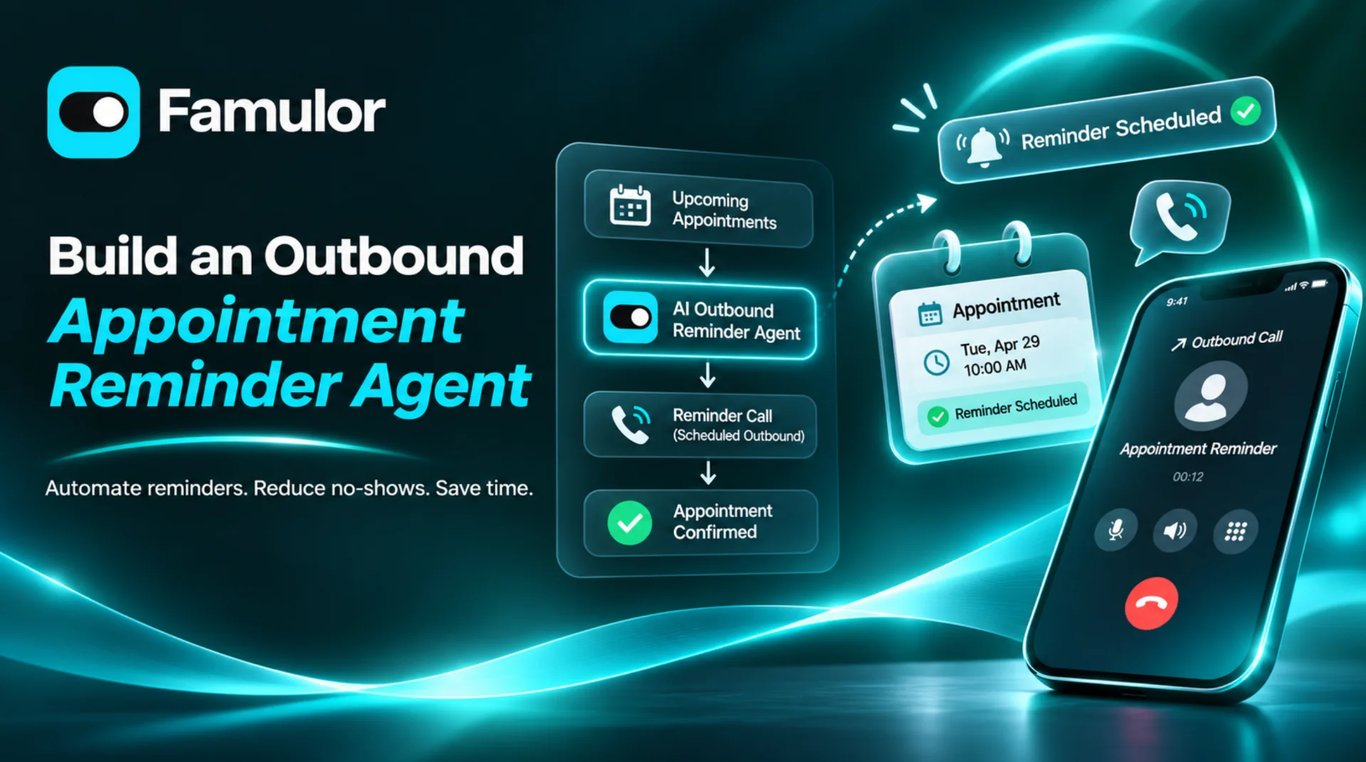
Short answer: An outbound reminder agent on Famulor calls each customer before their appointment, reads back the booked date and time, and confirms, moves or cancels it in the same call against your connected calendar. You design it with Famulor Skill in your AI client, give it workspace access through the Famulor MCP server, and run it either as a sequence campaign built from the "Appointment reminder" template or as a single call triggered by your own system. The calendar example below uses Cal.com; other providers have different limits. This guide walks through every step, from the first prompt to a small first batch.
This is part one of our tutorial series Build a … agent with Famulor. Each part builds one working agent from the public Famulor docs and the open-source Famulor Skill.
Build status: This is a source-checked proposed configuration, not a report of a deployed agent. No workspace was changed and no simulation, booking change or phone call was executed for this article. The tests below are acceptance checks to run in your own test workspace.
Why reminders still decide whether an appointment happens #
A systematic review of 105 studies on appointment scheduling found an average no-show rate of around 23%. The same review named a long lead time between booking and appointment as one of the strongest predictors of a missed visit (Dantas et al., Health Policy, 2018). The research comes from healthcare, but the pattern is familiar to every business that books time in advance: dental practices, physiotherapists, workshops, salons, consultants, tradespeople. The 23% figure is a historical healthcare finding, not a benchmark for every industry or a promised result for your business.
We covered the business case in AI appointment reminders: cut no-shows. This post is the hands-on part: how to build the agent.
How teams handle reminders today #
Most businesses already remind customers in some way. Each common approach has a gap:
- Calls from the front desk work well, but they happen during opening hours, by the same people who answer incoming calls. When the day gets busy, reminders are the first thing to slip.
- SMS and email reminders are cheap and reach everyone, but they are mostly one-way. A customer who wants to move the appointment has to call back, and many don't.
- Keypad phone menus ("press 1 to confirm") scale, but they cannot handle "can we do Thursday instead?".
What you want is the front-desk call without the front desk: a conversation that can actually change the calendar, at the volume of an automated system.
What we're building #
One voice assistant that:
- Calls the customer within your calling hours, says which business is calling and why.
- Reads back the appointment it was given (date, time, service).
- Handles three outcomes in the call: confirm ,reschedule to a slot that is actually free, orcancel after an explicit yes.
- Handles the edge cases: voicemail, wrong person, "call me later", a request to speak to a person, and a request not to be called again.
- Writes back a clear result you can measure: confirmed, rescheduled, cancelled, no response, do not call.
The calendar stays the single system of record. The assistant never "remembers" a booking on its own. It reads and changes appointments only through the calendar tools.
Prerequisites #
- A Famulor workspace on app.famulor.io with an outbound-capable phone number.
- A plan that includes Connect AI / MCP (for the MCP connection) andCampaign sequences (for the template-based campaign). SMS orWhatsApp steps need those channels in your plan, too.
- A calendar connection that can find and change existing appointments. According to the calendar & booking docs , Cal.com and Acuity Scheduling support find, cancel and reschedule; Calendly supports find and cancel; the built-in Famulor booking engine adds its own management tools. meetergo, eTermin and HighLevel currently offer availability and booking only, so they can't move an existing appointment during a call.
- An AI client that supports Agent Skills or MCP (for example Claude Code, Cursor or Codex).
- A test contact: your own phone number, and a test appointment on that number in your calendar. Don't use real customer data while you build.
Architecture: campaign or single call #
There are two ways to place reminder calls. Both use the same assistant.
| Path A: sequence campaign | Path B: single call per appointment | |
|---|---|---|
| Trigger | You add contacts with their appointment data to a campaign, for example once a day | Your system starts one call when an appointment reaches a point in time |
| How | create_campaign with a sequence, thenlaunch_campaign |
make_call (MCP),famulor create-call (CLI) orPOST /api/v1/calls (REST) |
| Controls included | Calling windows, contact-local time, holidays, retries, AMD and voicemail handling, SMS/WhatsApp/email steps, analytics funnel | Full control over timing in your own code |
| Good for | Most businesses with a daily or weekly appointment list | Teams that already run their own scheduling backend |
Start with Path A. It gives you dialer rules and reporting without writing code. The rest of this guide follows Path A and shows Path B where it matters.
Step 1: Install Famulor Skill and connect MCP #
The skill gives your AI client the instructions: prompt templates, channel guidance, test scenarios and references for API, MCP, CLI and SDK. The MCP connection gives it authorized access to your workspace. You need both, and the skill alone does not connect your account.
npx skills add Famulor-SI/Famulor-Skill --skill famulor-skill
Then add a remote Streamable HTTP MCP connection and complete the OAuth sign-in:
https://app.famulor.io/mcp
If you only want the tools for this tutorial, you can narrow discovery with toolsets. This does not grant more permissions than you approve in OAuth:
https://app.famulor.io/mcp?toolsets=assistants,calls,campaigns
Client-specific steps, such as the Claude Code plugin or codex mcp add, are in the Famulor Skill docs and the MCP overview.
Step 2: Describe the agent in plain language #
Open a new chat in your AI client and give it the brief. Be explicit about what it must not do yet:
Use Famulor Skill. Design an outbound appointment reminder assistant for
[business], a [type of business] in [city]. Language: English.

The assistant calls customers 24 hours before their appointment. It knows
the customer's name, the appointment date and time, and the service
from campaign variables. It should:
- say who is calling and why, and check it is talking to the right person
- read back the appointment and ask whether it still works
- confirm, move it to an available slot, or cancel after an explicit yes,
  using our Cal.com connection
- handle voicemail, wrong person, "call me later", a request for a human,
  and "don't call me again"

Use the voice-booking template and the assistant-design reference.
Propose the prompt, variables, post-call analysis fields and test
scenarios. Save the assistant as a draft, connect our calendar, and set up
a campaign from the "Appointment reminder" template in English.
Do not place any call, do not launch or start any campaign, and show me
everything before you save.
Famulor Skill tells the agent to keep drafting and launching apart: building a campaign does not authorize contacting anyone, and a launch needs your own confirmation. You will see that rule again in Step 6.
Step 3: The system prompt #
Here is a prompt in the shape the skill's templates use. Replace the bracketed parts. {{customer_name}}, {{appointment_date}} and {{service}} are assistant variables that the campaign fills per contact.
## Identity and purpose
You are [name], the AI assistant of [business]. You are calling
{{customer_name}} about their [service type] appointment on
{{appointment_date}} for {{service}}. Your goal is to confirm the
appointment, move it to another available time, or cancel it if the
customer asks.

## Opening
Use the configured opening: name the business and the reason for the call.
Check that you are speaking with {{customer_name}}. If not, ask whether they
can pass on a message, do not share appointment details, and end the call
politely. Do not invent an earlier conversation.
If the name or appointment date is missing, do not say a placeholder.
Say you are calling about an upcoming appointment and use find_appointment
to look it up.

## Confirm
Before reading back the appointment, call find_appointment and use the
date and time it returns. If several appointments match, ask which one
the customer means. If no appointment matches, ask for the booking email
and full name. If lookup still fails, disclose no other records and use
the configured human fallback. Never claim a booking was found.
If the customer confirms, thank them and close.

## Reschedule
If the customer wants another time, ask for a preferred day or range.
Call check_availability before offering any time. Offer two or three of
the returned options. Never invent a free slot. Once the customer picks one
and confirms it, call reschedule_appointment with the exact start value
from check_availability. Say the appointment has moved only if the tool
reports success. If nothing fits, offer [approved alternative, e.g. a
callback from the team].

## Cancel
If the customer wants to cancel, repeat the date and time and ask for an
explicit yes. Then call cancel_appointment. Report the result as the tool
returns it. Cancellation cannot be undone.

## Edge cases
- Bad time to talk: offer [approved callback option, e.g. the built-in Schedule callback tool] and end the call.
- Wants a person: use [configured transfer or callback tool]. If that
  fails, say so and offer the callback.
- Does not want to be called again: acknowledge it, stop the reminder, and
  end the call. Do not ask for a reason.
- Questions outside the appointment: answer only from approved information,
  otherwise offer a callback.

## Style
Keep each turn short. Ask one question at a time. Speak dates and times
clearly in the calendar's timezone. Do not promise an SMS or email unless
it was actually sent.

## Finish
Use [end-call tool] once the outcome is settled, without a second farewell.
Two details from the skill's assistant design reference matter here. Missing {{...}} values become empty, so the prompt needs a fallback, which is why the opening tells the assistant what to do without a name or time. And variables must be defined on the assistant before you rely on them. Your agent can do that with set_assistant_variables and read them back with get_assistant_variables. The set operation replaces the definitions, so preserve unrelated variables on an existing assistant. Give each variable a sensible default_value, as the variables docs recommend.
Configure the bracketed tools, not just the words. Under Assistant Settings → Advanced → Tools, assign the actual End call, Call transfer (with an approved destination and unavailable path) and, if wanted, Schedule callback tools. Use their assigned names in the prompt. Without a working callback or handover action, do not promise that one was created. Their settings and availability rules are in the built-in tools docs. The appointment confirmation in this design is an analysis result; no separate calendar “confirmed” status is written.
Step 4: Connect the calendar tools #
Connect your calendar under Booking → Integrations, pick the event type, check the timezone, and turn on Cancel and Reschedule for that connection. Booking is a separate permission. Then assign it in Assistant settings → Calendar (or PUT /api/v1/assistants/{id}/integrations).
Each assigned integration adds its tools to every call:
| Tool | What it does in this agent |
|---|---|
find_appointment |
Finds the customer's upcoming appointment for the connected event type |
check_availability |
Returns real open slots for a date range |
reschedule_appointment |
Moves an appointment found in the same call, after the new time is confirmed (Cal.com, Acuity) |
cancel_appointment |
Cancels an appointment found in the same call, after an explicit confirmation |
book_appointment |
Books a new slot, for example on Calendly, where a "move" is a cancel plus a new booking |
On an outbound call, Cal.com matching uses the number you dialled, not the assistant's own number. That only works if the phone number is stored on the booking, so make the phone question on your Cal.com event type required and collect numbers with their country code. If there's no phone match, the assistant asks for the booking email and full name. The Cal.com reschedule guide covers this in more depth.
Timezones are the most common source of confusion. The calendar's timezone governs availability, and the assistant's timezone governs relative dates such as "next Friday". Always pass the exact start value that check_availability returned.
Step 5: Define the result you want to measure #
Open Assistant Settings → Analysis and add Yes / No fields that the transcript can prove, for example:
appointment_confirmed: the customer confirmed the existing appointmentappointment_rescheduled: the customer agreed a new time and the assistant confirmed the moveappointment_cancelled: the customer asked to cancel and the assistant confirmed the cancellationcallback_requested: the customer asked to be called back by the team
These are proposed extraction-field names, not built-in fields. Post-call analysis reads the transcript; its labels do not independently prove that the calendar changed. Check the tool receipt and the calendar record as well. Describe each field as an observable fact, not a mood. The campaign docs are clear about this: when goal tracking behaves oddly, the cause is usually the goal field's description, not the retry logic.
Step 6: Build the campaign from the template #
Your agent can list the gallery and show the closest returned reminder template. Use its actual returned ID, never an invented template ID. If using the CLI snippets instead of MCP, the CLI docs require Node.js 22+, API Access, npm install --global famulor and famulor auth login; enter the key only in the hidden prompt. Listing templates is read-only:
famulor list-campaign-templates --language en --category appointments
The same list is available as the MCP tool list_campaign_templates. The sequence docs describe the Appointment reminder template as an SMS reminder first. A reply ends the sequence as successful. Otherwise a call confirms the appointment, reschedules it or records the cancellation. You can keep that shape or change it. For example, call first and send an SMS only after no response.
Before the template can be saved, every SMS step needs exactly one sender (from_number_id or rcs_sender_id), and every WhatsApp step needs connector_id and an approved template_id. Your agent should only use IDs that your workspace returns.
Then set the campaign rules in Settings and Launch:
- Calling window: for example Mon–Fri 09:00–18:00. With a sequence you can set
contact_timezone_modetocontactso each contact is called in their local time, andholidays.publicto skip public holidays. - Attempts and delays per call step , with a voicemail choice per attempt: hang up, or leave a short message (
drop_message). Retrying at a different hour usually improves reach. - Answering machine detection (AMD): Conservative (fewer false hang-ups) or Aggressive (faster detection).
- Outcomes: useAI decides with sentences like "The customer confirmed the appointment", or preset rules such asGoal field is true .Do not call is built in. It wins over your own outcomes and ends the contact.
Now connect the appointment data to the prompt. In a campaign, a lead's custom field fills the variable with the same key at dial time, so a CSV column appointment_date becomes {{appointment_date}}. This only works once customer_name, appointment_date and service exist as workspace Custom Attributes and are selected for this assistant (variable source lead). A field saved only on one contact is not enough. list_variable_sources shows what is available. Then add your test contact with add_leads or a CSV import.
Your agent stops here. A draft is not a launch.
Step 7: Test before anyone gets a call #
Famulor Skill separates test layers, and each one proves something different. A chat simulation checks behavior and tool use against simulated responses. A voice test checks speech, turn-taking and tools on the real audio path. Voice simulations execute the configured tools, so bookings can be real. Point them at your test appointment.
Ask your agent to create tests with create_assistant_test and run them with run_assistant_test (CLI: famulor run-assistant-test <assistant-id> <test-id>). A useful minimum set for this agent:
| Scenario | Expected result |
|---|---|
| Customer confirms | find_appointment called, correct date read back,appointment_confirmed true, no write |
| Customer wants Thursday instead | check_availability before any offer, exact start passed toreschedule_appointment , success reported only after the tool returns |
| No slot fits | No invented slot, alternative offered |
| Customer cancels | Explicit yes before cancel_appointment |
| Wrong person answers | No appointment details shared, polite end |
Empty appointment_date |
No placeholder spoken, lookup via find_appointment |
| "Don't call me again" | Polite close, contact ends as Do not call |
| Tool error or timeout | No false success, no second write |
Read the transcript and the tool calls, not just a score. If a test fails, fix the smallest cause in the prompt or field description, then rerun that case and its neighbours.
Then place one real call to yourself. This places a real, billable call:
famulor create-call --assistant-id <assistant-id> --to-number +49XXXXXXXXXX
For this command, replace the example destination only with a number you own or have explicit permission to test, and load the variables from the reviewed test scenario. A direct test does not exercise campaign suppression, attempt scheduling or message routing.
The MCP equivalent is make_call with assistant_id, to_number and the variables for this call. The tool returns the queued call immediately. Read the final status with get_call. This is also how Path B works in production: your system calls make_call or POST /api/v1/calls once per appointment. Direct calls do not automatically inherit a campaign’s windows or retries: your integration must check eligibility, current appointment state, suppression and timing, and prevent duplicate triggers. This guide does not install a nightly job or a 24-hour-before-appointment trigger.
Compliance #
Famulor gives you the controls. You remain responsible for consent.
- Consent and launch confirmation. A sequence campaign only launches with an explicit confirmation that it complies with all laws and consent rules for the contacts, including do-not-call lists and opt-in rules (for example UWG andGDPR in the EU, TCPA in the US). Over API, MCP or CLI that is
compliance_attestation: true. Famulor stores who confirmed, when and from which surface. Your AI agent must never set it on its own. - Calling windows. In Germany, unsolicited calls at unreasonable hours violate the UWG. Set a calling window for every campaign that calls consumers.
- Suppression list. Famulor checks the workspace suppression list before every call and fails closed when the status can't be verified. Opt-outs can block one channel or every linked channel. National registries are not checked for you, except the optional US Federal and State DNC checks.
- Keep service reminders separate from marketing. Keep the call about the appointment the customer booked. If you want to add offers, that is a different campaign with different consent requirements.
- Data protection. DPA under Art. 28 GDPR, app & database hosted in Frankfurt. Details are in theTrust Center .
This section is not legal advice.
Going live #
- One call to yourself with your test appointment. Check the opening, the read-back, a reschedule and the closing.
- Read back the calendar. After the first real reschedule or cancel, check the appointment in the calendar itself, not only the assistant's words.
- Prepare a small batch of 10 to 20 eligible customers, after your authorized test passed. Reconcile the appointment list with the live calendar, remove changed or cancelled bookings, and review recipients, senders, hours, voicemail text and every outcome route before any launch.
- Review and explicitly authorize launch. Read
sequence_hashunchanged fromget_campaign(GET /api/v1/campaigns/{id}). Only after the responsible person confirms compliance for this exact campaign, uselaunch_campaign(POST /api/v1/campaigns/{id}/launch). The CLI command below starts real outreach now; it does not merely save a draft. Setstart_atvia the API if you want to schedule at least five minutes ahead instead. - Read the first transcripts and watch the funnel.
get_campaign_analyticsreturns Dialed, Connected, Converted, conversion rate and Messages sent. A successful end counts as Converted; it is your configured outcome, not automatically a confirmed appointment. The stock SMS-first reminder treats a reply as a successful end, so review that route if you need a stricter confirmation metric. Widen the batch only when the outcomes match transcripts and calendar results.
The launch command for step 4. It starts real outreach immediately, so run it only after that explicit confirmation:
famulor launch-campaign CAMPAIGN_ID --compliance-attestation true --sequence-hash "$REVIEWED_SEQUENCE_HASH"
To change a running sequence, it with _campaign, edit, and resume. A changed sequence needs the compliance confirmation again.
What's next #
The same pattern of calling, verifying, acting on the system of record and writing back a result carries over to many outbound tasks: rebooking missed appointments, payment reminders, feedback calls. The template gallery already has starting points for several of them.
Next in this series: an inbound booking agent, the counterpart that answers when customers call to book. After that come the WhatsApp follow-up after a missed call, lead qualification and multi-channel order support.
You can build everything in this guide in your own workspace at app.famulor.io. For an overview of channels, integrations and pricing, visit www.famulor.io.
FAQ #
Can the reminder agent move an appointment during the call? Yes, if the calendar connection supports it. Cal.com and Acuity support find, cancel and reschedule. Calendly supports find and cancel, so a move becomes a cancel plus a new booking. meetergo, eTermin and HighLevel currently support availability and booking only.
Do I need to write code? No. Path A runs entirely on the campaign builder, and your AI client can set it up through MCP. Code only comes in if you want to trigger single calls from your own system (Path B).
What happens if the customer doesn't answer? The call step retries within your attempt limit and calling window, and can leave a voicemail per attempt. After the last attempt, the contact takes the No response route, for example to an SMS step.
What if someone says they don't want to be called again? The sequence detects Do not call automatically. It takes priority over all other outcomes and the contact is not called again.
Writer at Famulor