Most chatbots can only talk. Ask one for a price in your currency, an order’s status, or today’s exchange rate, and it either guesses or tells you to check somewhere else. An AI agent that takes actions does the opposite: it calls a real API in the middle of the conversation, reads the result, and answers with it.
This guide builds one from an empty account, with no code. By the end you will have an agent that answers questions from knowledge you give it and calls a live REST API during the chat, and you will have watched it happen in the Inbox. The action you build here is the master recipe: one described HTTP request. Point it at a different URL and the same recipe logs a lead to a spreadsheet, writes to a CRM, or moderates a chat server. Every integration tutorial at the end of this post is a worked example of it.
Everything below was built and tested on a real agent. Every conversation and API call in the screenshots was produced by the agent running for real; you can reproduce each one.
What you will build #
A single support agent for a fictional project-planning tool called Meridian. It does two things end to end, in about ten minutes:
Answers from knowledge you give it: Meridian’s plans, prices, and features.Calls one live API mid-conversation to convert a price into the visitor’s currency, then uses the result in its reply.
The action calls Frankfurter, a free, keyless exchange-rate API, so you can finish the whole thing with only a Quickchat account and nothing to sign up for. The point is the pattern, not currencies: once you have built this action, you have built the shape of every integration.
What you need:
- A free Quickchat AI account ( sign up here). - No code, no server, no API key.
What is an AI agent, and how is it different from a chatbot? #
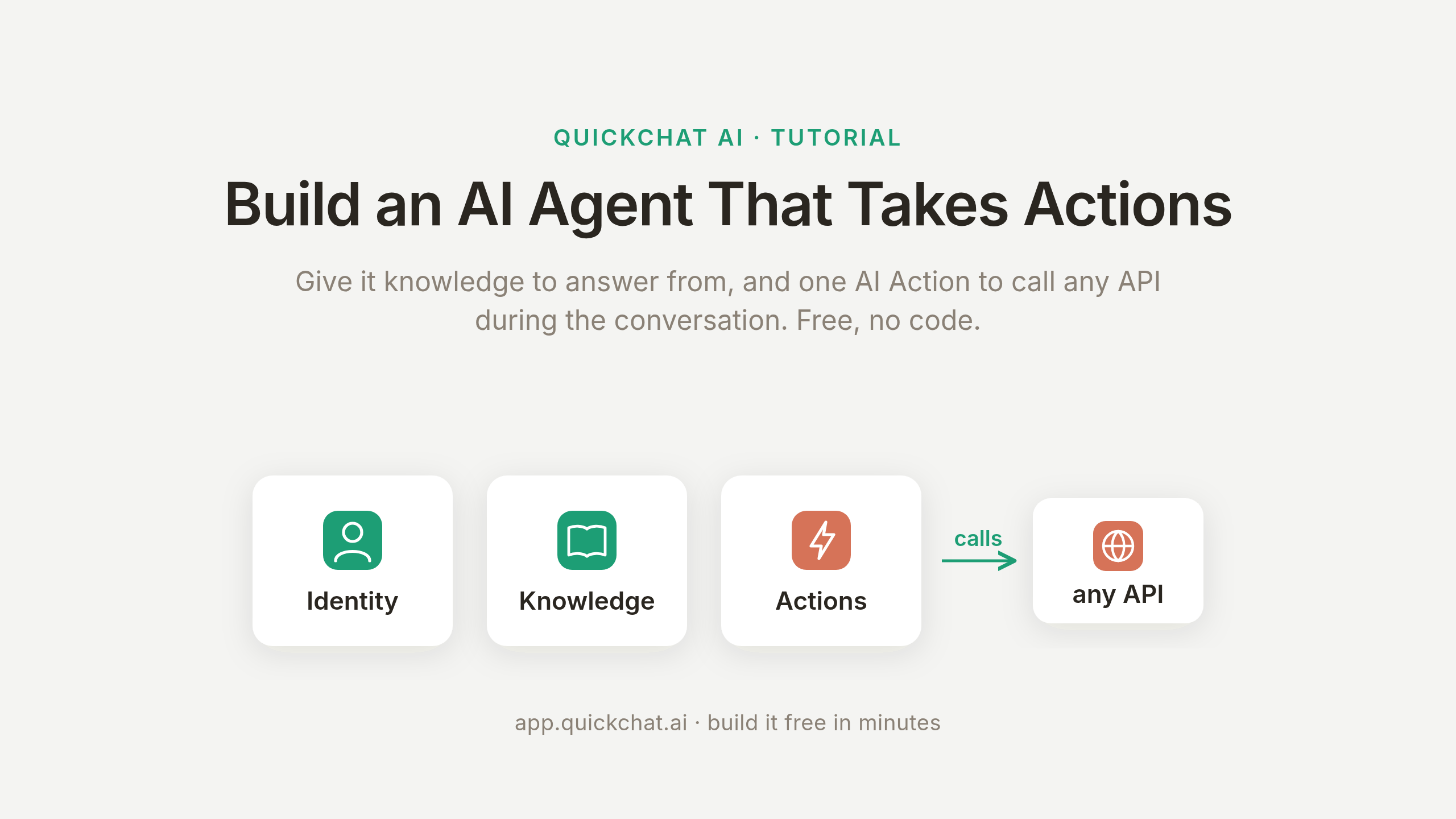
A chatbot answers. An agent answers and acts. In Quickchat, you build an agent from three parts.
The first two parts make a chatbot. The third, Actions, makes it an agent.
Identity is who the agent is: its name, role, and instructions. This is theAI Main Prompt.** Knowledgeis what it answers from: your docs, pages, and facts. Actions & MCPs**is what it can do: call an API during the conversation.
The first two make a good chatbot. The third makes it an agent. This post spends most of its time on the third.
What an AI Action really is
An AI Action is a described HTTP request. You fill in the request once (the method, the URL, and the values to send) and write a description of when to use it. During a conversation the model decides whether to call it and fills in the parts you left open, Quickchat sends the request, and the model reads the response back.
The clearest way to understand why this is reliable is to split every value in the request into two kinds.
You fix the deterministic values; the model fills the judgment ones from the chat. The parameters are the only values it has to get right.
Deterministic values are the ones you fix: the method, the URL, a base currency. The model cannot get them wrong because it never touches them.Judgment values are the ones the model fills from the conversation: which currency the visitor asked for, which price to convert. These are the only values that need any thought, and the only ones you tune.
You insert judgment values with the Add AI Data menu, which drops a {{...}}
chip into any field. That menu offers exactly the three things an action ever needs to pull in:
Parameters you define (the judgment values the model fills, like{{currency}}
).Conversation metadata the channel sets (like{{conversation_channel}}
or{{metadata_visitor_email}}
).System Tokens: secrets Quickchat stores and injects, shown as a badge, never given to the model.
The Add AI Data menu inserts a value as a chip: a parameter you defined, a visitor or conversation value, or a built-in variable.
The conversation-metadata values are ready to use without asking for them. A few worth knowing:
| Variable | What it holds |
|---|---|
{{conversation_channel}} |
The channel the chat is on (widget , telegram , whatsapp , and so on) |
{{conversation_url}} |
A link to this exact conversation in your Inbox |
{{language}} , {{country}} |
The visitor’s language and country, as two-letter codes |
{{metadata_visitor_email}} |
The visitor’s email, once they have shared it |
{{scenario_id}} , {{conversation_id}} |
Ids for this agent and this conversation |
For this action you only need the first kind (the parameters). The others matter once you connect a real service; the HubSpot and Discord guides at the end lean on all three.
Step 1: Create the agent and give it knowledge #
Sign up and open a new agent. On the Identity page, set the AI Agent Name to Meridian
and paste this into the AI Main Prompt. This is the always-available prompt field every plan has; you do not need the separate AI Guidelines list.
The agent’s instructions go in the always-available AI Main Prompt, not the separate AI Guidelines list.
You are the support assistant for Meridian, a project planning tool for product teams. You answer questions from visitors on Meridian's website about plans, pricing, features, and getting started.

Answer using your knowledge. Every price in your knowledge is in US dollars (USD).

When a visitor asks what a plan or price costs in another currency, or mentions their own country or local currency, call the "Convert price to currency" action with the US dollar amount and the 3-letter code of the target currency, then give them both the USD price and the converted amount at today's rate.

If you do not know the answer, say so honestly and offer to pass them to the team. Never guess.
Two lines earn their place. The one about US dollars tells the model what the knowledge prices mean, so it knows what to pass to the action. The last line, say so when you do not know, is what produces an honest refusal instead of a guess. We test both later.
Now give it something to answer from. On the Knowledge Base page, add a few short articles with Meridian’s facts. The one the demo leans on is pricing:
Meridian has three plans, billed per user per month in US dollars (USD):
- Starter: $19 per user per month. Unlimited projects, timeline and board views, up to 3 integrations.
- Pro: $49 per user per month. Adds sprint planning, task dependencies, custom fields, and unlimited integrations.
- Business: $99 per user per month. Adds portfolio roadmaps, advanced permissions, SSO, and priority support.
Annual billing costs 17% less than monthly. Every plan starts with a 14-day free trial, no credit card required.
The demo’s facts, added as short articles and marked Ready. The agent answers pricing questions from these.
That is enough for the agent to answer pricing questions. Deliberately leave one thing out, a security certification, so we have a genuine question the agent should not be able to answer.
Step 2: The master AI Action recipe: call any REST API #
This is the reusable part. Open Actions & MCPs, and under Custom Actions click Add Action, then API Action.
Under Custom Actions, Add Action lists API Action first: a described HTTP request to any REST API.
Every API Action uses the same form, in the same order. Learn it once here and every later recipe is the same boxes with different values. It has two halves: what to collect from the visitor, and the request to send.
The values to collect
The top of the form: the API Action Name, and the two required parameters the model fills, currency and amount.
API Action Name. A short name the model uses to refer to the action.
Convert price to currency
What to ask the user first. The judgment values, one row each. Give every one a Format, a Name, and a Description that tells the model how to fill it, and mark it Required so the model never calls the action without it.
| Format | Name | Description | Required |
|---|---|---|---|
| Text | currency |
The 3-letter ISO code of the currency to convert to, for example EUR, GBP, or JPY. Work it out from the currency or country the visitor mentions. | yes |
| Decimal Number | amount |
The amount in US dollars to convert, taken from the plan or price the visitor asked about. | yes |
“What to ask the user first” is the product’s label, but the agent rarely stops to ask. When the visitor writes “how much is Business in euros”, the model already has both values (amount
from your knowledge, currency
from “euros”) and fills them straight in.
The request to send
The request: a GET to Frankfurter, with base fixed to USD and the currency and amount chips added under Query Params.
API request method and endpoint URL. A GET
to Frankfurter’s latest-rates endpoint:
GET
https://api.frankfurter.dev/v1/latest
Query Params. This is where the deterministic and judgment values meet. Add three rows under the Query Params tab. Type USD
for the base, and for the other two click Add AI Data and pick the parameters you defined, which drops in the {{currency}}
and {{amount}}
chips.
| Key | Value |
|---|---|
base |
USD |
symbols |
{{currency}} |
amount |
{{amount}} |
Headers and Body: none. This is a GET
with everything in the query string.
API Action Description. The single most important field. It is what the model reads to decide whether to call the action, so tie it to a clear signal rather than describing the mechanism.
Convert a US dollar amount into another currency at today's exchange rate. Call this whenever the visitor asks what a price or plan costs in a currency other than US dollars, or gives their country or local currency. Pass the amount in US dollars and the 3-letter ISO code of the currency to convert to.
Save it and switch the action on. That is the whole recipe: a name, the values to collect, a request, and a description.
The finished action, switched on. The card shows its call count and success rate at a glance.
Nothing here is specific to currencies. Swap the URL and query for your own API and you have a different action.
Point it at your own API
The Frankfurter action is a read: a GET
with public data. Your own API is usually the same form with a few more fields filled in.
To write, not just read, set the method toPOST
,PATCH
, orDELETE
, and put the data in theBody tab as JSON. The same{{...}}
chips work inside the body, so{ "email": "{{email}}" }
sends whatever the model collected.For an API that needs a key, add a row under the** Headers**tab (for exampleAuthorization
) and insert the key withAdd AI Data, choosing a** System Token**. Quickchat stores the secret and injects it at call time, so it shows as a badge and is never given to the model or written into the prompt.Everything else is identical: the name, the parameters to collect, and the description that decides when it fires.
The HubSpot guide builds four POST
actions this way with an injected OAuth token, and the Discord guide builds seven against the Discord API with a bot token in the header. Both are the same form you just filled in, with a different URL and body.
Step 3: Test it and watch the call happen #
Here is the whole round trip in one picture: the visitor asks, the model fills the judgment values, Quickchat adds the fixed ones and makes the request, and the reply carries the result back.
One call, end to end: the model fills the judgment values, and Quickchat adds the fixed ones and makes the request.
Chat with your agent in AI Preview (at the top of the left menu), or on your live widget, then open the conversation in your Inbox. Ask a plain pricing question first, then ask for it in another currency:
Visitor:How much is the Business plan?Meridian:The Business plan is $99 per user per month.
Visitor:What’s that in euros?Meridian:The Business plan is $99 per user per month, which is about €86.81 per user per month at today’s rate.
The first answer comes from knowledge. The second is the action firing. You do not have to take the reply’s word for it: the conversation shows a 1 action called marker, and expanding it shows the call itself.
The agent answers $99 from knowledge, then converts to euros. The 1 action called card proves the call fired and returned 200.
The card is the honest middle between the message and the reply. It shows the action returned 200, the exact values the model sent (amount: 99
, currency: EUR
), and the response Frankfurter sent back. When you are building your own action, this card and the per-action call log (total calls, success rate, each request and response) are where you confirm the agent called the right action with the right values, not just that the reply sounded right.
The same action handles any currency. Ask for the Starter plan in Japanese yen and the agent calls Frankfurter with amount: 19
and currency: JPY
, then answers that $19
is about ¥3,087
at today’s rate. Same recipe, a different value the model filled in.
The same action, a different currency: $19 becomes ¥3,087. Only the value the model filled in changed.
That per-action log is one click away. Open View logs on the action to see every call it has made: the total, the success rate, and for each call the exact request and the response it got back.
Every call the action has made, with the exact request, response, and status. Both conversions returned 200.
Step 4: Make it reliable #
The action above works on the first try because of four choices, each one a lever you will reuse on every integration.
Mark the parameters required. Both currency
and amount
are required, so the model cannot call the action with half a request. Optional parameters are for genuinely optional values.
Let the description decide when it fires. The model reads the description, not the name, to choose the action. A vague description (“converts currencies”) fires unpredictably. A description tied to the signal (“call this whenever the visitor asks what a price costs in a currency other than US dollars”) fires when it should. When an action calls at the wrong time or not at all, the description is almost always the fix.
Let the API do the arithmetic, not the model. A first attempt at a currency action often fetches the exchange rate and leaves the multiplication to the model. Language models are not reliable calculators, and a wrong total on a pricing question is worse than no total. Frankfurter takes an amount
parameter and returns the already-converted figure, so the model only has to read 86.81
, never compute it. Whenever your API can return the finished value, prefer that over asking the model to work it out.
Confirm it says no. Reliability is not only about firing; it is also about not making things up. Ask the agent something its knowledge does not cover, the security certification you left out:
The honest “no”: with nothing about SOC 2 in its knowledge, the agent declines instead of guessing.
Visitor:Is Meridian SOC 2 Type II certified?Meridian:I don’t have any information in my documentation about Meridian being SOC 2 Type II certified, so I can’t confirm that it is. If you need a definitive answer for security review or procurement, I recommend contacting the team directly at[support@meridian.example].
That refusal is the last line of the prompt doing its job. An agent that calls real APIs has to be trusted to know the edges of what it knows, so test the “no” as deliberately as the “yes”.
Going live #
The action belongs to the agent, not to any one channel, so it runs everywhere the agent is deployed. Turn on the web widget and the same currency conversion works for a visitor on your site. Connect Telegram, WhatsApp, Messenger, Slack, or Discord and it works there too, unchanged. There is nothing per-channel to redo; a deployed agent carries its actions with it.
Where to go next: the real integrations #
You have built the master recipe. Every guide below is the same action shape pointed at a real service, so each one starts from something you now understand and adds only what is specific to it.
: the agent appends a row when a conversation produces a lead or a piece of feedback.Log leads and reports to Google Sheets: a write-only CRM design that fills a record turn by turn and never reads anyone’s data back.Create contacts, deals, and tickets in HubSpot: timeout, kick, and ban as AI Actions, with the destructive ones locked to admins by a server-side gate.Moderate a Discord server: announce, pin, and moderate from plain language over the Telegram Bot API.Manage a Telegram group: expose it as a tool that ChatGPT, Claude, and Cursor can call.Turn your agent into an MCP server: drive the agent you built from inside an AI client over MCP.Run and manage your agent from ChatGPT
The full field reference lives in the AI Actions docs.
Frequently asked questions #
How do I build an AI agent for free?
Create a free Quickchat AI account, give the agent a short main prompt and some knowledge to answer from, then add one AI Action, a described HTTP request, so it can call an API during the conversation. Building the agent, knowledge, and creating and switching on actions are all free, and the whole guide runs on the free plan.
Do I need to code to build an AI agent?
No. You describe the agent in plain language and fill in an action form: a name, the values to collect from the visitor, the request method and URL, and a description of when to call it. Quickchat sends the request and hands the response back to the agent. You never write or host any code.
How long does it take to build an AI agent?
About ten minutes for the agent in this guide: a few minutes to write its prompt and add your facts as knowledge, and a few more to fill in one AI Action form. There is nothing to install and no code to write.
What is the difference between an AI agent and a chatbot?
A chatbot answers questions. An AI agent also takes actions: it can call an API during the conversation to look something up or make a change, then use the result in its reply. In Quickchat you build an agent from three parts: its Identity (who it is), its Knowledge (what it answers from), and its Actions (what it can do).
Can an AI agent use live, real-time data?
Yes. Every time the agent calls an AI Action it makes a fresh request, so it always uses live data. The agent in this guide fetches today’s exchange rate on every conversion; point the action at your own API and it reads your current data the same way.
Can the AI agent call my own API?
Yes. The AI Action in this guide is a general HTTP request. Point it at your own REST API instead of the public one used here, set the method, URL, headers, and body, and describe when the agent should call it. The same recipe works for any REST API, including private ones behind an auth token.
Can one AI agent have more than one action?
Yes. An agent can have many AI Actions, and it picks the right one for each message based on the descriptions you write. This guide builds a single action to stay focused; the integration guides add several to the same agent.
Can ChatGPT, Claude, or Gemini build an agent that takes actions?
You can build the agent with Quickchat and choose which model powers it. During a conversation the model decides when to call your action and fills in the values from the chat, so the agent looks something up or makes a change on its own. You can also expose your finished agent to ChatGPT, Claude, and Cursor as an MCP server.
What can the agent actually do once it is built?
Anything a REST API can do. This guide uses a live currency lookup, but the same action shape logs a lead to Google Sheets, creates a contact in HubSpot, moderates a Discord server, or manages a Telegram group. Each of those is a worked example of the master recipe in this post.
How does the agent know when to call the action?
The action’s description is what the model reads to decide. Tie it to a clear signal, for example “call this when the visitor asks for a price in a currency other than US dollars”, and mark the values it needs as required. The parameters are the only values the model has to fill in; everything else in the request is fixed.
Is it safe to let an AI agent call an API?
You stay in control of the request. You fix the method, the URL, and any secrets (injected on Quickchat’s side, never shown to the model), and the model only fills the parameters you define. For actions that write data you can gate the call on server-side conditions the chat cannot bypass. The HubSpot and Discord guides walk through the full safety patterns.
Is it free to build and try?
Yes. Creating the agent, adding knowledge, and building and switching on AI Actions are all free, and the entire guide runs on the free plan. When you are ready to take your agent live to more visitors, paid plans add higher limits and more advanced models.