Dev blog · Guides · 2026-11-28
Short answer: Microsoft’s official server is @azure-devops/mcp. Run it with your organization name as the argument: npx -y @azure-devops/mcp contoso. The first time it runs, it asks you to sign in with a Microsoft account that can see that organization. Add -d core work work-items to load only the tool groups you need.
The -d flag is the part worth reading this post for.
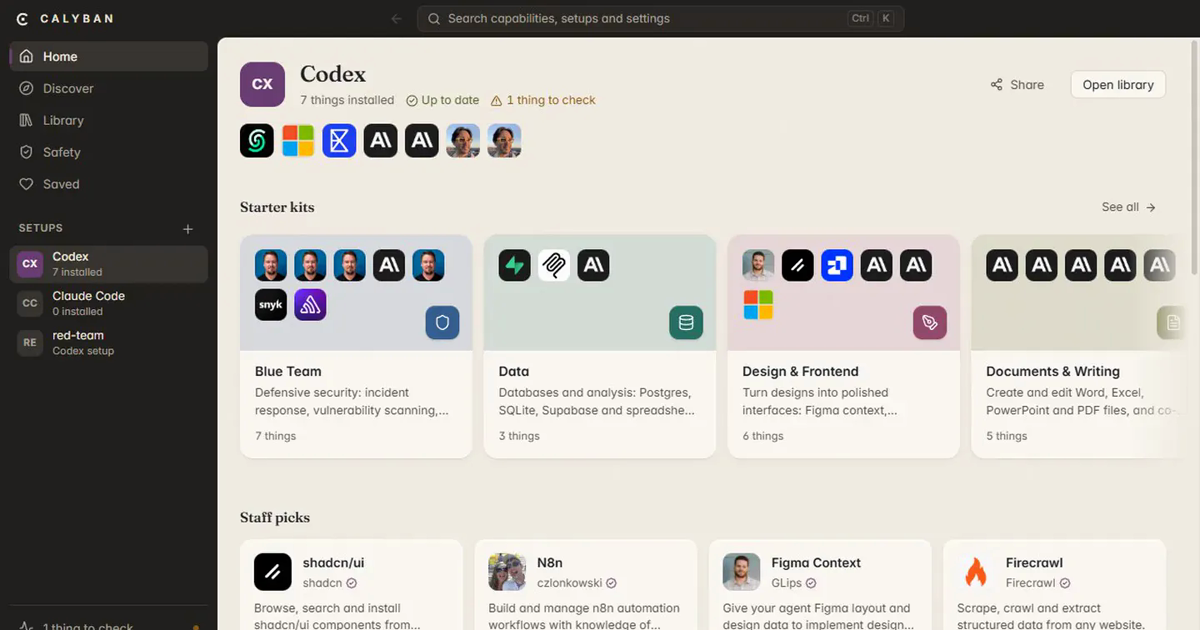
Or let Calyban set it up: it asks for your organization name once and writes the server into every agent you pick, in each one’s own format. Free, no account.
Claude Code #
claude mcp add azure-devops -- npx -y @azure-devops/mcp contoso
Replace contoso with your organization (the bit after dev.azure.com/). On Windows, put cmd /c before npx.
Codex #
[mcp_servers.azure-devops]
command = "npx"
args = ["-y", "@azure-devops/mcp", "contoso"]
GitHub Copilot in VS Code #
Copilot reads .vscode/mcp.json, and its top-level key is servers, not mcpServers:
{
  "servers": {
    "ado": {
      "type": "stdio",
      "command": "npx",
      "args": ["-y", "@azure-devops/mcp", "contoso"]
    }
  }
}
Paste a Cursor-style mcpServers block here and VS Code silently ignores it.
Load fewer tools with -d #
The full server covers work items, repos, pull requests, pipelines, wikis, test plans, search and Advanced Security, which is a lot of tools. Every connected tool’s description is sent with every request your agent makes, used or not, and some clients cap how many tools they accept at all.
So load only the groups you’ll use. The domains are core, work, work-items, search, test-plans, repositories, wiki, pipelines and advanced-security:
claude mcp add azure-devops -- npx -y @azure-devops/mcp contoso -d core work work-items
A PR-review setup might be -d core repositories; a release engineer might want -d core pipelines. Leave -d out and you get everything.
Things to ask it #
- “List my active work items in the current sprint.”
- “Summarize the open pull requests on the api repo and who’s reviewing them.”
- “Why did last night’s pipeline run fail?”
- “Get the wiki page /API/Authentication.”
The Calyban way #
Open Azure DevOps in Calyban and press Install. It asks for your organization name, then writes the server into each agent you pick, in that agent’s own format, with the cmd /c wrapper on Windows. Afterwards, Capabilities shows what the server’s tool descriptions add to every request and how often your agent actually calls it, which tells you whether a smaller -d list would pay off.
For Azure DevOps on some projects only, choose One folder in the install dialog and it goes into that repo alone.
Calyban is free for Windows and Linux at /#download. Questions go to Discord.