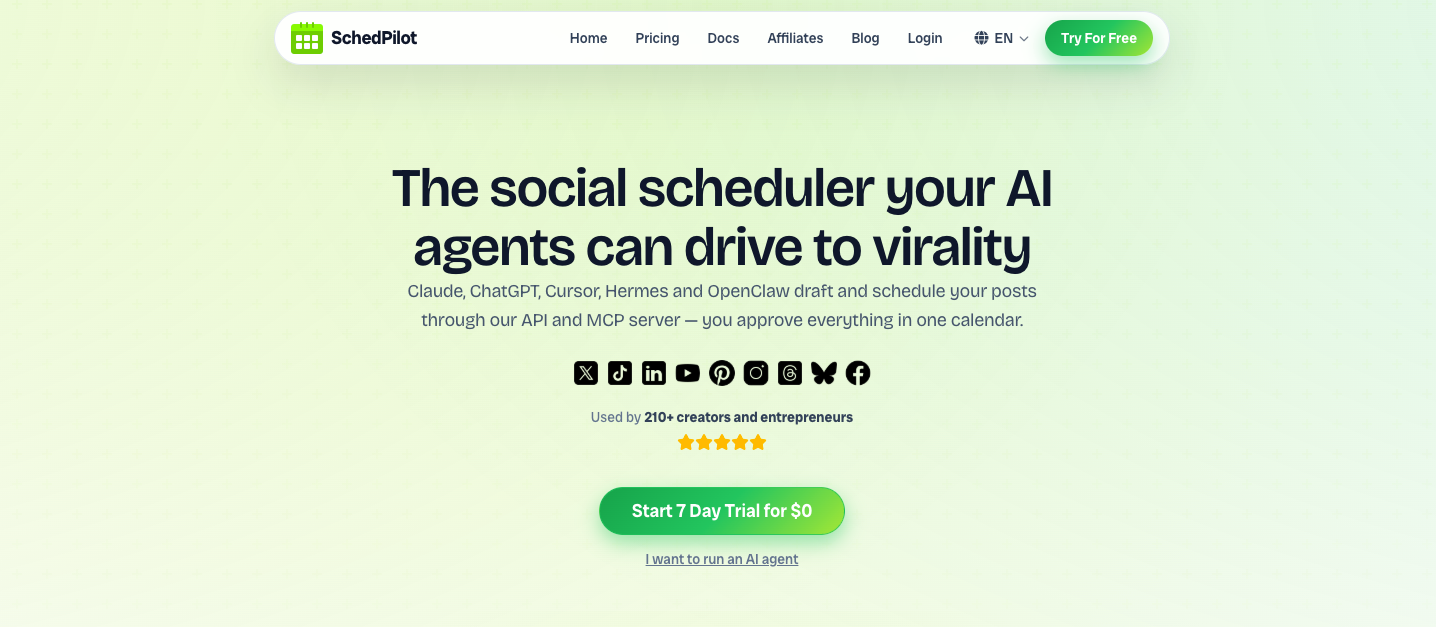
Want your social posts to publish themselves? With Make.com (formerly Integromat) and SchedPilot, any trigger — a new blog post, an RSS item, a spreadsheet row, or a form — can automatically draft and schedule posts across all your accounts. This step-by-step guide shows you how, using Make’s HTTP module and SchedPilot’s API. No code required.
What you’ll build #
A single Make scenario that:
Triggers on an event (RSS, schedule, webhook, or a new spreadsheet row).Generates a caption with an AI module (optional).Schedules the post to your social accounts through SchedPilot.Waits for your approval in your SchedPilot calendar before it goes live.
Prerequisites #
| You’ll need | Notes |
|---|---|
| A SchedPilot account with API access | API keys are on the |
smm_
. We’ll grab it in Step 1.## Step 1: Get your SchedPilot API key
app.schedpilot.comand open
API Access.
smm_xxxxxxxxxxxx
.## Step 2: (Optional) Check your connected accounts
By default, SchedPilot schedules your post to every connected account. To see what’s connected — or to target specific accounts later — call the accounts endpoint:
GET https://api.schedpilot.com/developers/v1/accounts
Authorization: Bearer smm_your_key
To scope a post to specific accounts, pass their IDs in your request — see the create-post reference.
Step 3: Create a scenario & choose a trigger #
Create a new scenario.
trigger module for your use case:
RSS > Watch RSS feed items— post every new blog or podcast item.** Schedule**— post daily or weekly at a set time.** Webhooks > Custom webhook**— fire from your app, CMS, or a form.** Google Sheets > Watch rows**— post the next row from a content calendar.
Step 4: (Optional) Generate a caption with AI #
Add an OpenAI (ChatGPT) > Create a Completion module between your trigger and SchedPilot to turn raw input into a ready-to-post caption. A simple prompt:
Write a short, engaging social media caption for this content.
Keep it under 280 characters and add 2 relevant hashtags.

Content: {{1.title}} — {{1.description}}
The generated text becomes the content
of your post in the next step.
Step 5: Add the HTTP module (this posts to SchedPilot) #
This is the core of the scenario. Add an HTTP > Make a request module and configure it:
| Field | Value |
|---|---|
| URL | https://api.schedpilot.com/developers/v1/post |
| Method | POST |
| Headers | Authorization: Bearer smm_your_key Content-Type: application/json |
| Body type | Raw |
| Content type | JSON (application/json) |
In the Request content field, paste this JSON and map values from earlier modules using Make’s {{...}}
tokens:
{
  "content": "{{2.result}}",
  "date": "2026-07-15",
  "time": "09:00",
  "timezone": "America/New_York"
}
Field reference:
content
is your post text. date
(YYYY-MM-DD) and time
(HH:mm) set the schedule; add an optional timezone
. To publish immediately instead, send "post_instant": true
. You can also attach media (attachments
) and add an X reply thread (replies
).For a dynamic time (e.g. “tomorrow at 9am”), calculate the date with Make’s formatDate
/ addDays
functions and map it into the date
field.
What SchedPilot returns
A successful call returns 202 Accepted
with the scheduled post details:
{
  "post_id": 8791,
  "status": "scheduled",
  "scheduled_date": "2026-07-15 09:00:00",
  "accounts": 4,
  "media": 0,
  "replies": 0
}
Step 6: Keep a human approval step #
Letting automation publish unchecked is risky. Two easy safeguards:
Built-in: Every post created through SchedPilot lands in yourcalendar for approval before it publishes — so you always get the final say.Optional: Add aSlack orEmail module after the HTTP module to notify you (or a teammate) that a new post is queued for review.
Step 7: Test, then turn it on #
Run once and confirm the HTTP module returns
202
.ON and set its schedule. Your social posting now runs on autopilot.
Scenarios you can build today #
Blog → social: RSS → AI caption → SchedPilot. Every new article auto-posts to X, LinkedIn & Threads.Content calendar: Google Sheets → SchedPilot. Schedule a month of posts from a spreadsheet.Product launches: Webhook from your app → SchedPilot. A new release announces itself.Evergreen recycling: Schedule → pick a past post → SchedPilot. Keep channels active automatically.Form to post: Typeform → AI caption → SchedPilot.
Bonus: close the loop with webhooks #
Want Make to know when a post actually publishes (or fails)? Create a Webhooks > Custom webhook module in a second scenario and register its URL in SchedPilot under API Access → Webhooks. SchedPilot will send a post.published
or post.failed
event so you can log results, alert Slack, or retry.
Frequently asked questions #
Is there a SchedPilot module or app for Make.com? #
You don’t need one — SchedPilot works with Make’s built-in HTTP module calling the REST API, so there’s nothing extra to install.
Do I need to know how to code? #
No. Everything is built with Make’s visual modules. The only “code” is a small JSON body you copy from this guide.
Which SchedPilot plan includes API access? #
API keys are available on the Platinum plan. See pricing for details.
Which platforms can I post to? #
SchedPilot supports 9 networks: Instagram, X (Twitter), LinkedIn, TikTok, Threads, Facebook, YouTube, Pinterest, and Bluesky.
Make.com, n8n, or Zapier — which should I use? #
All three work the same way with SchedPilot’s HTTP/REST API. Pick the one you already use. Prefer open-source and self-hosting? Try our n8n guide.
Can I review posts before they publish? #
Yes. Every scheduled post waits in your SchedPilot calendar for approval, and you can add a Slack or email notification in Make.
Automate your social media the smart way
Connect Make.com to SchedPilot and let your scenarios post across every network — with you in control.