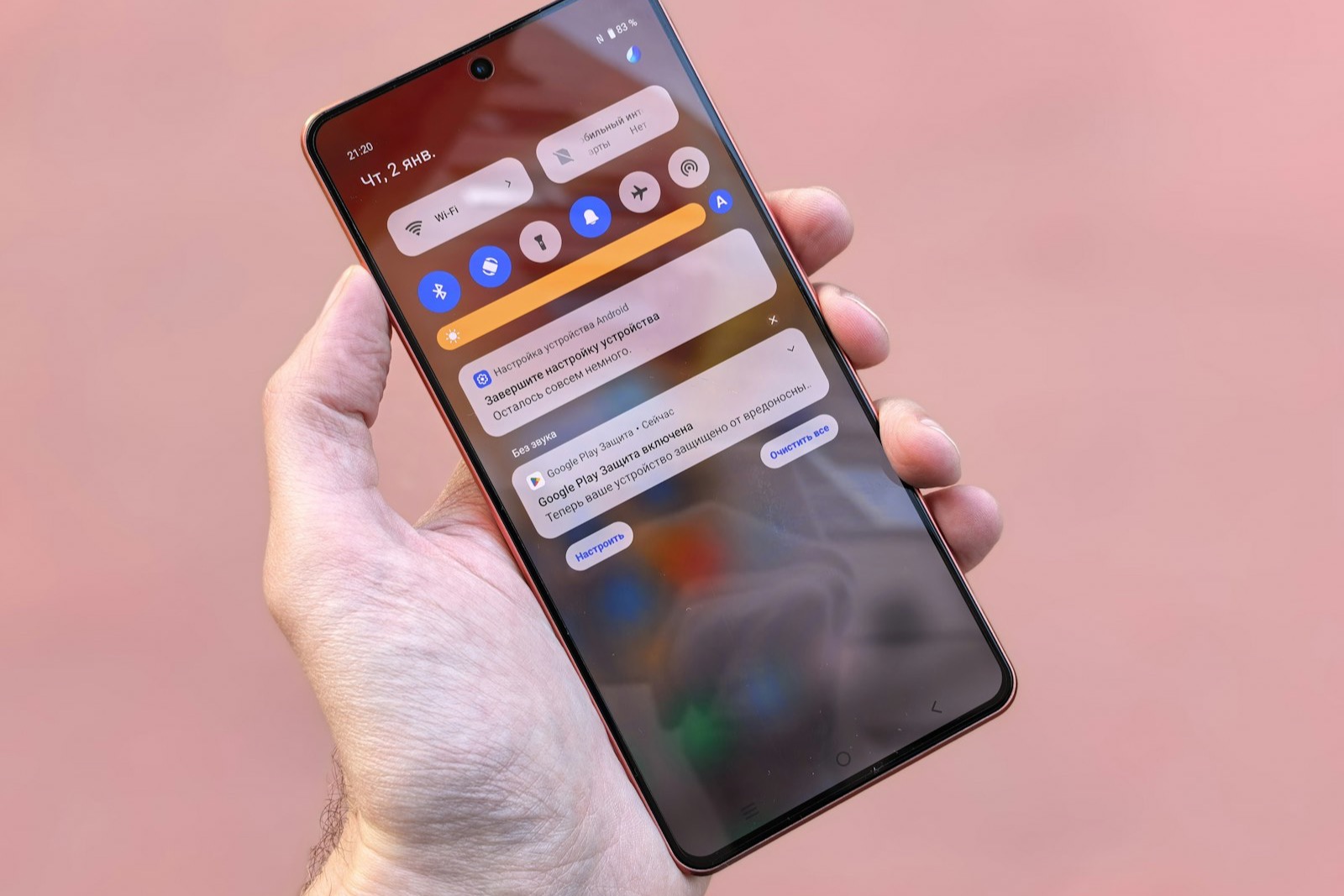
Your preheader used to be the one line you controlled. Now a machine can write it for you.
When Apple Intelligence is enabled, Apple Mail replaces your preheader with an on-device AI summary in the inbox list view. Gmail's Gemini does the same for eligible messages. Outlook's Copilot summarises opened mail. The line that decides whether someone opens your email is increasingly written by a model that read your code — not by the copywriter who wrote your preview text.
This is not a future problem. It is live in the inbox right now, and it changes how you should write the opening of every email.
What you will learn:
- How Apple Intelligence and Gmail Gemini summaries actually work
- What AI summaries read, and what they ignore
- Why image-heavy emails summarize badly
- How to write "AI-summary-proof" opening copy
- What AI previews mean for preheader A/B testing
Two Systems, One Outcome: Your Preview Line Is Being Rewritten #
Three providers now summarise marketing email. They behave differently, and the differences matter.
| Provider | Summary type | Replaces preview / preheader? | Reads images and alt text? | Availability | | Apple Mail (Apple Intelligence) | Pre-open, automatic in the inbox list | Yes | No — live text only | Default for most Apple Mail users since iOS 26.1 | | Gmail (Gemini) | Pre-open summary on eligible messages, plus post-open AI Overview | Yes, for eligible messages | Broader scans reported; results vary | Eligible Workspace / Google AI plans | | Outlook (Copilot) | Post-open summary | No | Full content scan reported, including image text and alt text | Rolling out through 2026 |
The critical rows are the first two. Apple and Gmail both write the preview line before the reader opens the email — replacing the preheader you wrote.
That means the two-part subject-and-preheader pairing many teams carefully craft is effectively invisible to a growing share of the list. Those readers see your subject line and an AI's summary of your email body. Nothing in between.
How Apple Intelligence Rewrites Your Preview #
Apple's summary is generated on-device, which keeps the content private but also limits what the model can see. The practical consequence is simple:
Apple Intelligence scans only the live text of an email. It ignores images, text baked into images, alt text and even emojis.
If your email is mostly one large image — a hero graphic with the headline, offer and call to action baked in — the model has almost nothing to summarise. It falls back to whatever real text it can find, which is often footer boilerplate: unsubscribe links, legal disclaimers and mailing addresses. Four more details shape how it behaves:
- It favours the opening. Summaries are built largely from the first 150 to 200 characters of real text. What comes first carries the most weight.
- It is not steerable. Hands-on testing found that schema.org markup, robots meta tags, semantic heading hierarchies and even hidden instructions addressed to the AI made no difference. Only the sender name, the subject line and the live text matter.
- It varies by reader. Because the model runs on the recipient's device, two subscribers can see different summaries of the same email.
- It is on by default. Summaries are enabled automatically for eligible devices; users have to opt out.
Apple is also upfront that summaries can vary and should be reviewed, which is a useful reminder that the preview is an interpretation, not a guarantee.
Who Sees Apple's AI Summaries
Availability was once a hardware niche. It no longer is. Apple Intelligence requires:
- iPhone 15 Pro or Pro Max, iPhone 16 or newer
- iPad mini with A17 Pro, or iPads with M1 or later chips
- Macs with Apple Silicon
Since iOS 26.1, the features are available in most regions in 16 languages, making the summarised inbox the default experience for the bulk of Apple Mail users. Recipients can turn summaries off in Settings and adjust the number of preview lines, but most will not. For a growing share of your list, the preview line is no longer yours.
One more Apple behaviour to know: when Categories are enabled and a sender's mail is grouped by sender in the Promotions, Updates or Transactions tab, Mail shows neither the preheader nor the AI summary — only a truncated subject line. In that view, your subject line is doing all the work.
How Gmail's Gemini Summary Works #
Gmail is often described as "post-open only." That is now only half true.
- Pre-open summaries. Google's documentation states that Gemini in Gmail can generate summaries of up to two lines that appear in the inbox below the subject line of eligible messages andreplace the message preview . Some messages get a summary; others do not, and both types can appear together.
- Post-open AI Overview. When a reader opens a thread, an AI Overview synthesises the key points across the conversation. This does not affect the open decision, but it shapes how the email is read once opened.
The pre-open summary has requirements: an eligible Google Workspace or Google AI plan, the latest Gmail app, Google Workspace smart features turned on, conversation view enabled, and a non-compact list density. That limits today's audience — but the rollout has moved from paid US accounts toward free and global accounts through 2026, so treat coverage as growing rather than fixed.
Gmail also has a second, separate mechanism: Promotions annotations. By adding JSON-LD to the email head, you can supply explicit preview components that Gmail may render as a visual card or deal badge:
PromotionCard— an image preview with an optional headline, price and discount value.DiscountOffer— a deal badge with a description, discount code, and start and end times.
Two caveats matter. First, annotations are only a chance, not a guarantee: Google says visibility depends on quality filters and frequency limits. Second, they apply to the Promotions tab, not every inbox surface. Treat annotation markup like inbox SEO — structured fields beat implied meaning, but you cannot count on them rendering.
What AI Summaries Read vs. Ignore #
This table is the quickest way to check whether your email is set up for a good summary.
| Email element | Apple Intelligence | Gmail (Gemini) | Outlook (Copilot) | | Live HTML text | Yes | Yes | Yes | | Text inside images | No | Reported, varies | Reported | | Alt text | No | Reported, varies | Reported | | Emojis | No | Reported | Reported | | Headings and bold markup | No influence on the summary | May help structure | May help structure | | Your preheader | Read as input, not shown | Read as input, not shown | Read as input, not shown |
The takeaway: real, coded text is the only reliable input. Alt text is still essential for accessibility, but it will not rescue an image-heavy email from a weak AI summary on Apple devices — and reports on Gmail and Outlook are inconsistent enough that you should not bet on it there either.
The Inbox Is Now an Interpretation Layer #
For twenty years the inbox was a list: sender, subject line, preview text. Now it is an interpretation layer. Three things are decided for you before a human reads anything:
- What the subject line says — still yours.
- What the preview line says — increasingly the AI's.
- Which tab the message lands in — Apple categories, Gmail tabs, and promotion cards all influence visibility.
The result is that the same newsletter can look like two different messages depending on where it lands. Apple Mail may show an AI summary of your body; Gmail may show a visual promotion card; Outlook may show a post-open digest. Your preheader may never render for any of them.
That does not make preheaders useless. It changes what they are for.
How to Write "AI-Summary-Proof" Opening Copy #
You cannot control the summary, but you can control what the model has to work with. The goal is to make the correct summary the easiest one to generate.
- Front-load the value proposition in live text. Put the single most important sentence in the first line of the email body, in real HTML — not in the hero image.
- Write the first 150–200 characters as a standalone summary. If someone read only those characters, they should understand the offer and why it matters.
- Keep the facts in text. Price, deadline, discount and call to action should all be coded text, never image-only.
- Lead with the point. Slow narrative openings get compressed into something generic. Open with the substance.
- Write a real text CTA. A button that is only a PNG is invisible to the model — and to screen readers.
- Do not rely on alt text to feed the summary. Write it for accessibility, not for the AI.
- Keep the subject line accurate and complementary. The summary describes the body; the subject line still sets the expectation.
- Consider structured annotations for Gmail. Add
PromotionCardandDiscountOfferJSON-LD to increase the chance of a clean visual preview — while accepting it may not render.
Here is how that looks in practice.
| Weak opening (summarizes poorly) | Strong opening (summarizes well) | | A large hero image reading "Spring Sale — 30% Off" | "Spring sale: 30% off sitewide through Sunday, March 22." | | "We've been thinking about what our customers need..." | "Your upgrade is ready: 2x the storage for the same price." | | Offer only in a graphic, body text says "click below" | "New this week: free shipping on orders over $50." | | "Hi [First Name], hope you're well!" then a long intro | "Your 30% discount on the [Product] expires Friday. Code SAVE30." |
The pattern is consistent: say the important thing first, in text.
Common Mistakes That Produce Bad Summaries #
Most weak summaries trace back to a small set of structural choices.
| Mistake | What the AI does | The fix | | Offer lives only in the hero image | Summarises footer boilerplate or the unsubscribe line | Repeat the offer in live text above or below the image | | Opening with a navigation bar ("Shop | Sale | New") | Produces a summary like "Shop sale new account" | Put substantive text before navigation | | Burying the offer three paragraphs down | Summary omits the offer entirely | Move the offer into the first sentence | | Image-only CTA button | Summary never mentions an action | Add a text version of the CTA | | Repeating the CTA four different ways | Picks one and discards the rest as noise | Use one clear CTA in text and button form | | Subject line teases a mystery the body reveals | AI summary spoils the curiosity gap | Align the subject line with what the summary will say |
The Preheader's New Job #
Your preheader has not disappeared. It has changed roles.
On Apple Mail and eligible Gmail messages it becomes an input to the summary rather than the line that is displayed. The model reads it, along with the body, and produces its own version. Your carefully crafted preview still influences the output — but it no longer appears verbatim.
That has three implications:
- Subject-and-preheader pairings are fragile. A two-part reveal or joke that depends on the preheader will not land for AI-summary users.
- The body opening now does double duty. It must read well for humans and summarize well for machines.
- Consistency beats cleverness. Clear, factual openings are easier for a model to compress accurately — and harder to misrepresent.
It still matters for the readers who see it verbatim: Outlook, older Android clients, Apple devices without Apple Intelligence, web inboxes, and spam filters, which continue to read it. Write your preheader as if it will be shown, and assume it will not.
What This Means for A/B Testing #
This is the part most teams have not adjusted for. If a growing share of your list sees an AI summary instead of your preheader, a preheader test is no longer a clean comparison.
Consider what happens when you split a list 50/50 between two preheaders:
- AI-summary users in both groups may see machine-written summaries, not the preheaders you are testing.
- Everyone else sees the preheader as intended.
- The measured difference between groups is diluted — or disappears entirely — because part of the audience never saw the variable.
To test meaningfully, adjust the method:
- Segment by device and provider. Report results separately for Apple Intelligence users, Gmail Gemini users, and everyone else.
- Test the opening body copy , not just the preheader, since that is what the summary is built from.
- Treat the first 150–200 characters as a testable variable. Small changes there can change both the human read and the machine summary.
- Use Gmail Promotions annotations if you rely on the Promotions tab, since Gmail can replace text previews with visual cards.
- Keep a control. Without one, you cannot tell whether a change came from your copy or from a model.
The broader lesson: when the inbox becomes an interpretation layer, you are optimising for what gets understood, not just what gets displayed. For more on that shift, see Gmail's AI inbox and email summaries and your emails are now being read by AI before humans.
How to Test What the AI Will Show #
You can see the summary before you send. The fastest check takes about fifteen minutes.
- Send a test to a Gmail account and an Apple Mail device. Use real accounts with the AI features enabled.
- Look at the inbox list before opening. For Apple, this is the summary that replaces your preview; for eligible Gmail messages, it is the two-line summary below the subject.
- Ask three questions of the summary. Does it contain at least one specific number or date? Does it state what the subscriber gets or must do? Would a stranger understand the value from the summary alone?
- Revise the first 150–200 characters of live text and test again if the answer to any of those is no.
- Check both mobile and desktop , since the display differs, and note that list density can suppress Gmail summaries.
How to Audit Your Emails for AI Summaries #
Work through this checklist before your next send.
- Check the opening text. Read the first 200 characters of live copy. Do they state the value proposition clearly?
- Inspect your image-to-text ratio. If the offer lives in an image, the summary will miss it. Use theimage-to-text ratio checker to see the balance.
- Preview the inbox experience. Run the email through theAI inbox preview to see how a summary might read.
- Verify alt text anyway. It will not feed Apple's summary, but it is still required for accessibility — check it with theaccessibility checker .
- Test the mobile preview. Most AI summaries appear on phones first; confirm the layout with themobile preview checker .
- Refresh your preheader anyway. It still influences the summary and still displays for everyone else — generate options with thepreheader generator .
- Consider Gmail Promotions annotations. If you send promotional mail to Gmail, add structured markup for a chance at a cleaner visual preview.
For the fundamentals of preview copy, see email preheader text: the second subject line and the preheader vs. subject line reference. If you are rewriting openings, how to write email subject lines with AI and email subject line length are useful companions.
Key Takeaways #
- Apple Intelligence replaces your preheader with an on-device AI summary in the inbox list view, and it has been the default for most Apple Mail users since iOS 26.1.
- Gmail's Gemini summaries also replace the preview for eligible messages and plans, alongside a post-open AI Overview.
- Apple reads only live text , ignoring images, text in images, alt text and emojis. Image-heavy emails fall back to footer boilerplate.
- You cannot steer Apple's summary with markup — only the sender name, subject line and live text matter. Gmail's Promotions annotations can help visual previews, but rendering is not guaranteed.
- Front-load the value proposition in real HTML text within the first 150–200 characters, and keep CTAs in text.
- Preheader A/B tests are now contaminated by AI summaries; segment by device and provider, and test opening body copy too.
- Write for the summarizer as well as the subscriber — clarity and structure are what survive the interpretation layer.
Sources and Further Reading #
Related Articles #
Related tools: Preview the summary with the AI inbox preview, balance text and images with the image-to-text ratio checker, generate preheaders with the preheader generator, and check structure with the email rendering test.
This article explains how mailbox AI features affect email marketing and is not legal or platform-policy advice. Provider behaviour changes frequently; verify current behaviour before you rely on it.